


 Service Center
Send Envelopes Using SMS
As a basic communication method, eSignGlobal now supports SMS (text message) notifications. By installing and configuring the SMS Notification plugin, you can directly send signature-related notifications to signers via SMS, which can cover the vast majority of users who have not installed specific communication software, improving the user’s signing experience.
Note:
[Applicable Versions] Professional version is supported by default.
If you need to enable and use the SMS text message notification service, please contact business/sales personnel offline for purchase.
Installing and Managing the SMS Notification Plugin
Before using SMS notifications, the platform’s tenant administrator or super administrator needs to install it in the plugin center.
-
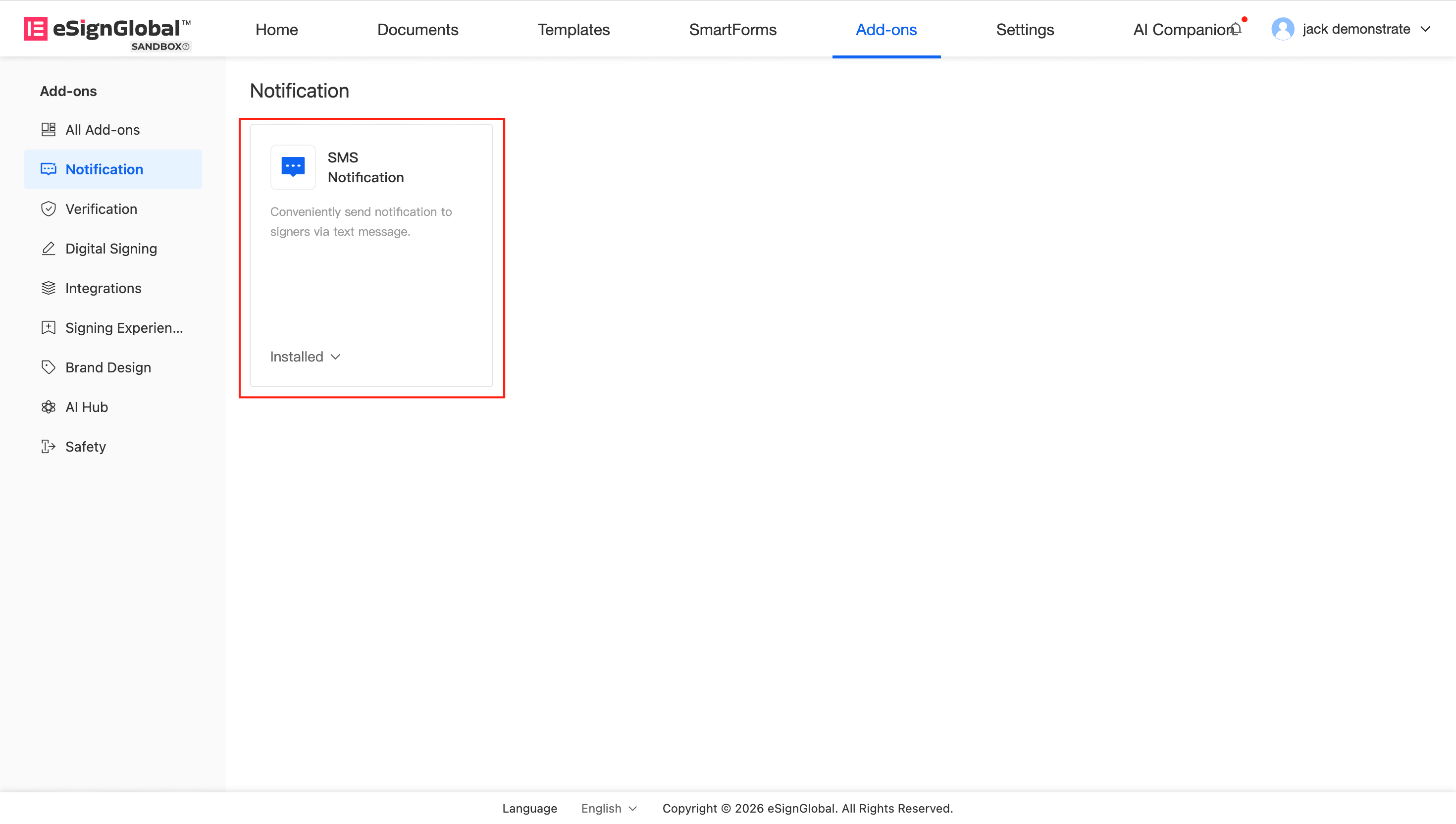
After logging into the platform, go to the plugin center and find the SMS Notification (Text Message Notification) plugin.
-
Click to install.
Note:
Impact after installation: The notification method (Send envelope via) when sending envelopes will add the [SMS] option. You can use SMS to send envelopes on the PC and H5 ends.
Impact after uninstallation: If you uninstall the plugin later, envelope notifications will no longer be supported to be sent via SMS.
Configure Popular Countries/Regions for SMS
Before using SMS notifications, administrators can pre-configure commonly used SMS countries or regions in the workspace according to business needs. After the configuration is complete, when the initiator selects SMS notification when sending an envelope, the countries you set here will be displayed first in the country/region drop-down list.
-
Go to the workspace’s Settings (设置) -> Preferences (偏好设置) -> Notifications (通知).
-
Find the Popular Countries/Regions for SMS configuration item.
-
Add or edit your target business countries/regions here, and then save the settings.
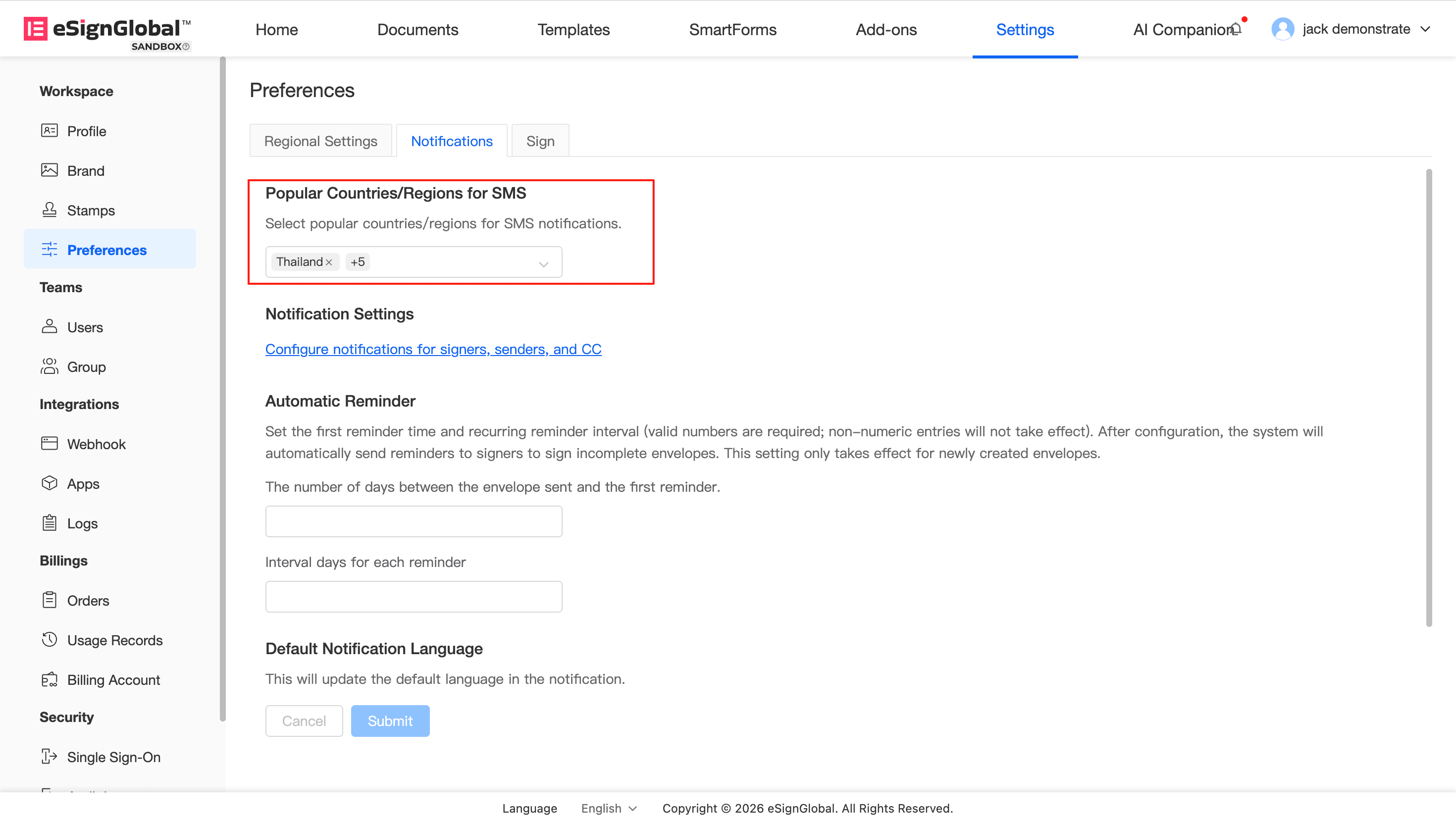
Tip: Reasonably configuring commonly used countries can effectively help initiators find the corresponding country code more quickly when sending envelopes.
Use SMS to notify signers when sending envelopes
After the administrator completes the plugin installation, the envelope initiator can choose to notify the signer via SMS when sending the envelope (supports PC and H5). SMS notifications will cover multiple scenarios, such as when a signing task is pushed, when a reminder is sent 1 day before expiration, when the envelope is completed, and when a reminder is sent to sign, etc.
-
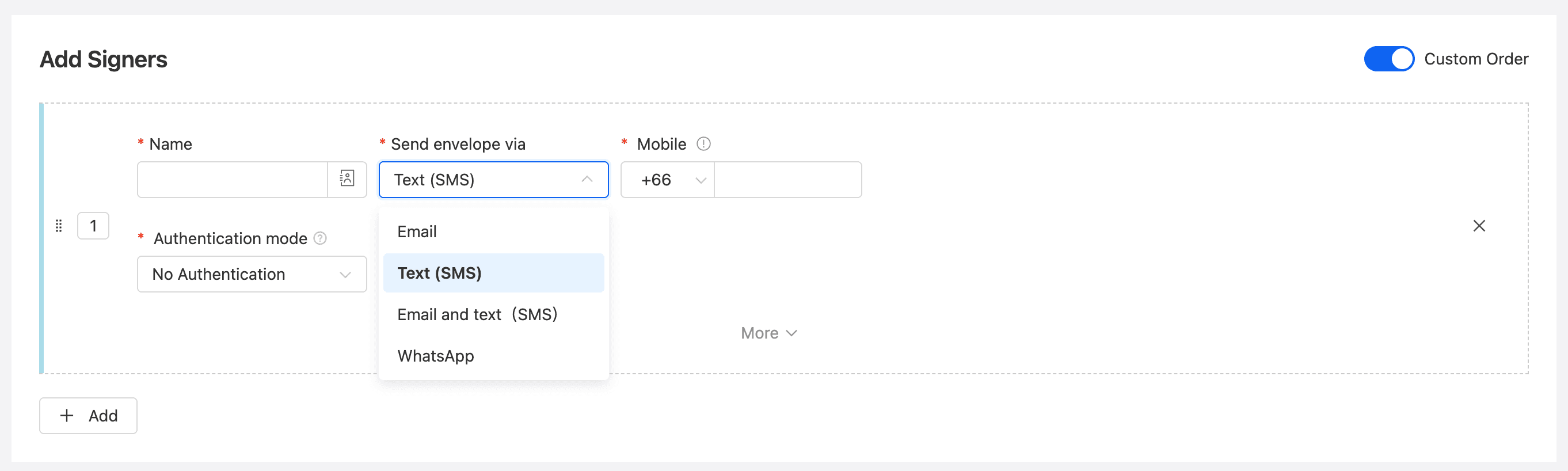
On the Add Signers page of the initiated envelope, select SMS under [Send envelope via] for the specified signer.
-
In the Mobile (手机号) component that appears below, select the country code where the signer is located and fill in the correct mobile phone number. (When selecting a signer from the contact list, the mobile phone number is supported to be displayed).
Warning: The mobile phone numbers entered for multiple signers under the same signing order (same order node) cannot be repeated.
Signers Receive Messages and Sign Documents via SMS
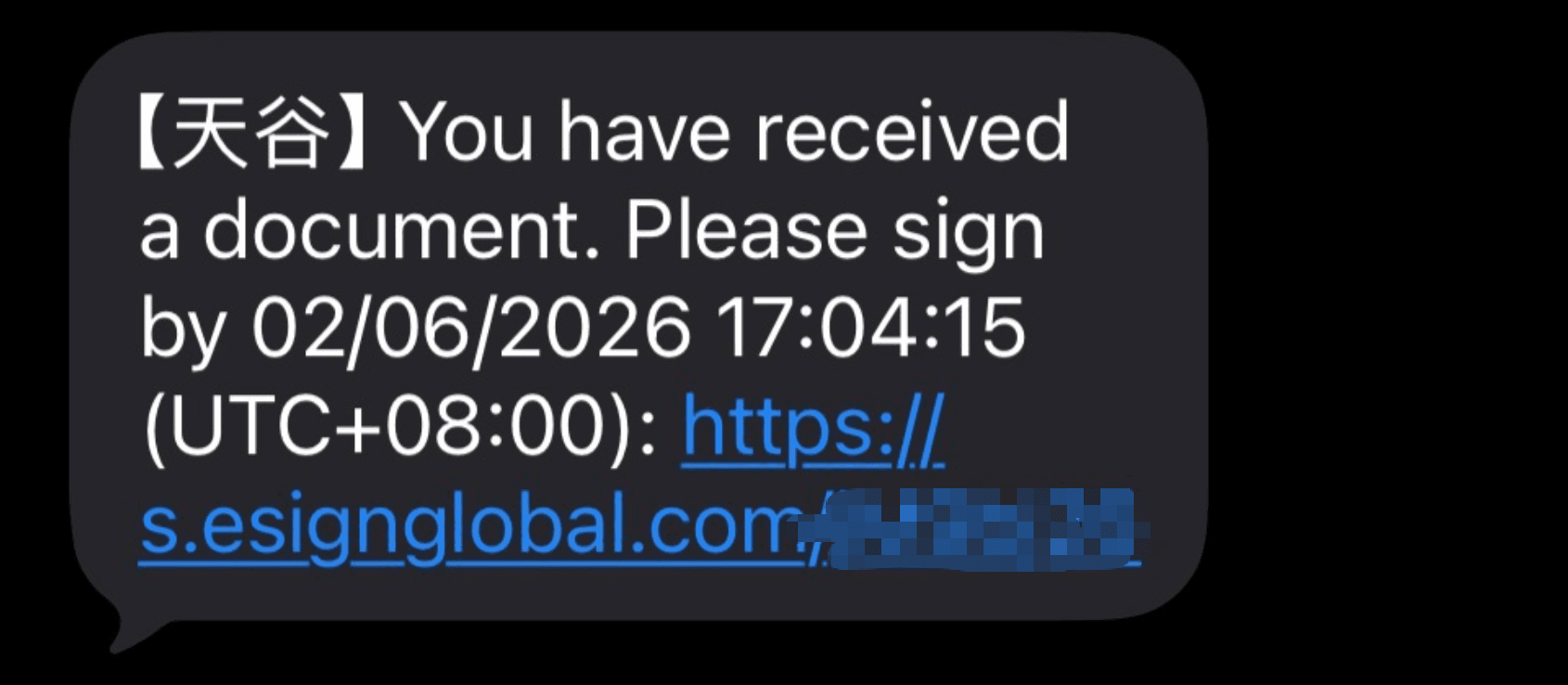
When you send an envelope via SMS, the signer will receive signature-related notifications directly in their personal mobile phone text messages.
-
Check Notifications: The signer opens the SMS inbox on their mobile phone and receives a prompt message from eSignGlobal.
-
Click the Link: The message contains a signing link. The signer simply clicks the link in the message to open it in a browser or mobile page, browse, confirm, and complete the document signing.
Tip: To successfully receive SMS notifications, please ensure that the signer’s mobile phone number and corresponding country code are entered correctly, and that their mobile phone signal is normal.


