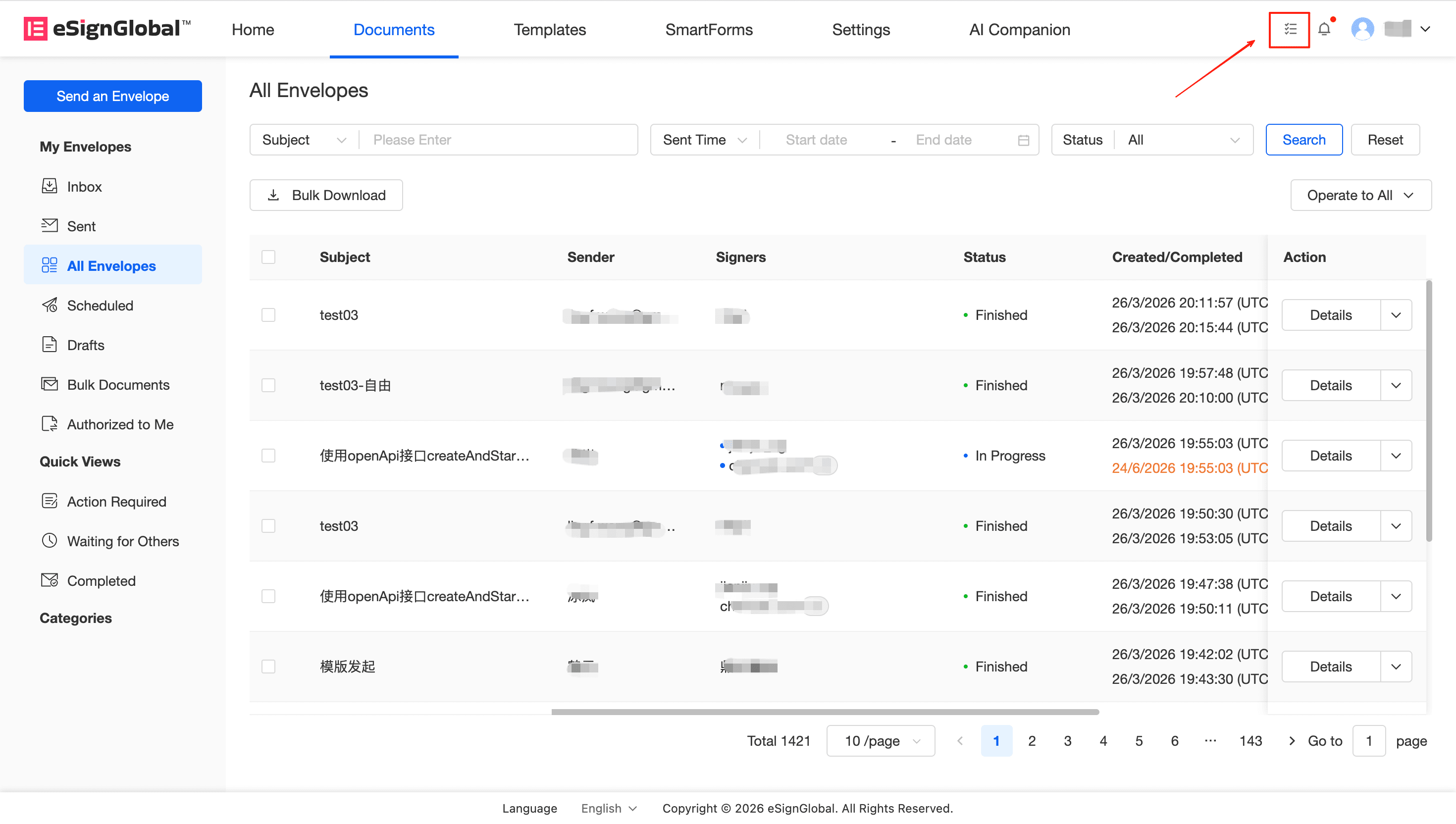
Service Center
Batch Download Signed Documents
Allows enterprise workspace members to batch retrieve multiple envelope files, reducing repetitive single download operations and eliminating the tedious steps of opening and downloading one by one. It also supports asynchronous task processing for large-volume file downloads, avoiding long waits in the foreground, effectively improving work efficiency, and meeting the document management and security compliance requirements of enterprises.
Note:
Applicable Roles: Workspace members with corresponding envelope download permissions.
Applicable Scope: Can be used in the list views of Inbox, Sent, All Envelopes, Authorized to Me, Action Required, Waiting for Others, and Completed.
1. Batch Selection and Download Entry
Description: On the supported envelope list page, you can batch select the envelopes you need to download by checking the checkboxes on the left, and click the Download button at the top to initiate a batch download.
- Go to the envelope list page (such as the “All Envelopes” page).
- Use the checkboxes on the left side of the list to select the multiple envelopes you need to download.
- Click the Download button in the toolbar at the top of the list.
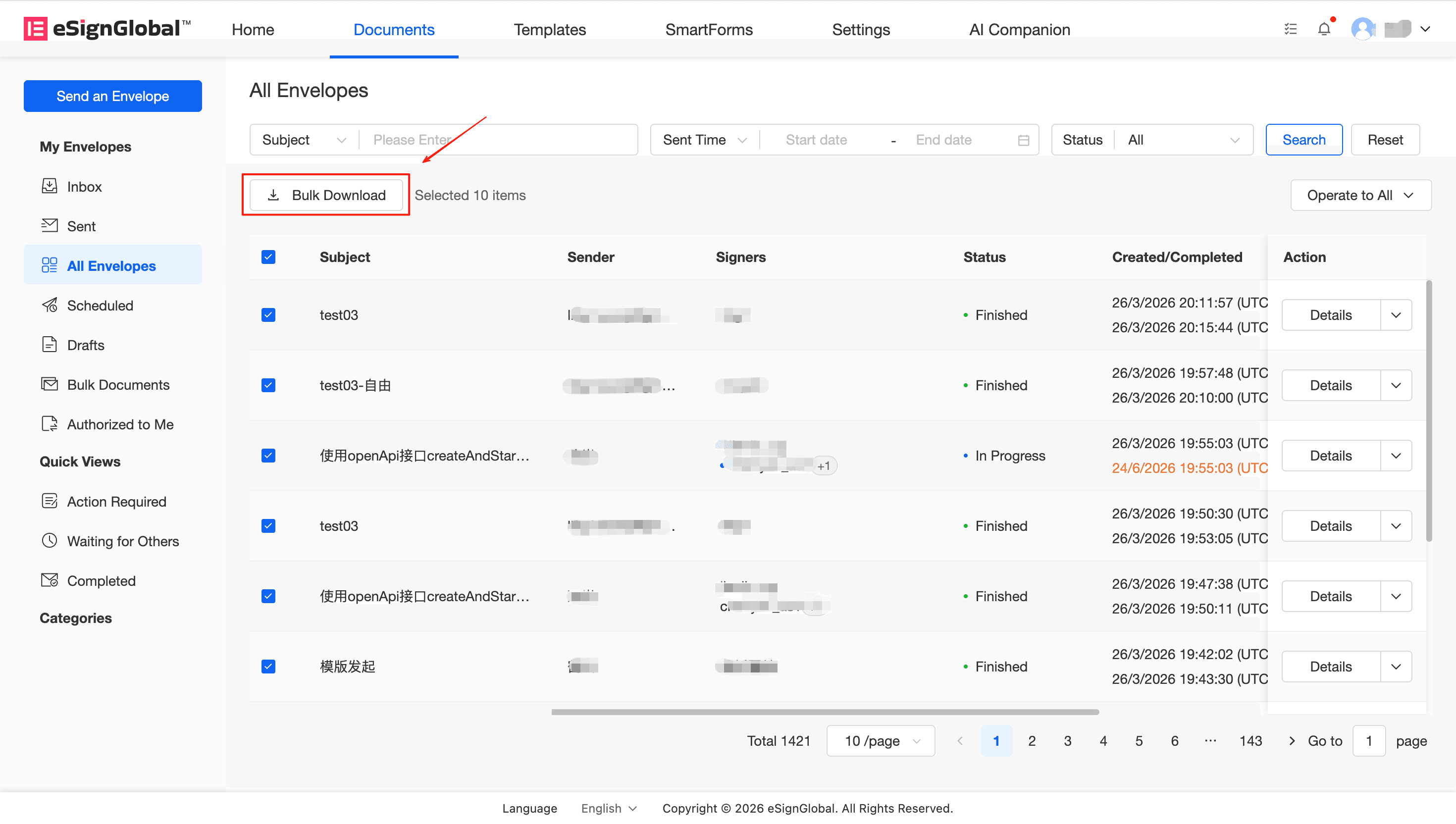
Warning: The system currently does not support multi-selection across pages. When you click the bottom pager to switch pages, the status of the envelopes you have selected on the current page will be cleared. Please complete the selection within a single page, or create download tasks in batches.
2. Reminders and Confirmation for Downloading Restricted Envelopes
Description: After clicking the Download button, the system will filter out the downloadable envelopes for you based on permissions.
If the envelopes you selected include envelopes that you do not have permission to download or are restricted by workspace configuration (such as not allowing the download of “in-progress” envelopes, etc.), the system will automatically pop up a window to list the names (Subject) of the restricted envelopes for you. After viewing the prompt, you can click Confirm, and the system will automatically skip the restricted envelopes and only download the remaining valid envelopes; or click Cancel to re-select.
Tip: If you find that some required envelopes are restricted during the download, please confirm whether you have the viewing/download permission for the corresponding envelopes, or contact the workspace super administrator to adjust the relevant permissions and download configuration.
3. Go to the Task Center to Get the Downloaded Files
Description: After confirmation in the pop-up window, the platform will generate a download task for you and package the files asynchronously in the background, without blocking your other operations.
-
Determine the download task and generate a ZIP package After clicking “Download” in the pop-up window, the background will generate a ZIP installation package for you according to your workspace configuration (the ZIP package may contain the final signed version of the file, or even a merged file of the signed completion certificate report, which depends on the download configuration of the workspace).
-
Download the file in the “Task Center” When the status of your latest submitted task flow shows as processed, it means that the packaging is successful, and you can directly download the generated ZIP package to your local machine in the task center.