


 Service Center
Notification Configuration
Learn how to configure workspace notification scenarios as a super administrator. You can customize the notifications that the envelope initiator, signer, and CC receive at different signing stages to avoid excessive messages causing disturbances.
Notes:
-
Only workspace super administrators (Super Administer) can perform this configuration.
-
To enable SMS, WhatsApp, and Lark notifications, be sure to install the corresponding add-ons first.
-
After the configuration is complete, be sure to click the “Submit” button at the bottom of the Preferences page to save and make the configuration effective.
Access the Notification Configuration Page
Description: As a super administrator, you can find the notification configuration entry in “Preferences”.
-
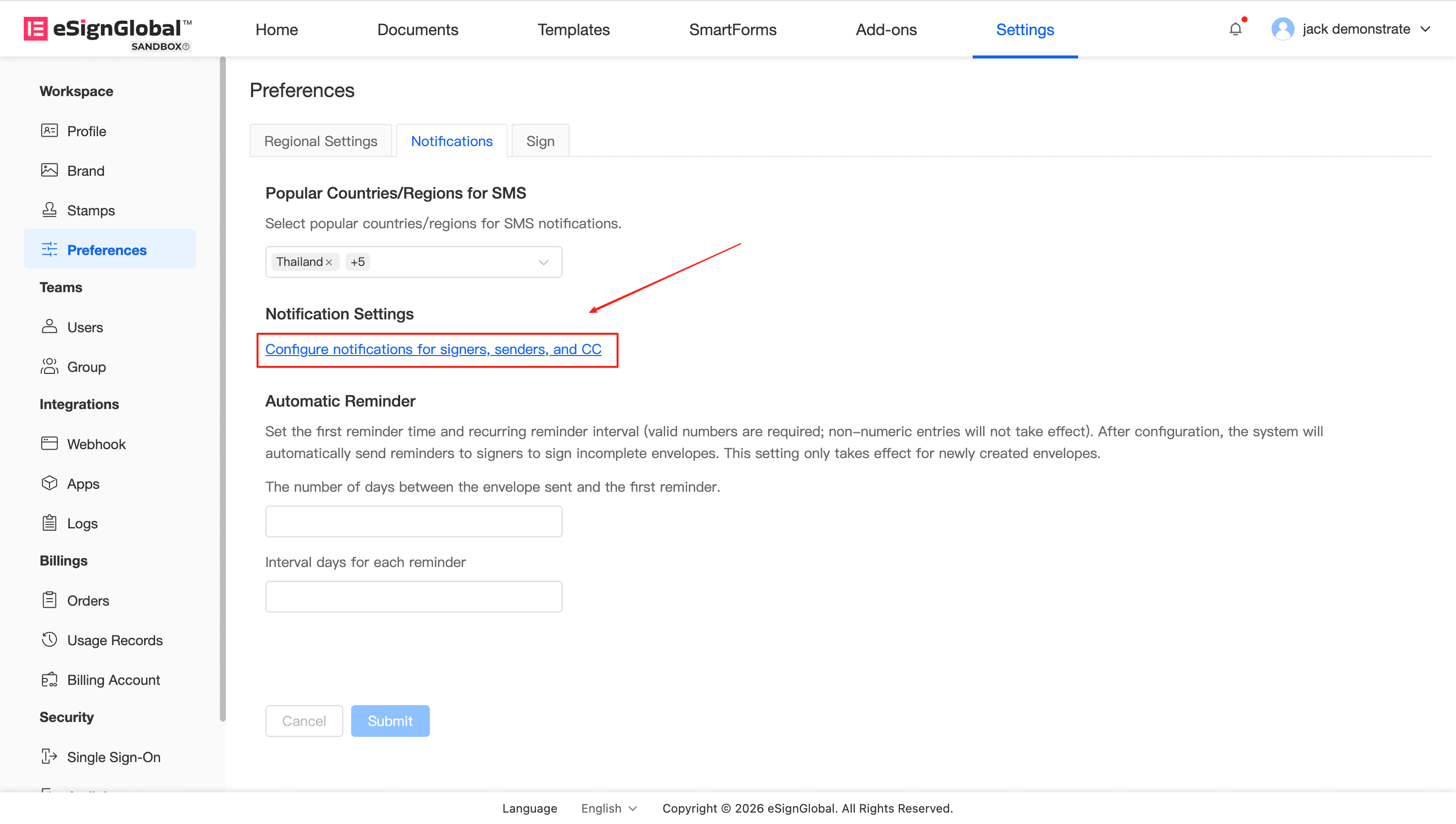
Log in to eSignGlobal and click Preferences at the bottom of the left navigation bar.
-
In the settings menu, select Notifications to enter the notification configuration page.
Configure Signer Notification Scenarios (For Signer)
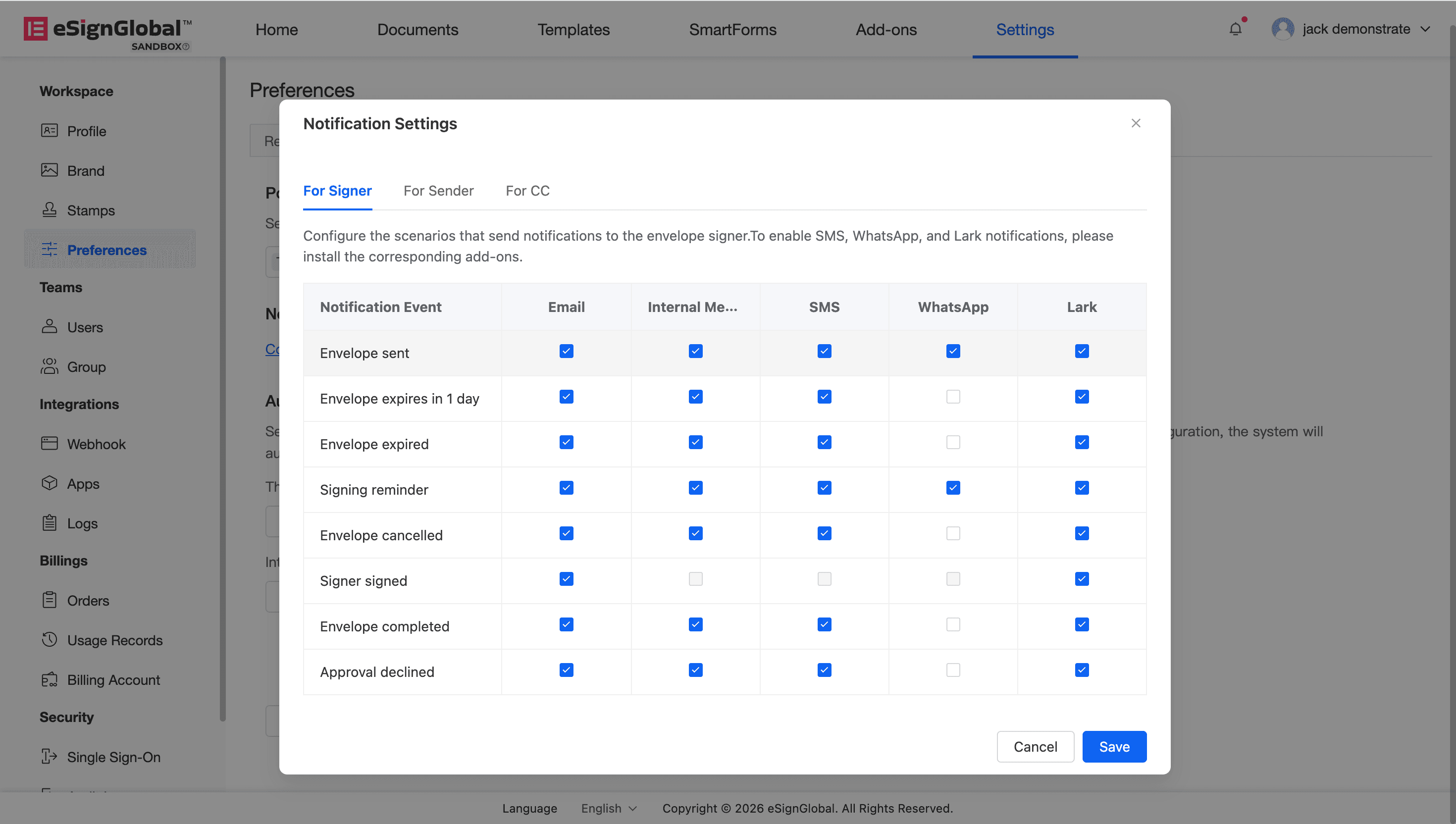
Description: Configure the specific scenarios and notification channels for sending notifications to the envelope’s signer. You can choose whether to send notifications via Email, SMS, WhatsApp, Lark, or in-site messages for different events.
-
On the “Notifications” page, find the For Signer (Signer Notification Scenarios) module.
-
Check or uncheck the corresponding notification channels to enable or disable notifications in that scenario:
-
Envelope sent (Envelope Task Push): Send a notification to the signer to push the signing task or when the envelope is transferred.
-
Envelope expires in 1 day (Reminder 1 day before expiration): Send when the envelope has 1 day left before expiration.
-
Envelope expired (Envelope Expiration Reminder): Send when the envelope has expired.
-
Signing reminder (Signing Reminder): Send when the initiator performs a signing reminder operation.
-
Envelope cancelled (Envelope Cancellation): Send when the envelope is invalidated and cancelled.
-
Signer signed (Signer Completed Signing): Send when the signer completes their signing task.
-
Envelope completed (Envelope Signing Completed): Send when the entire envelope has been signed.
-
Approval declined (Rejection): Send when the envelope is rejected by any party.
-
Note:
- Some sending channels are not supported for certain events. For example, the “Signing Completed” notification sent to the signer is not supported via SMS, WhatsApp, and in-site messages due to business logic limitations, and the corresponding check boxes will be grayed out and unselectable.
Configure Sender Notification Scenarios (For Sender)
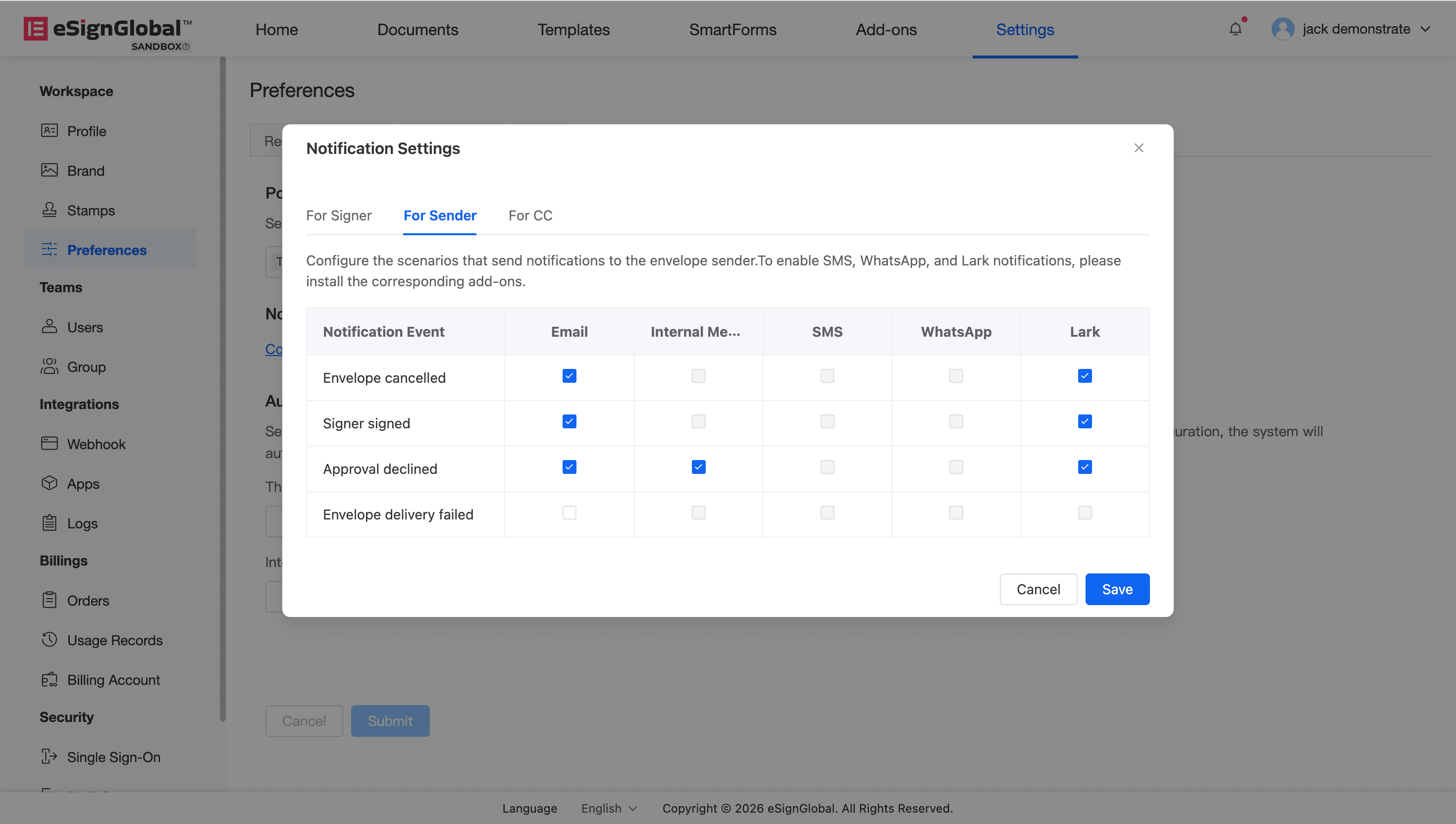
Description: Configure the scenarios and notification channels for sending notifications to the envelope initiator, so that the initiator can keep track of the envelope’s dynamics in a timely manner.
-
Find the For Sender (Initiator Notification Scenario) module on the same page.
-
Check or uncheck the corresponding event notification channels:
-
Envelope cancelled (Envelope Cancellation): Sent to the initiator when the envelope is cancelled.
-
Signer signed (Signer Completed Signing): Sent to the initiator when any signer completes signing.
-
Approval declined (Rejection): Sent to the initiator when the envelope is rejected.
-
Envelope delivery failed: Sent to the initiator when the envelope delivery fails.
-
Configure CC Notification Scenarios (For CC)
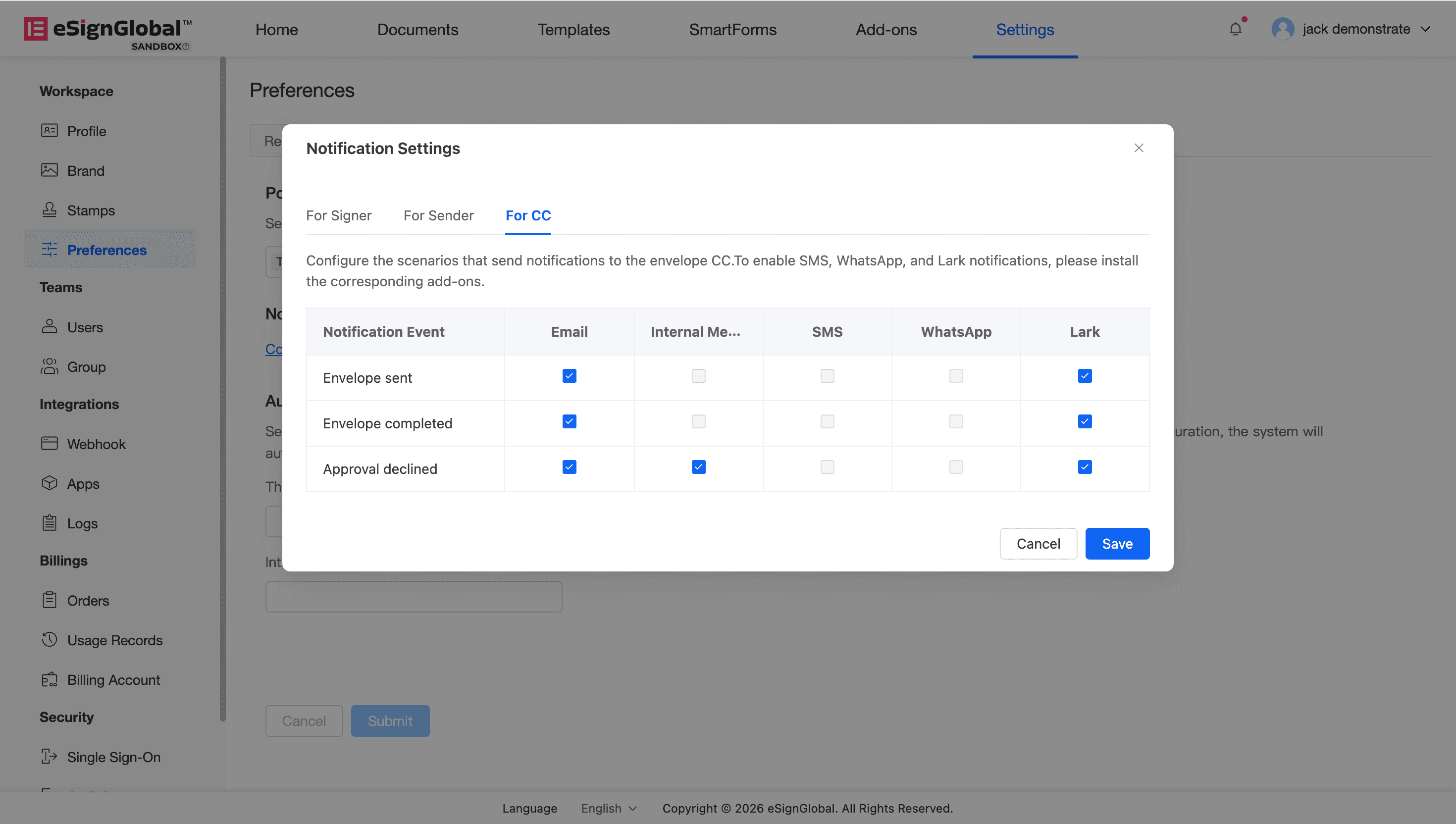
Description: Configure the specific events for sending notifications to the envelope CC.
-
Find the For CC (CC Notification Scenario) module on the same page.
-
Check or uncheck the corresponding event notification channels:
-
Envelope sent (Envelope Task Push): Sent to the CC when the envelope task is initiated.
-
Envelope completed (Envelope Signing Completed): Sent to the CC after the entire envelope is signed.
-
Approval declined (Rejection): Notify the CC when the envelope is rejected.
-
Tip:
- Any changes made to the configuration items need to be saved by clicking the “Submit” button at the bottom of Preferences, and will immediately take effect in the subsequent newly initiated envelopes in the workspace.
- About envelopes initiated by API: The intersection of the “notification preference parameters set by the initiator” and the current “tenant global notification configuration” will be taken. If the tenant globally disables a notification, the system will not send the message even if it is specified to be sent through the API, ensuring super administrators have strong control over the space.


