


 Service Center
Set Cross-Page Seal Field
Learn how to use the “Overlapping Seal” function to stamp or sign the edges of multi-page documents when initiating and signing documents on the International Station, thereby greatly improving the coherence and anti-counterfeiting capabilities of multi-page, long-text contracts.
Initiating Side Configuration of Overlapping Seal Control
Note:
- The system will only display and allow the use of overlapping seal-related entries when the total number of pages in the contract document is greater than 1 page; this function will be automatically hidden and disabled for single-page documents.
- In FDA (Part 11) business scenarios with medical and special compliance requirements, the initiator is strictly prohibited from dragging the “Signature” type control to the overlapping area. If there is a violation, the system will intercept and report an error when clicking to initiate: “In the FDA signing scenario, it is not supported to place the ‘Signature’ in the overlapping area. Please correct and try again.”
-
Click the [Expand] button on the side of the page canvas to bring up the hidden “Overlapping Area”.
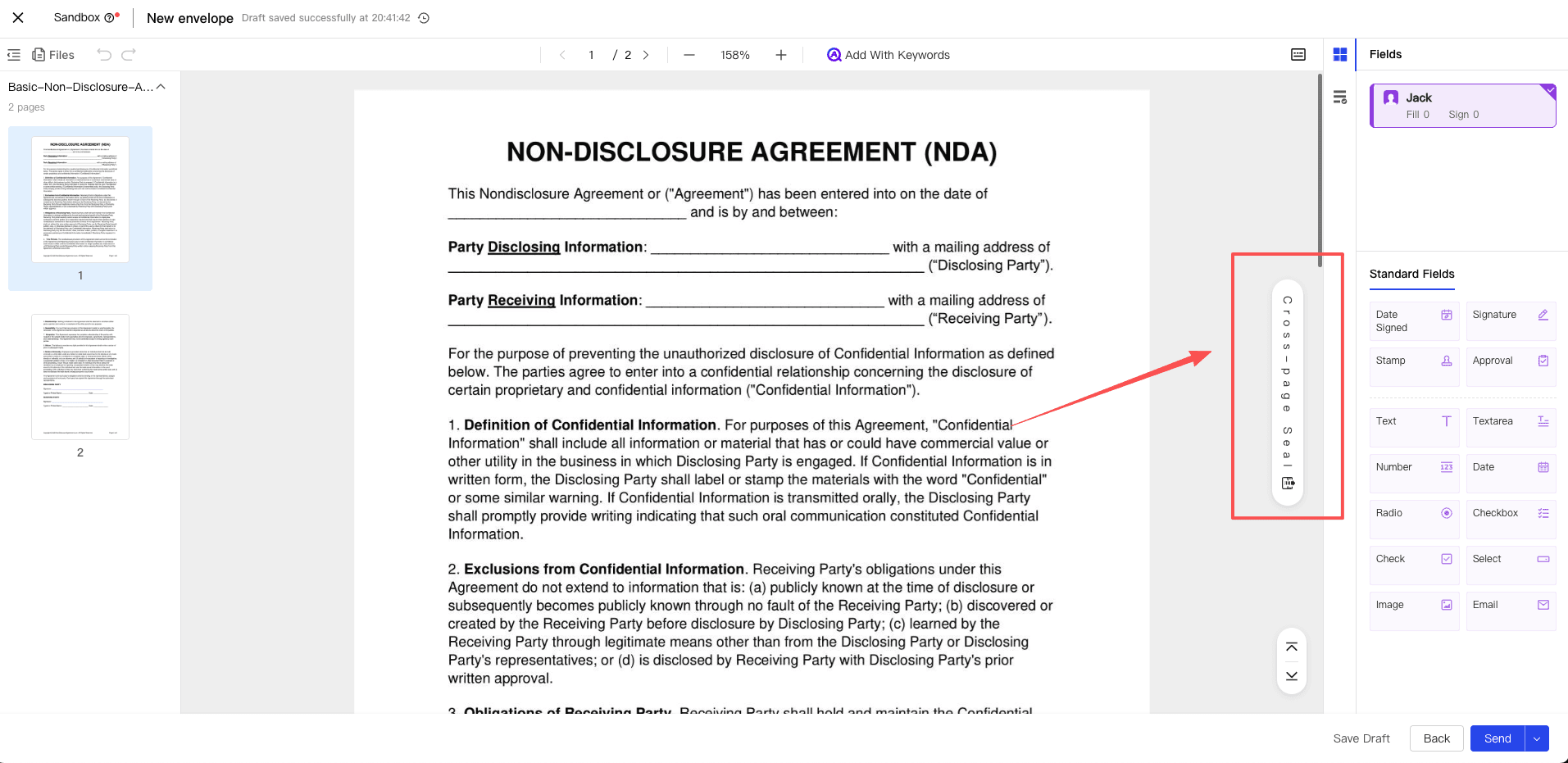
-
Drag the [Seal] or [Signature] control from the left column into the “Overlapping Area” (it will automatically snap if it stays at the junction). After the control falls, it will automatically be converted into a unique overlapping attribute.
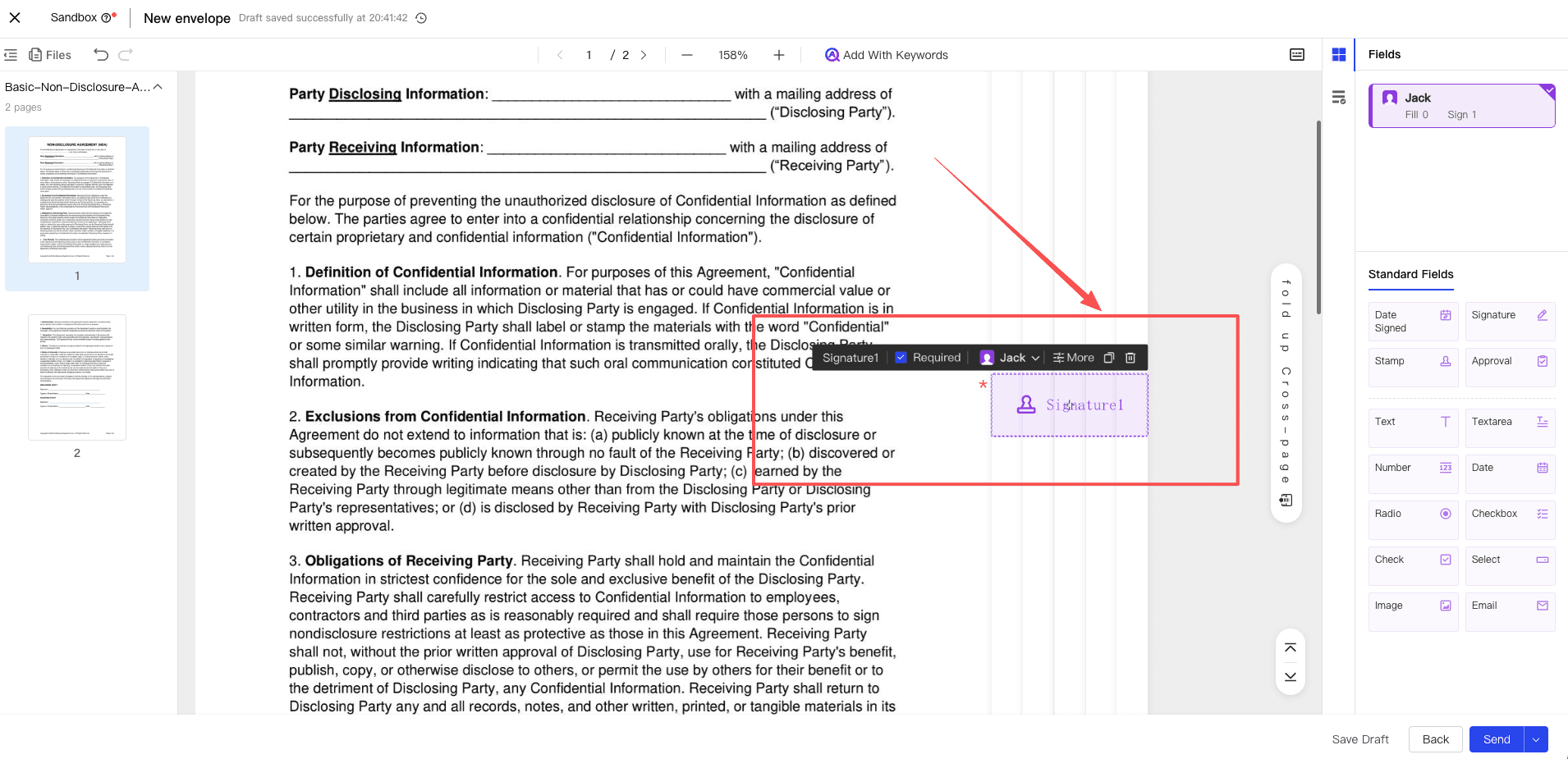
-
In the property settings on the right, you can freely define the page number range for which the overlapping seal needs to be added. You can quickly choose to apply it to [All Pages], or you can enter [Specified Page] and support custom continuous or non-continuous page number combinations (such as entering 1, 3, 5). After confirming that everything is correct, click Initiate.
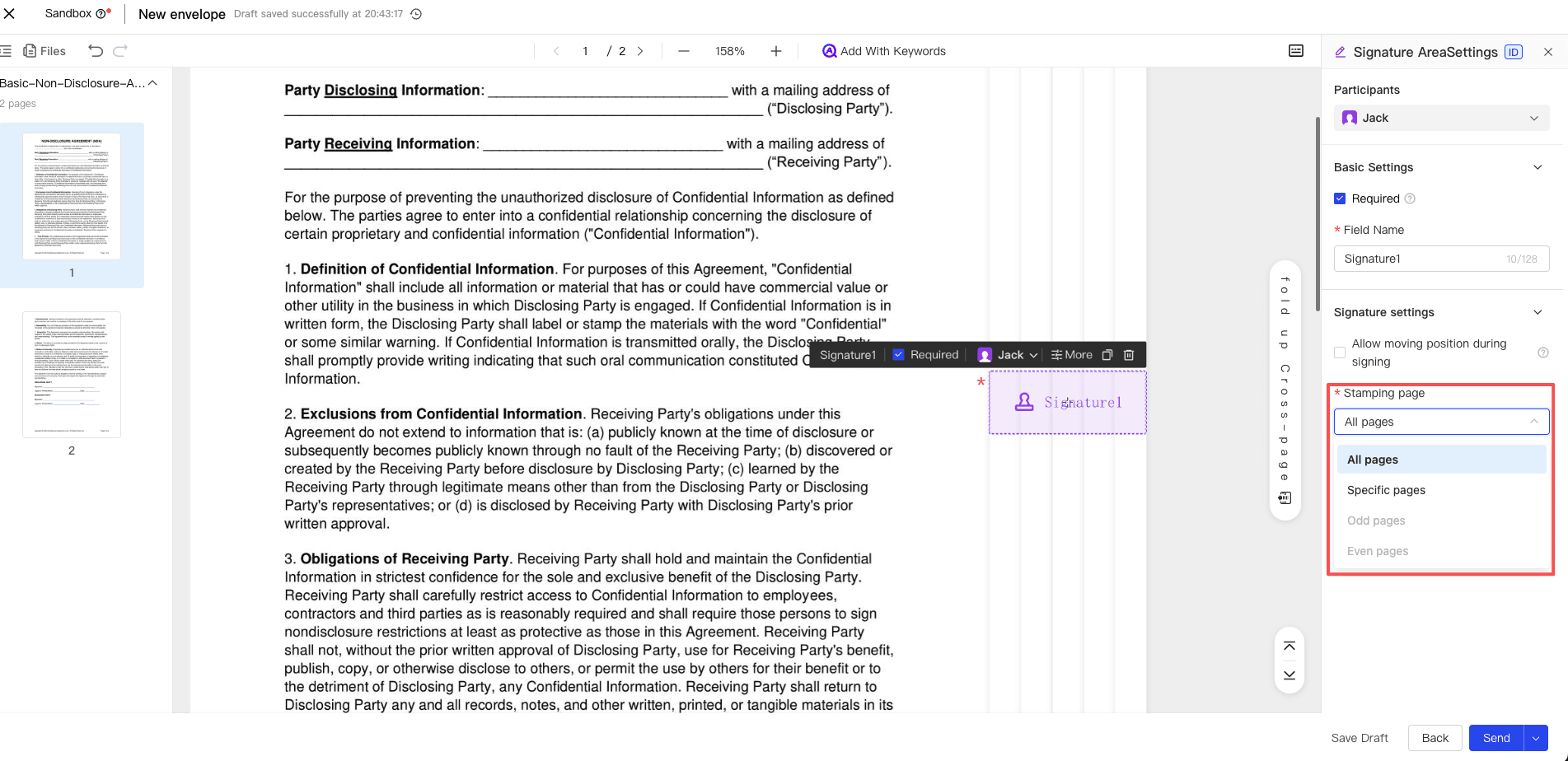
Signing Side Completes Overlapping Seal
Note:
- If in the FDA compliant scenario that allows free page signing, the signer is also not allowed to use the “Signature” control as an overlapping seal. Otherwise, when the final [Submit Signature] is clicked, the process will be automatically blocked and the signature cannot be completed.
-
When the signer enters the signing page, if it involves a drop point specified by the initiator, directly click the presented overlapping seal to be signed for quick confirmation; if it belongs to the “Free Sign” scenario, you can find and click the [Overlapping Seal] entry area in the toolbar on the left or bottom.
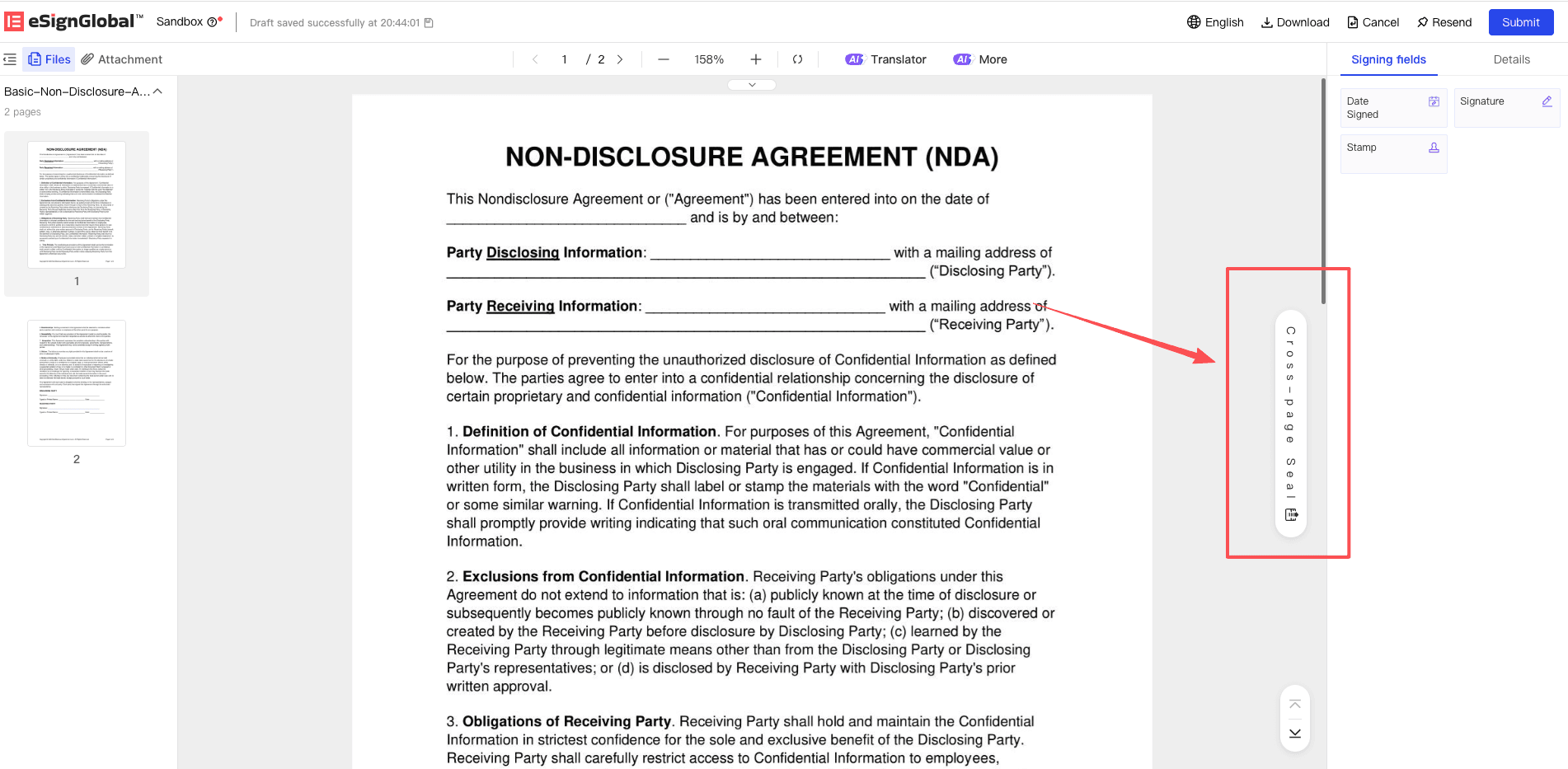
-
In the expanded area, drag the seal (or signature in non-FDA scenarios) that you have confirmed to use to the edge of the corresponding page to sign. After signing, click the [Submit Signature] button prompted on the page to complete the entire multi-page document signing process.


