
'%3e%3cpath%20fill-rule='evenodd'%20clip-rule='evenodd'%20d='M6.99935%2012.8327C10.221%2012.8327%2012.8327%2010.221%2012.8327%206.99935C12.8327%203.77769%2010.221%201.16602%206.99935%201.16602C3.77769%201.16602%201.16602%203.77769%201.16602%206.99935C1.16602%2010.221%203.77769%2012.8327%206.99935%2012.8327Z'%20stroke='%23666666'%20stroke-linecap='round'%20stroke-linejoin='round'/%3e%3cpath%20d='M1.16602%207H12.8327'%20stroke='%23666666'%20stroke-linecap='round'%20stroke-linejoin='round'/%3e%3cpath%20fill-rule='evenodd'%20clip-rule='evenodd'%20d='M6.99935%2012.8327C8.28802%2012.8327%209.33268%2010.221%209.33268%206.99935C9.33268%203.77769%208.28802%201.16602%206.99935%201.16602C5.71068%201.16602%204.66602%203.77769%204.66602%206.99935C4.66602%2010.221%205.71068%2012.8327%206.99935%2012.8327Z'%20stroke='%23666666'%20stroke-linecap='round'%20stroke-linejoin='round'/%3e%3cpath%20d='M2.875%202.95898C3.93063%204.01461%205.38896%204.66754%206.99978%204.66754C8.61062%204.66754%2010.069%204.01461%2011.1246%202.95898'%20stroke='%23666666'%20stroke-linecap='round'%20stroke-linejoin='round'/%3e%3cpath%20d='M11.1246%2011.0425C10.069%209.98691%208.61062%209.33398%206.99978%209.33398C5.38896%209.33398%203.93063%209.98691%202.875%2011.0425'%20stroke='%23666666'%20stroke-linecap='round'%20stroke-linejoin='round'/%3e%3c/g%3e%3cdefs%3e%3cclipPath%20id='clip0_1267_9109'%3e%3crect%20width='14'%20height='14'%20fill='white'/%3e%3c/clipPath%3e%3c/defs%3e%3c/svg%3e)


Paano Magpadala ng Word Document para sa Digital Signature (Advanced na Gabay ng eSignGlobal)


Talaan ng Nilalaman
- 1) Kailan Gagamitin ang mga Function na Ito
- 2) Paghahanda Bago Ipadala ang Word Document (DOCX → PDF Rekomendasyon)
- 3) Padalang Maramihan (Iisang Template × Maraming Tatanggap)
- 4) Nakatakdang Pagpapadala (Cross-Time Zone at Pinag-isang Paglulunsad)
- 5) Pagkakasunod-sunod ng Pagpirma (Serial/Parallel/Hybrid)
- 6) Mga Madalas Itanong (FAQ)
- 7) Listahan ng Dapat Gawin (Checklist)
1) Kailan Gagamitin ang mga Function na Ito
- Kailangang magpadala ng Word document para sa digital na lagda sa maraming tao.
- Nais na ipadala ito sa oras ng trabaho ng tatanggap, upang mapataas ang pagbubukas at pagkumpleto.
- Kailangang sundin ang mahigpit na pagkakasunod-sunod ng pag-apruba/pagpirma.
2) Paghahanda Bago Ipadala ang Word Document (DOCX → PDF Rekomendasyon)
- Direktang gamitin ang DOCX: Subukang gumamit ng mga karaniwang font o i-embed ang mga font; iwasan ang mga macro; gamitin ang "embedded" na layout para sa mga larawan.
- Inirerekomendang paraan (mas sigurado): Sa Word, "I-save bilang PDF", mas madali para sa layout, pagpe-page, at integridad ng nilalaman.
3) Padalang Maramihan (Iisang Template × Maraming Tatanggap)
Layunin: Ipadala ang parehong Word contract sa maraming tao, at i-render ang iba't ibang variable para sa bawat isa.
Mga Hakbang
- I-enable ang Padalang Maramihang Envelope sa plugin center.
- Sa kanang bahagi ng pahina ng pagpapadala, i-drop down at piliin ang Padalang Maramihang Envelope.
- I-download ang sample na CSV, punan ang mga column para sa tatanggap/cc, paksa, tala, at variable (tulad ng
{{company}},{{amount}}) sa bawat row. - I-upload ang CSV → I-verify ang pagmamapa ng mga pangalan ng column at mga placeholder ng template.
- I-preview ang pag-render ng variable at pagpoposisyon ng field sa pamamagitan ng pag-sample.
- Ipadala kaagad; tingnan ang progreso sa Mga Padalang File at i-export ang Katayuan ng Pagpapadala.
Mga Mungkahi
- Subukan muna ang 5–10 rows;
- Panatilihin ang Pangalan ng Column = Variable ng Template;
- I-enable ang OTP/SMS at Evidence Package para sa mga senaryo ng halaga/pagsunod.
4) Nakatakdang Pagpapadala (Cross-Time Zone at Pinag-isang Paglulunsad)
Senaryo: Cross-time zone, sentralisadong paglulunsad, koordinasyon sa HR/pananalapi/marketing.
Mga Hakbang
- I-enable ang Nakatakdang Pagpapadala na plugin.
- Pahina ng Paglulunsad: I-drop down ang "Direktang Ipadala" at piliin ang "Ipadala Mamaya" (itakda ang petsa/oras/time zone).
- Pahina ng Field: I-drop down ang "Ipadala Kaagad" at piliin ang "Ipadala Mamaya", i-schedule pagkatapos ilagay ang mga field.
- Gamitin kasama ang Awtomatikong Paalala at Deadline ng Pagpirma.
Mga Mungkahi
- Pumili ng umaga sa lokal na oras ng tatanggap;
- Para sa malalaking batch ng gawain, hatiin at i-stagger ang mga batch upang mabawasan ang throttling at bounce.
5) Pagkakasunod-sunod ng Pagpirma (Serial/Parallel/Hybrid)
Senaryo: Ang Word contract ay nangangailangan ng mahigpit na routing tulad ng "Review → Pag-apruba → Legal → Customer".
Mga Hakbang
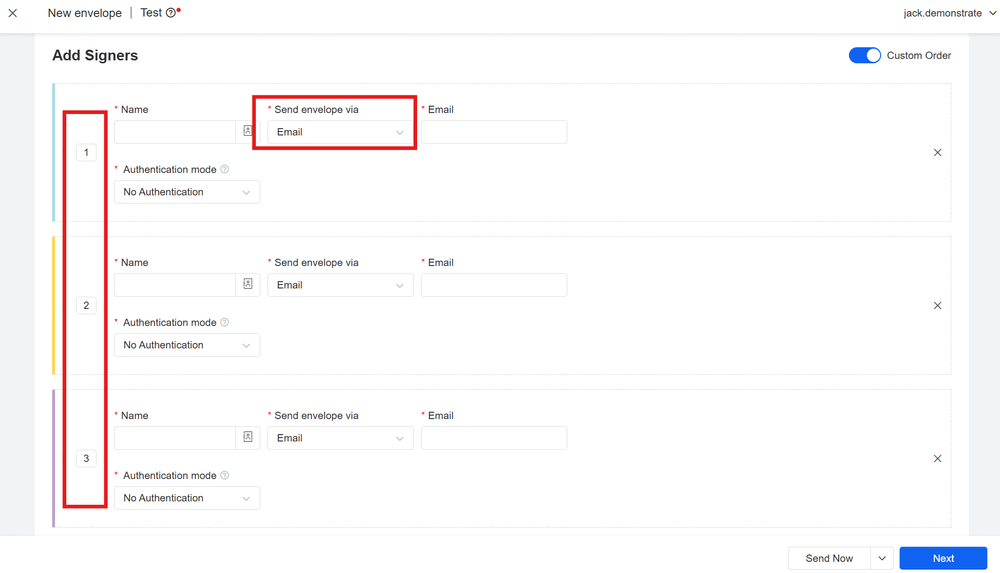
- Idagdag ang lahat ng tatanggap (pagpirma/cc).
- Tukuyin ang numero ng pagkakasunod-sunod: Parehong numero = parallel, iba't ibang numero = serial.
- Sa Add Fields, ilagay ang mga field mula sa pananaw ng tatanggap upang maiwasan ang pagkakapatong.
- I-preview at ipadala; ang sistema ay sunud-sunod na magti-trigger ayon sa setting.
6) Mga Madalas Itanong (FAQ)
Q1: Alin ang mas mahusay, DOCX o PDF? Maaaring direktang ipadala ang DOCX, ngunit ang PDF ay mas mahusay para sa pag-aayos ng layout at pagpapabuti ng kakayahan laban sa pagbabago.
Q2: Maaari bang i-personalize ang Word contract sa pamamagitan ng padalang maramihan? Oo. Ang mga variable ng template ay tumutugma sa mga column ng CSV, at ang bawat row ay nire-render kapag ipinadala.
Q3: Ipadadala ba ang nakatakdang pagpapadala ayon sa time zone? Inirerekomenda na malinaw na piliin ang target na time zone; kung hindi, gagamitin ang default na time zone ng account.
Q4: Paano ko susundan ang mga hindi pa nakukumpletong pagpirma? Sa listahan ng "Naghihintay ng Pagpirma ng Iba", gamitin ang Muling Ipadala para sa target na envelope.
7) Listahan ng Dapat Gawin (Checklist)
- Antas ng Template: Pag-isahin ang pagpapangalan ng variable; i-pre-set ang mga field ng papel; maghanda ng sample na data table.
- Antas ng Data: 5–10 rows na pagsubok; itala at ayusin ang mga maling row.
- Antas ng Pagpapadala: Padalang maramihan × Nakatakda × Pagkakasunod-sunod + Deadline/Awtomatikong Paalala.
- Antas ng Pagkontrol sa Panganib: I-enable ang Password sa Pag-access/OTP/ID/Mukha; i-archive ang Timestamp/Hash/Log/Evidence Package.
- Automation: API trigger/writeback; subaybayan ang Rate ng Pagbubukas/Rate ng Pagkumpleto/Tagal ng Pagpirma sa pamamagitan ng dashboard.
