

 Service Center
Webhook
- Trial Version: Does not support Webhook function
- Basic Version: Does not support Webhook function
- Professional Version: Supports Webhook function
Webhook is an asynchronous event notification service provided by eSignGlobal, which allows users to receive various event notifications in the system by configuring callback URLs. When a specified event occurs, the system sends an HTTP POST request to the user-configured URL, containing detailed information about the event. Users can choose to subscribe to events from different trigger sources, including:
-
SaaS Page Initiated: Events triggered by user operations directly on the SaaS platform.
-
Third-Party System Integration Initiated: Data change events triggered by external systems integrated via APPID.
Webhook will push event data to your specified callback address in real-time, ensuring you can timely obtain business status changes and achieve automated process integration.
Adding Webhook
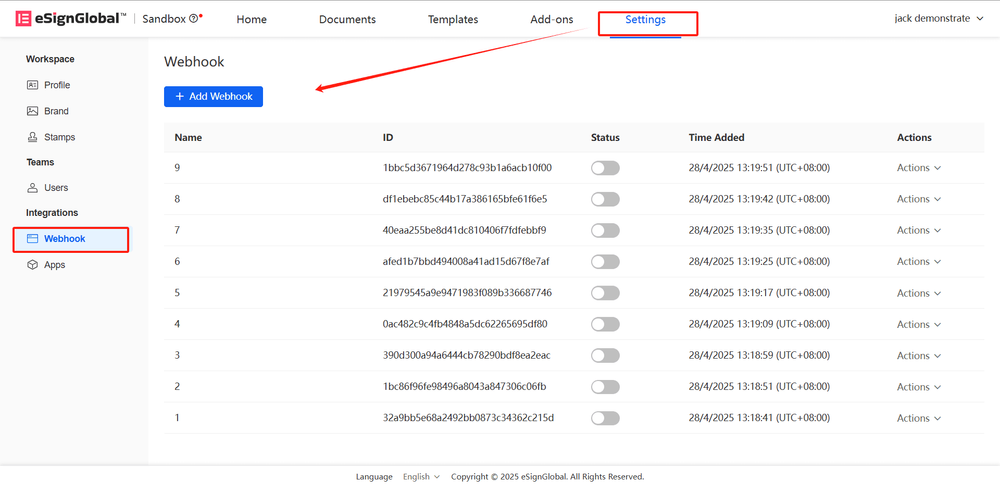
- Administrators can click the [Add Webhook] button in the [Settings - Webhook] menu to add a new Webhook.
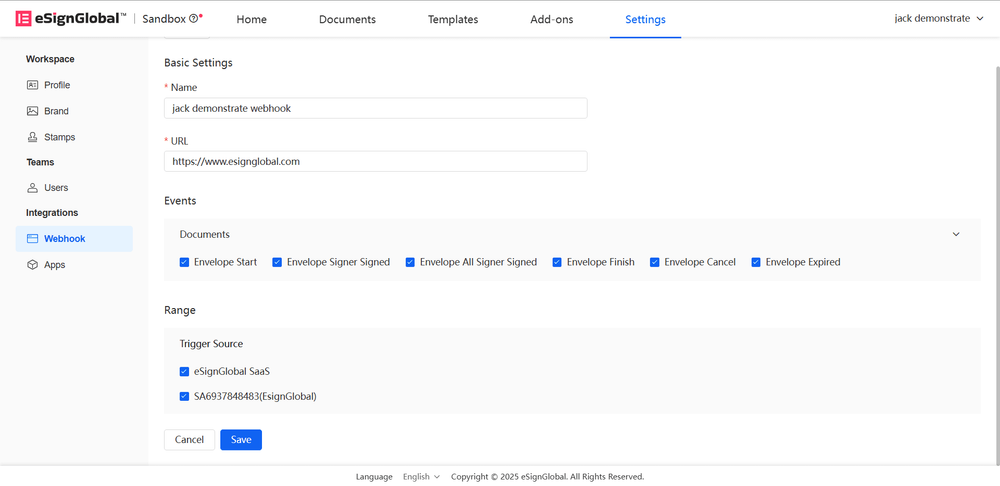
- Please enter the required information for the Webhook and click Save.
Explanation:
- Webhook Name: A name for easy recognition
- Callback URL: The callback address for receiving notifications
- Event Type: Select the events you want to subscribe to
- Trigger Source: You can choose to subscribe to events from different trigger sources
-
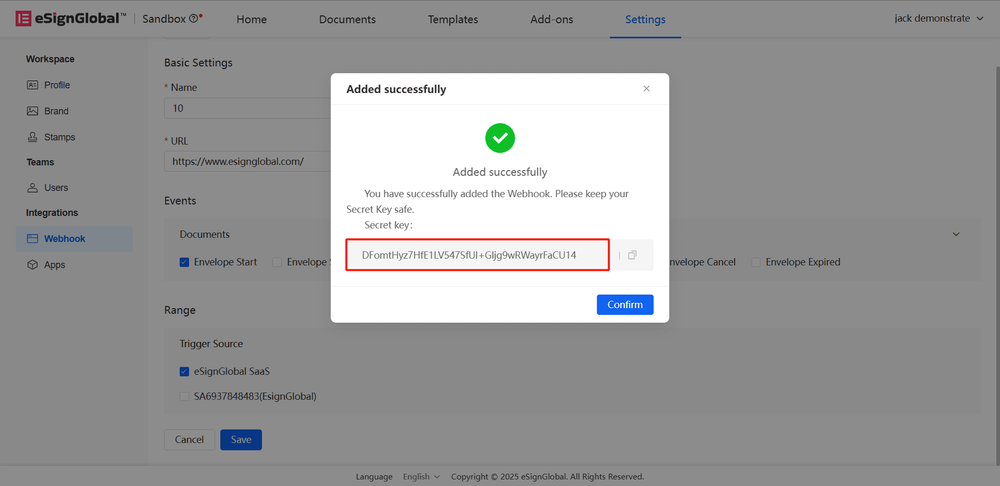
To ensure the credibility of the Webhook message source, the system provides a secret key verification mechanism. After successful saving, the system generates a secret key, please keep it properly.
Editing Webhook
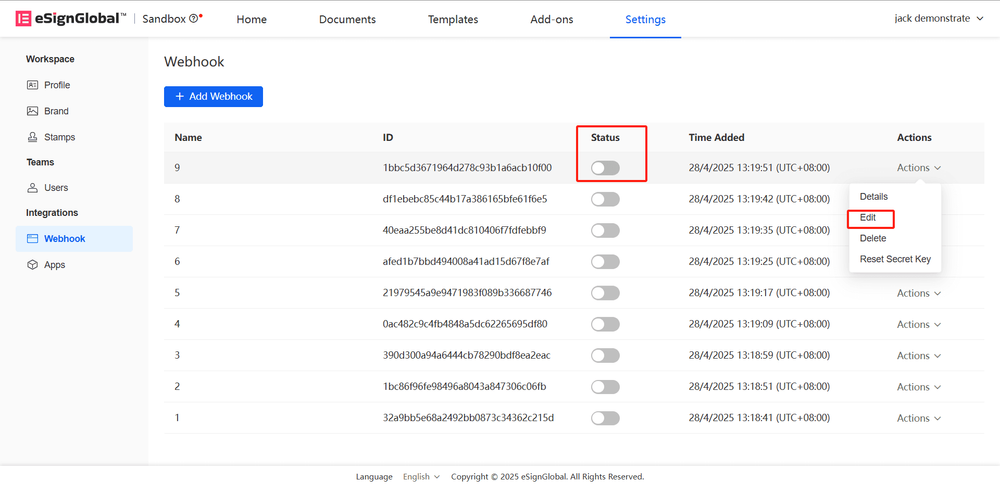
- In the management list, find the Webhook you want to adjust, and click the [Edit] button to update its settings.
Note:
- When the status is disabled, you can edit the webhook.
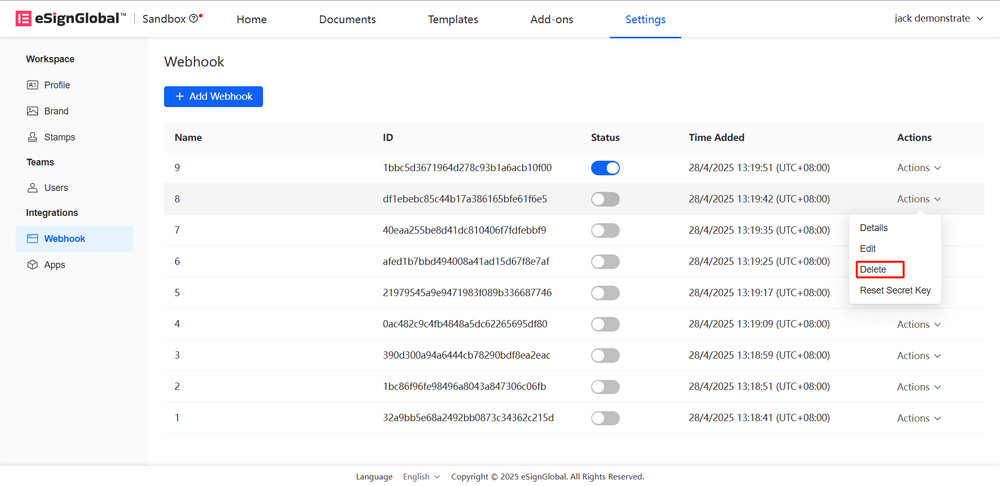
Deleting Webhook
- In the management list, find the Webhook you want to delete, and click the [Delete] button to update its settings.
Note:
- When the status is disabled, you can delete the webhook.
- Deletion requires double confirmation, please operate with caution.
Resetting Secret Key
-
In the management list, find the Webhook you want to delete, and click the [Reset Secret Key] button to regenerate a new secret key.

-
After the secret key is generated successfully, you can copy the key.

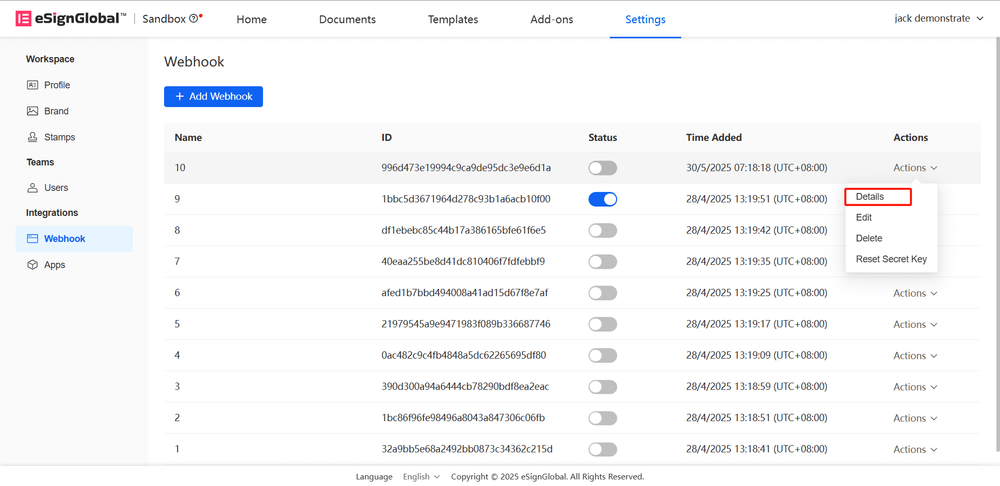
Viewing Webhook
- In the Webhook list, you can view the details of the Webhook.
Webhook Event Explanation: https://www.esignglobal.com/zh-CN/developer-center/document/vfj16znziy18o17n4sc5y7ng