

 Service Center
Local Certificate
eSignGlobal supports users to complete digital signatures using local certificates.
eSignGlobal supports all local certificates that comply with the Windows CSP standard, including but not limited to the following types:
PFX files
USB Token
Smart Cards
Other
Preparation Before Use
Before using local certificates for signing, please ensure:
-
Use a Windows computer (Windows 7 and above versions).
-
Have administrator privileges to install plugins on the computer.
-
Have backed up personal certificates (recommended to save in a secure environment).
-
USB Token/Smart Card or other hardware certificates have been inserted into the computer, and PFX certificates have been imported into the computer.
Note:
Local certificate signing only supports the Windows platform, and mobile devices do not currently support local certificate signing.
Please install the official driver and complete initialization before using hardware certificates.
Plugin Installation Guide
-
Download Plugin
- Click Download eSignGlobal Plugin, this plugin is used to allow the system to securely access your local digital certificates.

-
Install Plugin
-
Double-click the installer
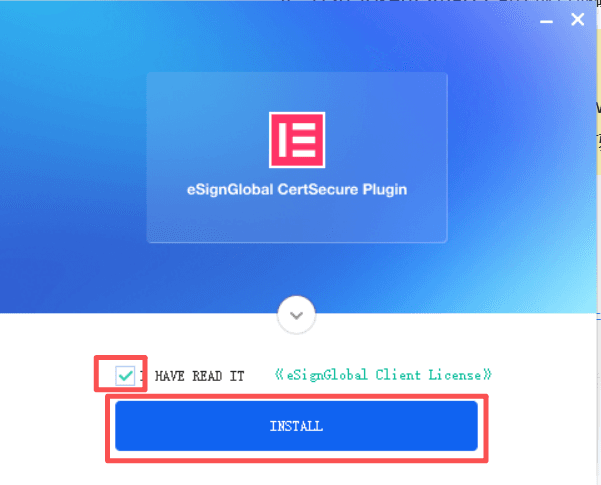
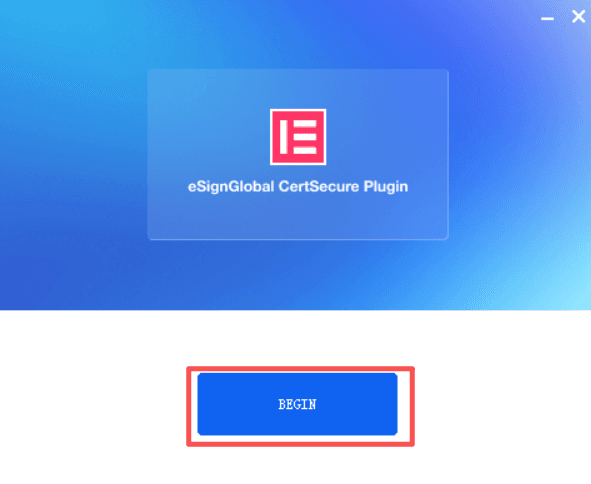
-
Double-click the installer
-
After installation is complete, you can find the eSignGlobal Plugin icon on the desktop.
-
-
Start Plugin
- Double-click the icon to start the plugin

- When starting for the first time, the system may prompt for firewall access permissions, please allow access.
Certificate Preparation
-
Soft Certificate (.pfx file)
- Ensure the certificate file is valid and has not expired
- Properly keep the certificate password
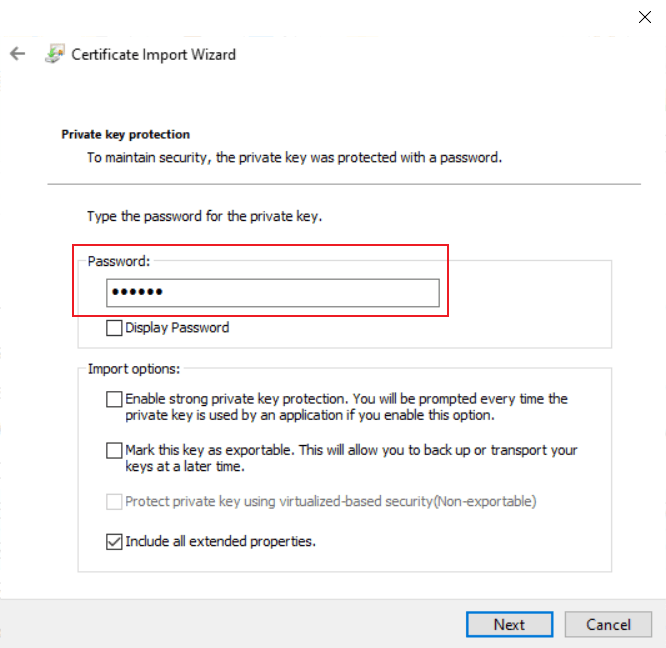
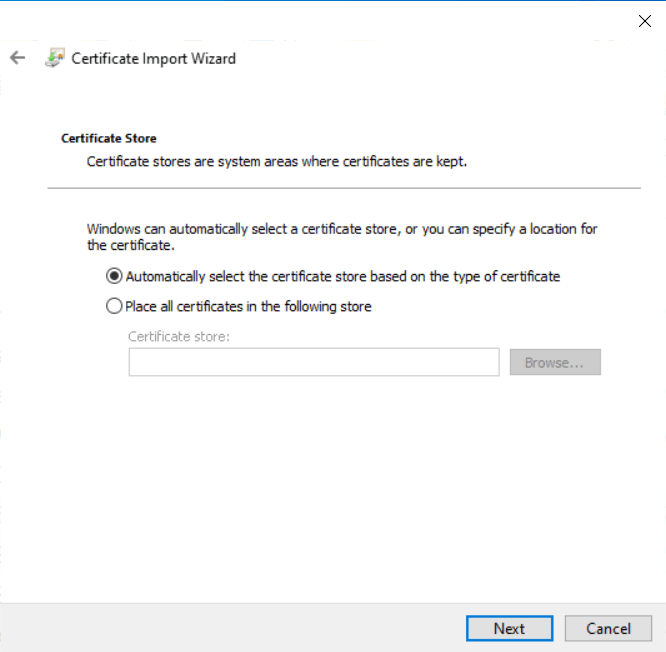
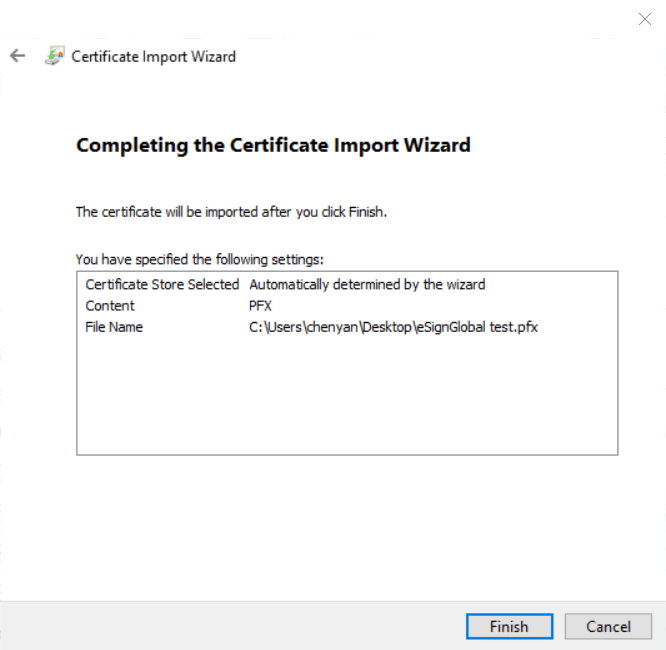
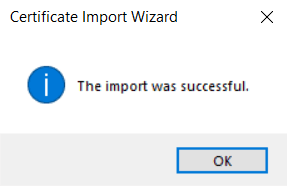
- Double-click the PFX file to import the certificate into the computer

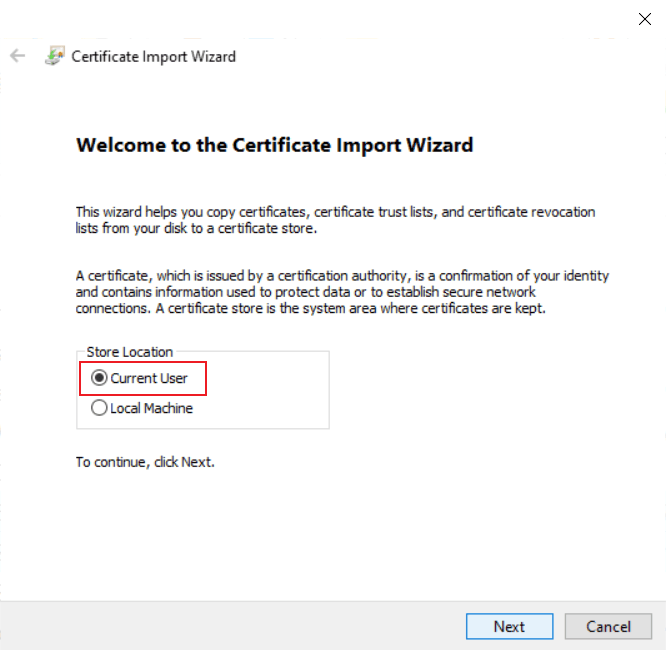
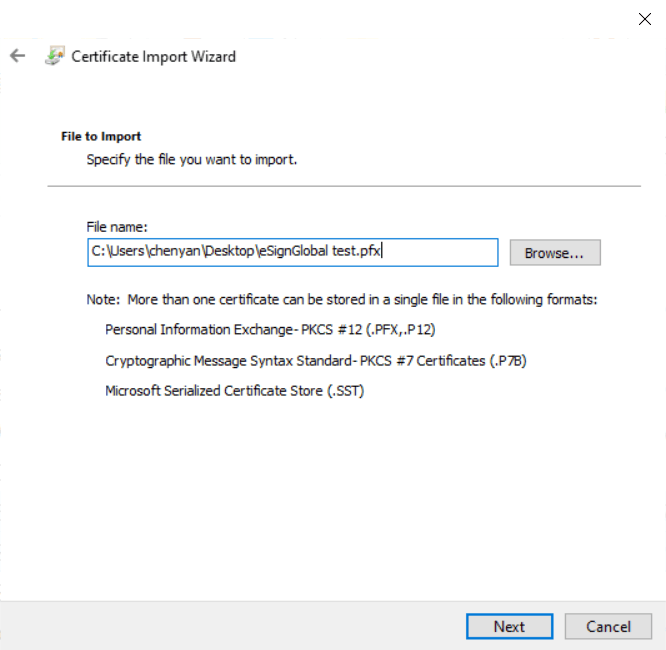
-
Hardware Certificate (USB Token / Smart Card)
- Connect USB Token / Smart Card or other hardware certificates to the computer
- Install the relevant driver program (provided by the certificate provider)
- Confirm that Windows has recognized the certificate device
After completing the above preparations, you can start using local certificates in the system.
Using Local Certificates for Signing in the System
Sender
-
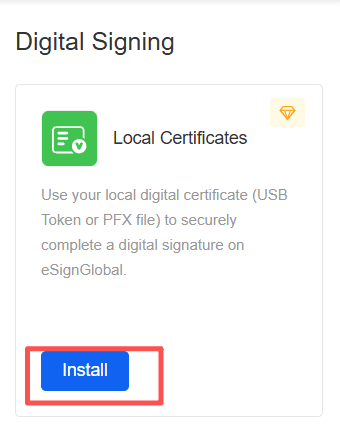
Administrator Installs Local Certificate Plugin
- The administrator installs the Local Certificate digital signature plugin.
-
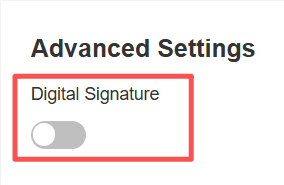
Sender Enables Digital Signature Switch
- The sender can enable digital signature when sending the envelope.
Signer
Note:
After the envelope enables digital signature, all signers must use digital signature.
-
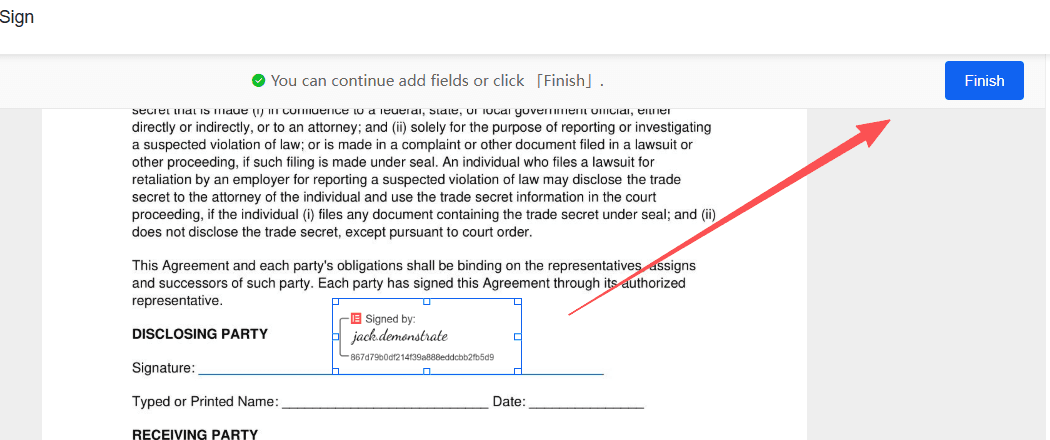
Submit Signature
- After adding a signature or seal, submit the signature.
-
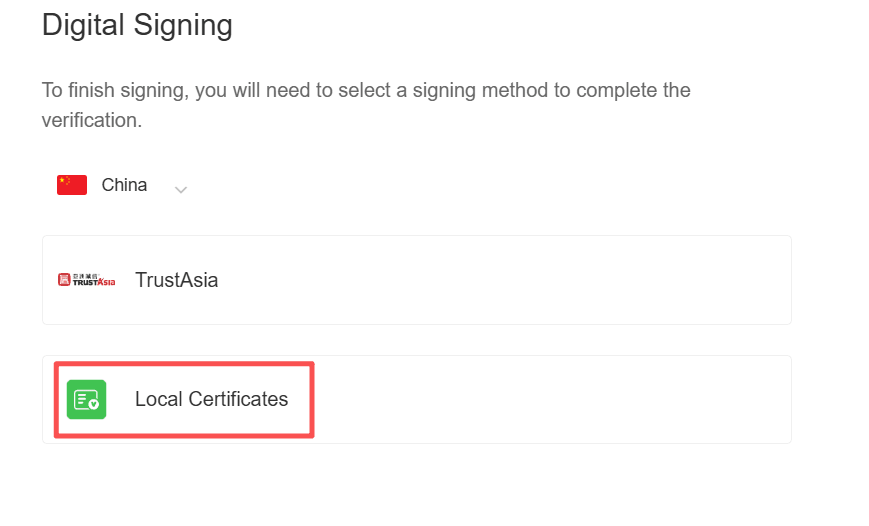
Select Local Certificate Method
- Select the country/region you are in, and select the local certificate method.
-
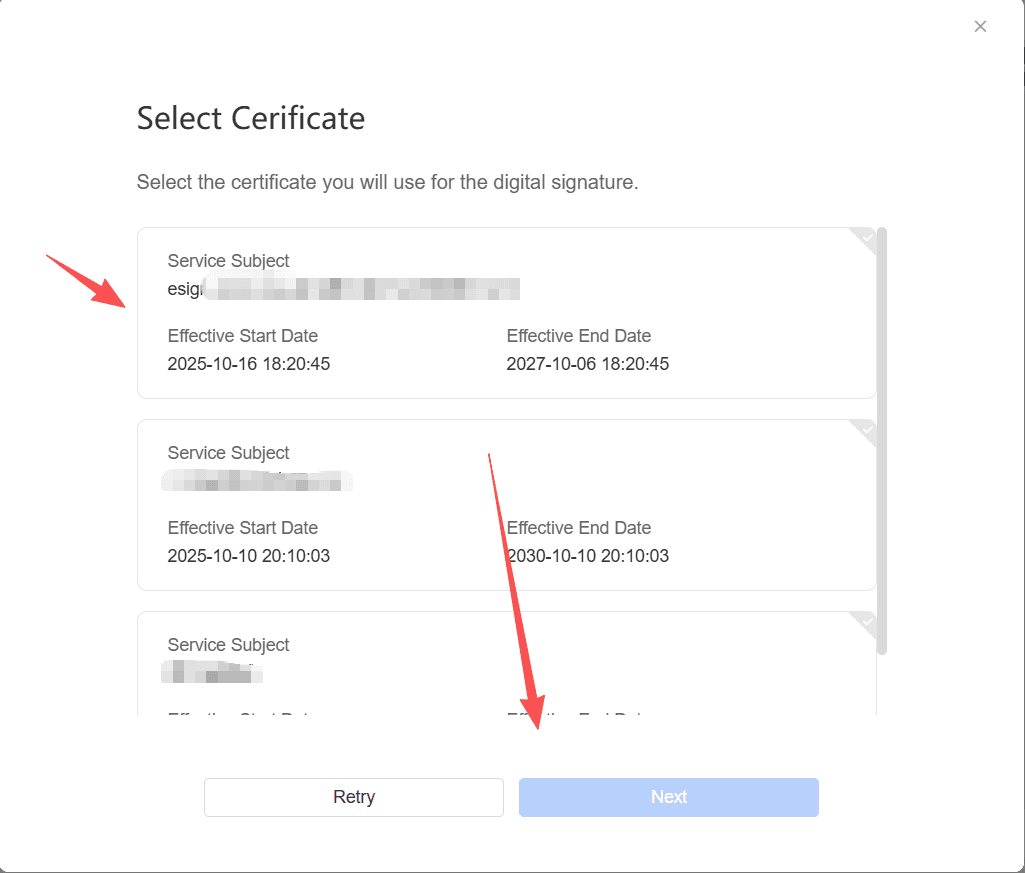
Select Certificate
- Select the corresponding certificate, and click next.
-
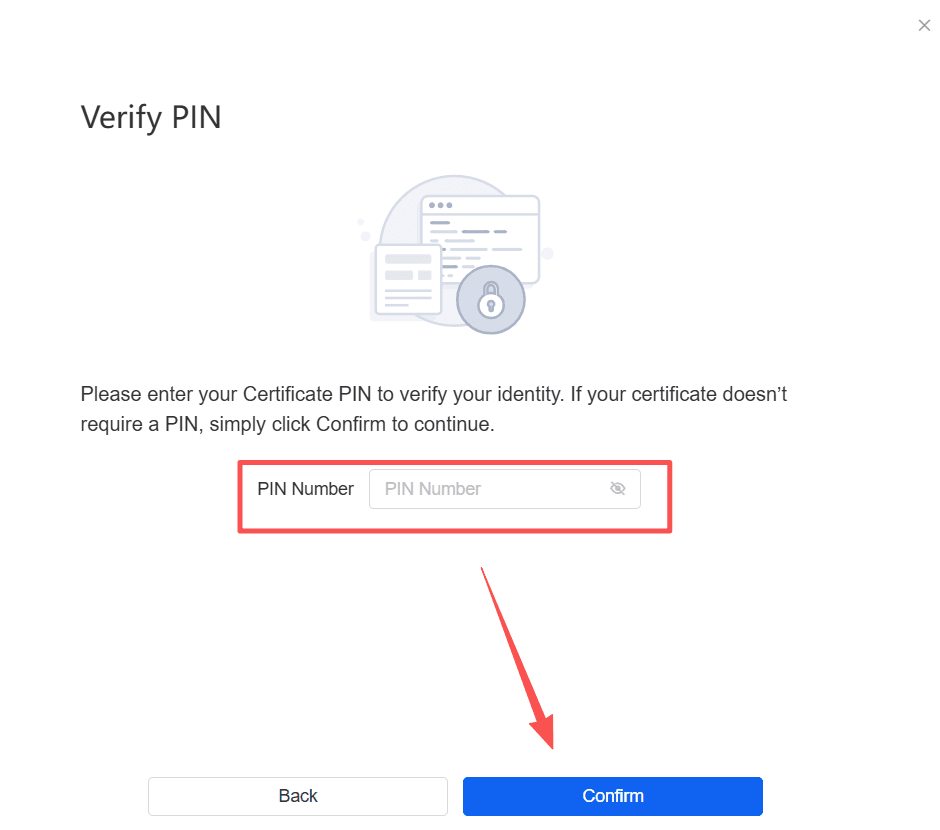
Verify PIN
- Enter the certificate PIN for verification.
Note:
-
Some certificates have set PIN verification for security purposes, please ensure that you have obtained and properly kept the certificate PIN.
-
If using a hardware certificate (USB Token/Smart Card/other), please ensure that the hardware certificate is always connected to the computer during use.
-
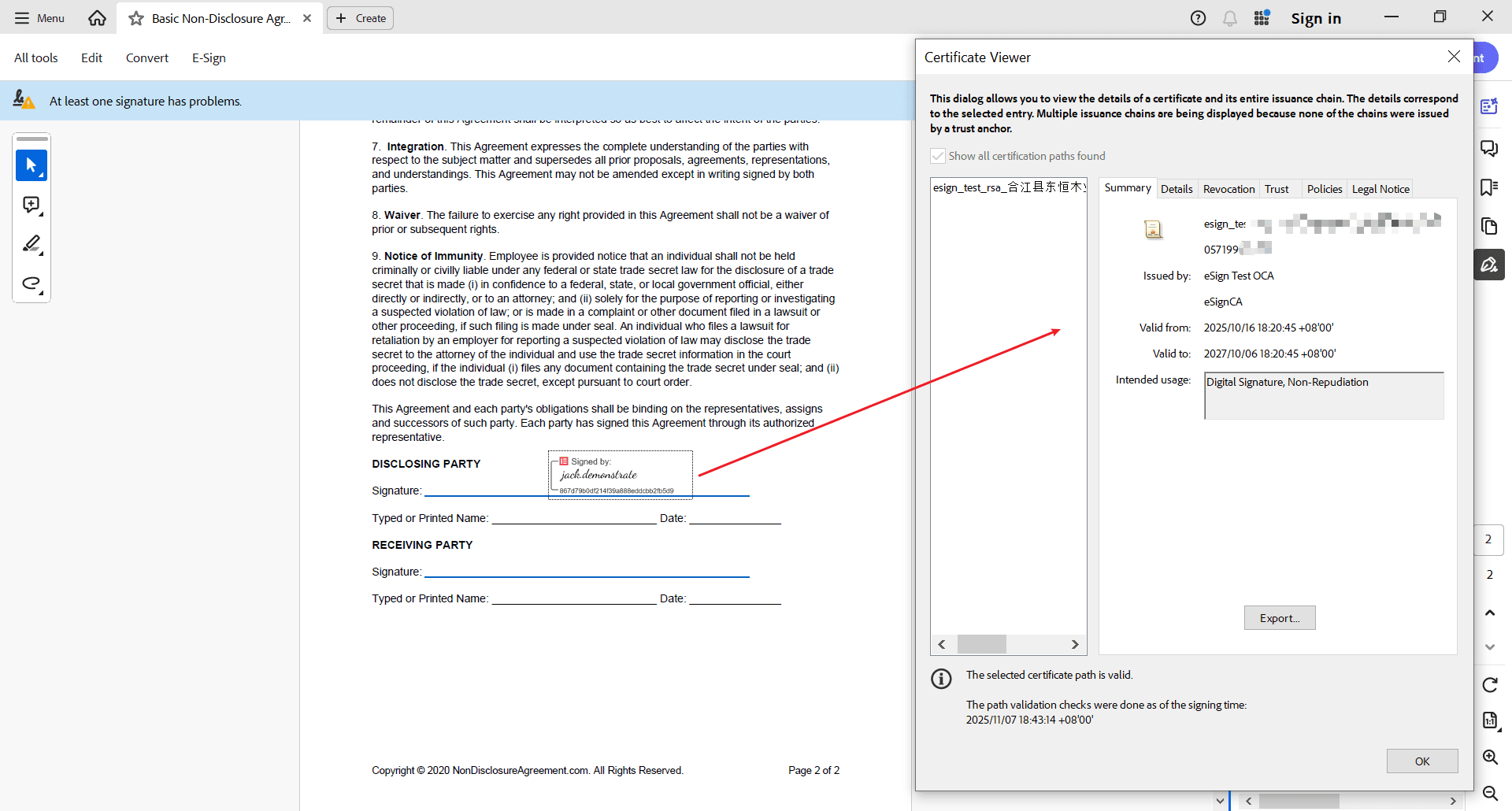
Sign and Verify Signature
-
After signing is complete, you can download the signed document for verification.
-
Using Local Certificate Signing in the System
Sender
-
Administrator installs the local certificate plugin
- Administrator installs the local certificate digital signature plugin.
-
Sender turns on the digital signature switch
- The sender can enable digital signature when sending the envelope.
Signatory
Note:
All signatories must use digital signatures after the envelope is enabled for digital signatures.
-
Submit signature
- Submit the signature after adding a signature or seal.
-
Select local certificate method
- Select the country/region and choose the local certificate method.
-
Select certificate
- Select the corresponding certificate and click next.
-
Verify PIN
- Enter the certificate PIN for verification.
Note:
-
Some certificates have PIN verification set for security reasons. Please ensure that you have obtained and properly kept the certificate PIN.
-
If using a hardware certificate (USB Token/Smart Card/other), please ensure that the hardware certificate is always connected to the computer during use.
-
Sign and verify signature
- After signing, you can download the signed document for verification.
Appendix: List of Countries/Regions Supporting Local Certificates
🌏 Asia
- Armenia
- Azerbaijan
- Bangladesh
- Brunei
- Cambodia
- China (Mainland)
- Hong Kong (China)
- India
- Indonesia
- Iran
- Israel
- Japan
- Kazakhstan
- Kingdom of Bahrain
- Kyrgyzstan
- Macau (China)
- Malaysia
- Myanmar
- Pakistan
- Philippines
- Qatar
- Singapore
- South Korea
- Sri Lanka
- State of Kuwait
- Tajikistan
- Taiwan (China)
- Thailand
- Turkey
- United Arab Emirates
- Uzbekistan
- Vietnam
🌍 Europe
- Austria
- Belgium
- Bulgaria
- Croatia
- Cyprus
- Czech Republic
- Denmark
- Estonia
- Finland
- France
- Germany
- Greece
- Hungary
- Iceland
- Ireland
- Italy
- Kosovo
- Latvia
- Liechtenstein
- Lithuania
- Luxembourg
- Malta
- Moldova
- Monaco
- Netherlands (the)
- North Macedonia
- Norway
- Poland
- Portugal
- Republic of Belarus
- Romania
- Russia
- Serbia
- Slovakia
- Slovenia
- Spain
- Sweden
- Switzerland
- Ukraine
- United Kingdom
🌎 North America
- Bermuda
- Canada
- Guatemala
- Mexico
- United States
🌎 South America
- Argentina
- Brazil
- Chile
- Colombia
- Peru
- Uruguay
🌏 Oceania
- Australia
- New Zealand
🌍 Africa
- Algeria
- Cameroon
- Egypt
- Kenya
- Nigeria
- South Africa
Compatibility and Compliance Notes
eSignGlobal supports local certificates that comply with the Windows CSP (Cryptographic Service Provider) standard for local certificate digital signature functionality.
The countries/regions and their local certificate types mentioned in this manual are based on publicly available information for reference purposes only.
Due to differences in digital certificate systems, legal standards, and security strategies across countries, eSignGlobal only provides signing tools and technical support, and does not guarantee the compatibility, availability, or legal validity of certificates in specific countries or regions.
It is recommended that you confirm the compliance and signature validity of the certificate with the certificate issuing authority or legal advisor before signing.