
'%3e%3cpath%20fill-rule='evenodd'%20clip-rule='evenodd'%20d='M6.99935%2012.8327C10.221%2012.8327%2012.8327%2010.221%2012.8327%206.99935C12.8327%203.77769%2010.221%201.16602%206.99935%201.16602C3.77769%201.16602%201.16602%203.77769%201.16602%206.99935C1.16602%2010.221%203.77769%2012.8327%206.99935%2012.8327Z'%20stroke='%23666666'%20stroke-linecap='round'%20stroke-linejoin='round'/%3e%3cpath%20d='M1.16602%207H12.8327'%20stroke='%23666666'%20stroke-linecap='round'%20stroke-linejoin='round'/%3e%3cpath%20fill-rule='evenodd'%20clip-rule='evenodd'%20d='M6.99935%2012.8327C8.28802%2012.8327%209.33268%2010.221%209.33268%206.99935C9.33268%203.77769%208.28802%201.16602%206.99935%201.16602C5.71068%201.16602%204.66602%203.77769%204.66602%206.99935C4.66602%2010.221%205.71068%2012.8327%206.99935%2012.8327Z'%20stroke='%23666666'%20stroke-linecap='round'%20stroke-linejoin='round'/%3e%3cpath%20d='M2.875%202.95898C3.93063%204.01461%205.38896%204.66754%206.99978%204.66754C8.61062%204.66754%2010.069%204.01461%2011.1246%202.95898'%20stroke='%23666666'%20stroke-linecap='round'%20stroke-linejoin='round'/%3e%3cpath%20d='M11.1246%2011.0425C10.069%209.98691%208.61062%209.33398%206.99978%209.33398C5.38896%209.33398%203.93063%209.98691%202.875%2011.0425'%20stroke='%23666666'%20stroke-linecap='round'%20stroke-linejoin='round'/%3e%3c/g%3e%3cdefs%3e%3cclipPath%20id='clip0_1267_9109'%3e%3crect%20width='14'%20height='14'%20fill='white'/%3e%3c/clipPath%3e%3c/defs%3e%3c/svg%3e)


Paano Gamitin nang Epektibo ang DocuSign CLM Microsoft Word Add-in


Panimula sa DocuSign CLM at Microsoft Word Add-in
Sa patuloy na pag-unlad ng pamamahala ng siklo ng buhay ng kontrata (CLM), ang mga tool tulad ng DocuSign CLM ay namumukod-tangi dahil sa kanilang walang hirap na pagsasama sa pang-araw-araw na daloy ng trabaho. Ang DocuSign CLM, na dating kilala bilang SpringCM, ay isang komprehensibong plataporma na idinisenyo upang gawing mas simple ang paglikha, negosasyon, pag-apruba, at pagpapatupad ng mga kontrata. Higit pa ito sa simpleng pag-andar ng electronic signature, na nag-aalok ng matatag na automation ng dokumento, kontrol sa bersyon, at mga tampok sa pagsubaybay sa pagsunod. Ang isang mahalagang bahagi ay ang Microsoft Word add-in, na naglalagay ng mga kakayahan ng CLM nang direkta sa loob ng Word, na nagbibigay-daan sa mga user na bumuo, mag-tag, at mag-ruta ng mga kontrata sa loob ng isang pamilyar na kapaligiran sa pag-edit. Ang pagsasamang ito ay partikular na mahalaga para sa mga legal na team, mga propesyonal sa pagbebenta, at mga departamento ng human resources na naglalayong bawasan ang mga manual na pagkakamali at pabilisin ang mga proseso. Mula sa isang pananaw ng negosyo, ang paggamit ng mga tool na ito ay maaaring mapahusay ang kahusayan, ngunit ang tagumpay ay nakasalalay sa epektibong paggamit upang mapakinabangan ang ROI.

Pag-install at Pag-setup ng DocuSign CLM Microsoft Word Add-in
Upang simulan ang paggamit ng DocuSign CLM Microsoft Word add-in, ang proseso ng pag-install ay diretso at nangangailangan lamang ng kaunting teknikal na kaalaman. Una, tiyakin na mayroon kang isang aktibong subscription sa DocuSign CLM, dahil ang add-in ay nakatali sa iyong mga pahintulot sa account. Buksan ang Microsoft Word (inirerekomenda ang bersyon 2016 o mas bago para sa pinakamahusay na compatibility) at mag-navigate sa tab na "Insert". Mula sa grupo ng mga add-in, i-click ang "Get Add-ins" at hanapin ang "DocuSign CLM" sa Office Store. Kapag nahanap na, piliin ang "Add" upang i-install ito. Kapag na-activate, hihilingin sa iyo na mag-log in gamit ang iyong mga kredensyal sa DocuSign. Iuugnay nito ang add-in sa iyong CLM instance, na nagbibigay-daan sa pag-access sa mga template, library, at mga daloy ng trabaho sa pag-ruta.
Pagkatapos ng pag-install, ang configuration ay mahalaga para sa epektibong paggamit. Sa add-in pane na lumalabas sa kanang bahagi ng Word, kumonekta sa iyong CLM organization sa pamamagitan ng pagpasok ng URL ng organisasyon na ibinigay ng iyong administrator. I-customize ang mga setting, tulad ng mga default na folder ng template o mga kagustuhan sa notification, upang umayon sa mga proseso ng team. Para sa mga gumagamit ng enterprise, maaaring ipatupad ng mga administrator ang mga patakaran, tulad ng mandatoryong pag-apruba, sa pamamagitan ng CLM admin console. Subukan ang setup gamit ang mga sample na dokumento upang matiyak ang walang hirap na pagsasama—lumikha ng isang pangunahing kontrata sa Word, mag-tag ng mga field gamit ang add-in, at subukang bumuo ng isang bersyon. Pinipigilan ng paunang hakbang na ito ang mga pagkagambala sa live na daloy ng trabaho at pinapamilyar ang mga user sa interface.
Hakbang-hakbang na Gabay sa Epektibong Paggamit ng Add-in
Ang tunay na kapangyarihan ng DocuSign CLM Microsoft Word add-in ay nakasalalay sa kakayahan nitong gawing mga dynamic at nasusubaybayang kontrata ang mga static na dokumento. Narito ang isang detalyadong hakbang-hakbang na gabay, na nakatuon sa mga praktikal na aplikasyon na nakakatipid ng oras at tinitiyak ang katumpakan.
Hakbang 1: Paglikha at Pag-tag ng mga Dokumento
Magsimula sa pamamagitan ng pagbubukas o paglikha ng isang bagong dokumento sa Word. Buksan ang add-in pane at piliin ang "Create New Document" upang kumuha mula sa iyong CLM template library, o mag-upload ng isang custom na Word file. Ang pag-andar ng pag-tag ng add-in ay ang core: i-highlight ang teksto na kailangang maging dynamic, tulad ng mga pangalan ng lumalagda, mga petsa, o mga clause, at pagkatapos ay i-click ang "Tag Field" sa pane. Pumili mula sa mga paunang natukoy na uri ng field, tulad ng "Text," "Date," o "Checkbox," at magtalaga ng mga katangian, tulad ng kinakailangang katayuan o conditional logic. Halimbawa, sa isang kasunduan sa pagbebenta, i-tag ang seksyon ng pagpepresyo upang awtomatikong mapunan batay sa mga variable mula sa pagsasama ng CRM. Binabawasan ng hakbang na ito ang mga pagkakamali sa pamamagitan ng pag-standardize ng pagpasok ng data—iniulat ng mga negosyo ang hanggang 50% na pagbilis sa oras ng pagbalangkas sa pamamagitan ng pare-parehong paggamit ng pag-tag. Pro Tip: Gamitin ang button na "Preview" upang gayahin kung paano magre-render ang mga tag sa panghuling kontrata, na nakakakita ng mga isyu nang maaga.
Hakbang 2: Pagbuo at Pag-ruta ng mga Kontrata
Kapag nakumpleto na ang pag-tag, i-click ang "Generate Contract" upang i-convert ang Word document sa isang bersyon na pinamamahalaan ng CLM. Ina-upload ito ng add-in sa iyong CLM repository at naglalapat ng mga automated na panuntunan, tulad ng kasaysayan ng bersyon o mga daloy ng trabaho sa pag-apruba. Upang i-ruta para sa pagpirma, piliin ang "Send for Review" o "Route to Signers." Tukuyin ang mga tatanggap—una ang mga panloob na nag-aapruba, pagkatapos ay ang mga panlabas na partido—at magtakda ng mga deadline o paalala. Sinusuportahan ng add-in ang multi-party routing, na angkop para sa mga kumplikadong negosasyon na kinasasangkutan ng mga legal, finance, at sales team. Sa isang tunay na senaryo, ang isang kontrata sa pagbili ay maaaring i-ruta mula sa pagbalangkas sa Word hanggang sa legal na pagsusuri, pagkatapos ay sa pamamagitan ng DocuSign eSignature integration para sa electronic signature. Subaybayan ang pag-unlad sa pane, kung saan ipinapakita ang mga real-time na update sa katayuan, tulad ng "Under Review" o "Signed," nang hindi kinakailangang lumipat sa pagitan ng mga app. Pinapaliit ng visibility na ito ang mga pagkaantala, isang karaniwang sakit ng ulo sa mga tradisyonal na proseso na nakabatay sa email.
Hakbang 3: Pamamahala ng mga Clause at Pagbabago
Para sa mga kontrata na masinsinan sa negosasyon, ang add-in ay mahusay sa pamamahala ng clause. I-access ang "Clause Library" mula sa pane upang magpasok ng mga paunang naaprubahang snippet, na tinitiyak ang pagsunod sa mga pamantayan ng kumpanya. Sa panahon ng mga pagbabago, maaaring magkomento ang mga collaborator nang direkta sa Word, at ang mga pagbabago ay sini-sync sa CLM para sa isang audit trail. Paganahin ang integration ng "Track Changes" upang i-highlight ang mga pag-edit, at pagkatapos ay gamitin ang mga tool na "Accept/Reject" ng add-in upang lutasin ang mga ito nang mahusay. Napansin ng mga negosyong gumagamit ng feature na ito para sa mga transaksyon sa pagsasanib at pagkuha ang pagtaas ng katumpakan, dahil awtomatikong tinutukoy ng add-in ang mga paglihis mula sa mga karaniwang clause. Para sa pag-optimize, ayusin ang iyong library ayon sa kategorya (tulad ng indemnification, termination) at sanayin ang mga team na gamitin ang pag-andar ng paghahanap—ang mabilis na pagkuha ay maaaring paikliin ang mga siklo ng negosasyon nang ilang linggo.
Hakbang 4: Pagsasama sa eSignature at Analytics
Piliin ang "Send for Signature" pagkatapos ng panghuling pag-apruba upang walang hirap na tulay sa yugto ng pagpapatupad. Tinatawag ng add-in ang DocuSign eSignature, naglalagay ng mga field, at nagpapadala sa pamamagitan ng email o SMS. Pagkatapos ng pagpirma, kunin ang naipatupad na dokumento pabalik sa Word para sa pag-archive. Para sa analytics, ipinapakita ng pane ang mga sukatan, tulad ng mga rate ng pagkumpleto o mga yugto ng bottleneck, na tumutulong sa pag-optimize ng proseso. Sa mga kapaligiran ng enterprise, isama sa mga tool tulad ng Salesforce sa pamamagitan ng CLM API para sa end-to-end na automation. Regular na suriin ang mga insight na ito upang umulit—halimbawa, kung nangyayari ang mga pagkaantala sa pag-ruta, ayusin ang mga daloy ng trabaho sa mga setting ng add-in.
Mga Advanced na Tip sa Kahusayan
Upang itaas ang paggamit, gamitin ang mga keyboard shortcut para sa pag-tag (nako-customize sa mga opsyon sa Word) at magproseso ng maraming dokumento nang sabay-sabay sa pamamagitan ng pagpili ng mga file sa pane. Para sa mga remote team, tiyakin ang compatibility sa mobile sa pamamagitan ng pagsubok sa Word para sa web. Sa mga tuntunin ng seguridad, ipinapatupad ng add-in ang access na nakabatay sa papel, na pumipigil sa hindi awtorisadong pag-edit. Kasama sa mga karaniwang pitfalls ang labis na pag-tag, na maaaring magpabagal sa pagbuo—layunin ang 20-30 field bawat dokumento. Sa pamamagitan ng pagsunod sa mga hakbang na ito, maaaring makamit ng mga user ang 70-80% na automation sa paghawak ng kontrata, na ginagawang isang strategic asset ang CLM sa halip na isang simpleng tool, ayon sa mga benchmark ng industriya.
Mga Pinakamahuhusay na Kasanayan para sa Epektibong Paggamit Mula sa Isang Pananaw ng Negosyo
Mula sa isang pananaw ng negosyo, ang epektibong paggamit ng add-in ay nauugnay sa mga nasusukat na pakinabang sa pagiging produktibo at pagsunod. Unahin ang pagsasanay ng user: magsagawa ng mga workshop upang i-decode ang pag-tag at pag-ruta, dahil ang mga hands-on na sesyon ay lubos na nagpapabuti sa pag-aampon. Isama sa mga kasalukuyang tech stack—ang API compatibility ng CLM sa mga ERP o CRM system ay nagpapalaki ng halaga. Subaybayan ang analytics ng paggamit upang matukoy ang mga hindi gaanong nagagamit na feature, tulad ng clause library, at palawakin nang naaayon. Sa mga kinokontrol na industriya, gamitin ang mga audit log ng add-in upang sumunod sa SOX o GDPR. Sa huli, ituring ito bilang isang workflow optimizer: magsimula sa maliliit na kontrata na may mataas na volume, pagkatapos ay palawakin upang bawasan ang mga proseso ng papel sa buong enterprise.
Paghahambing ng DocuSign CLM sa mga Pangunahing Kakumpitensya
Nangunguna ang DocuSign CLM sa walang hirap na Word integration at eSignature bundling, ngunit nag-aalok ang mga kakumpitensya ng magkakaibang kalamangan sa pagpepresyo, pagsunod sa rehiyon, at kadalian ng paggamit. Binibigyang-diin ng Adobe Sign ang cross-platform compatibility at nakatuon sa PDF, habang inuuna ng HelloSign (ngayon ay Dropbox Sign) ang pagiging simple para sa maliliit na negosyo. Ang eSignGlobal, bilang isang umuusbong na manlalaro sa APAC, ay namumukod-tangi sa pamamagitan ng walang limitasyong mga user at mga lokal na integration.
Pangkalahatang-ideya ng Adobe Sign
Ang Adobe Sign ay mahusay na isinama sa Microsoft ecosystem sa pamamagitan ng Acrobat add-in nito, na sumusuporta sa pag-tag at pag-ruta na katulad ng DocuSign. Ito ay matatag sa mga workflow ng PDF at nag-aalok ng matatag na mobile signing, ngunit ang pagpepresyo ay maaaring tumaas sa mga add-on. Mula sa isang pananaw ng negosyo, ito ay angkop para sa mga creative na industriya na nangangailangan ng visual na pag-edit.

Pangkalahatang-ideya ng eSignGlobal
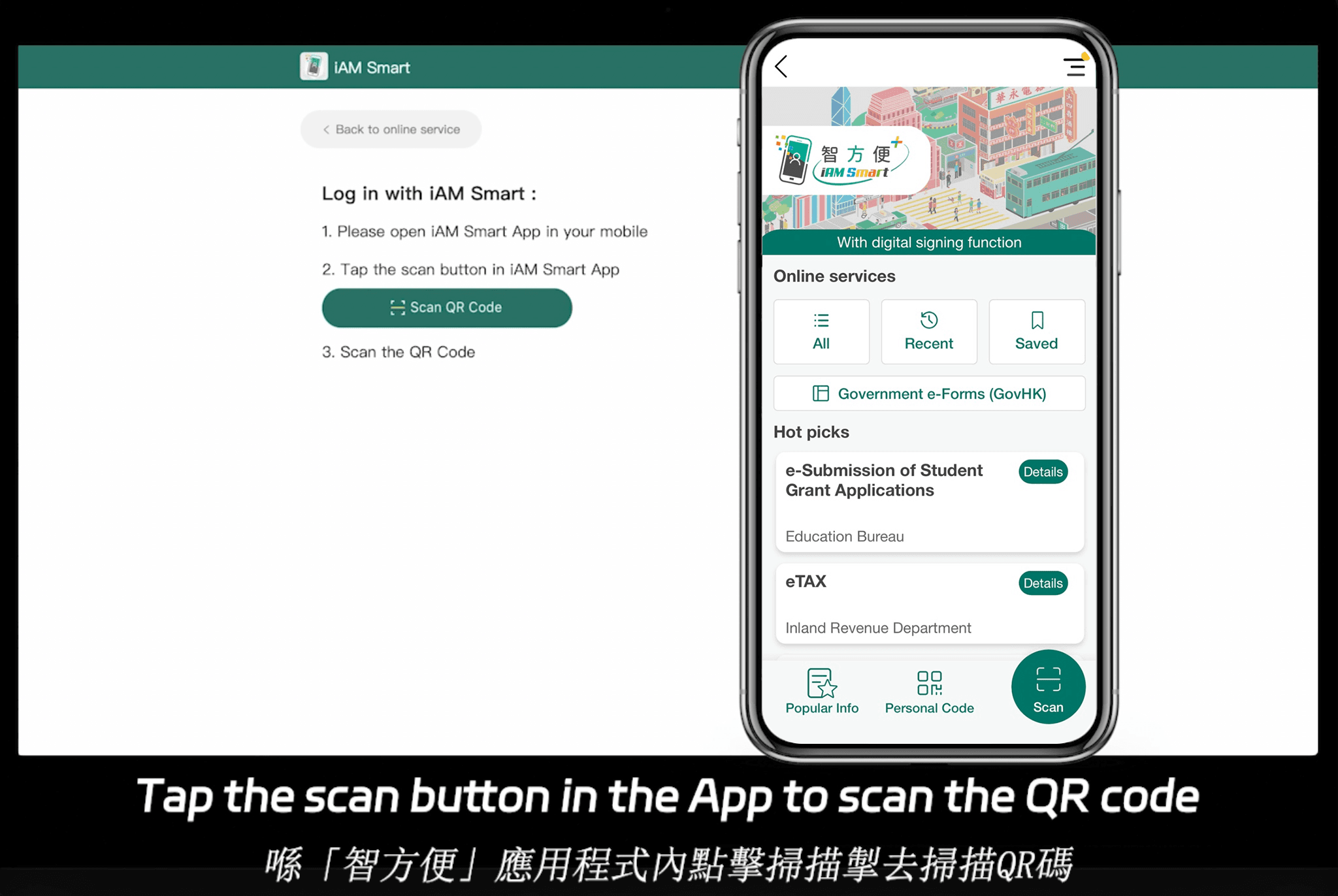
Nag-aalok ang eSignGlobal ng isang katulad na platform ng CLM na nakatuon sa rehiyon ng APAC, na sumusuporta sa pagsunod sa 100 pangunahing pandaigdigang bansa at rehiyon, na nakakakuha ng kalamangan sa pamamagitan ng pag-optimize ng imprastraktura. Ang merkado ng electronic signature ng APAC ay pira-piraso, may mataas na pamantayan, at mahigpit na kinokontrol, na kaibahan sa mga framework ng ESIGN/eIDAS ng US at EU. Ang APAC ay nangangailangan ng pamantayan ng "ecosystem integration," na nangangailangan ng malalim na hardware/API docking sa mga digital na pagkakakilanlan ng gobyerno (G2B)—isang mas mataas na teknikal na threshold kaysa sa email o self-assertion sa Kanluran. Nakikipagkumpitensya ang eSignGlobal sa buong mundo, kabilang ang US at EU laban sa DocuSign at Adobe Sign, at nag-aalok ng mga cost-effective na plano. Ang Essential na bersyon nito ay nagkakahalaga lamang ng $16.6 USD/buwan, na sumusuporta sa hanggang 100 nilagdaang dokumento, walang limitasyong mga user seat, at pag-verify ng access code—na nagbibigay ng mataas na halaga sa pagsunod. Walang hirap itong isinasama sa iAM Smart ng Hong Kong at Singpass ng Singapore. Para sa isang 30-araw na libreng pagsubok, bisitahin ang pahina ng contact ng eSignGlobal.
Pangkalahatang-ideya ng HelloSign (Dropbox Sign)
Kilala sa user-friendly na interface at mabilis na pag-setup, nag-aalok ang HelloSign ng Word add-in para sa pangunahing pag-tag. Ito ay cost-effective para sa maliliit na team ngunit kulang sa advanced na lalim ng CLM, tulad ng clause library.
| Feature | DocuSign CLM | Adobe Sign | eSignGlobal | HelloSign (Dropbox Sign) |
|---|---|---|---|---|
| Word Add-in Integration | Excellent (Tagging/Routing) | Strong (PDF Focus) | Good (API Driven) | Basic (Simple Signing) |
| Pricing (Entry-Level) | $10/user/month | $10/user/month | $16.6/month (Unlimited Users) | $15/user/month |
| Global Compliance | Strong US/EU | Extensive, PDF Centric | 100 Countries, APAC Advantage | US/EU Focus, Basic Global |
| Unlimited Users | No (Seat-Based) | No | Yes | No |
| Key Strengths | Complete CLM Workflow | Adobe Ecosystem Integration | Regional Integration | SMB Ease of Use |
| Limitations | Higher Cost at Scale | Add-on Costs | Emerging Outside APAC | Limited Advanced Features |
Itinatampok ng talahanayang ito ang mga neutral na trade-off: DocuSign para sa komprehensibong CLM, Adobe para sa versatility ng dokumento, eSignGlobal para sa scalable na pagsunod sa APAC, at HelloSign para sa pagiging abot-kaya.
Konklusyon
Habang ang Word add-in ng DocuSign CLM ay nag-aalok ng matatag na kahusayan para sa pamamahala ng kontrata, ang paggalugad ng mga alternatibo ay maaaring mas mahusay na umayon sa mga partikular na pangangailangan. Para sa pagsunod sa rehiyon, lalo na sa APAC, ang eSignGlobal ay nararapat na isaalang-alang bilang isang neutral at cost-effective na opsyon.
