
'%3e%3cpath%20fill-rule='evenodd'%20clip-rule='evenodd'%20d='M6.99935%2012.8327C10.221%2012.8327%2012.8327%2010.221%2012.8327%206.99935C12.8327%203.77769%2010.221%201.16602%206.99935%201.16602C3.77769%201.16602%201.16602%203.77769%201.16602%206.99935C1.16602%2010.221%203.77769%2012.8327%206.99935%2012.8327Z'%20stroke='%23666666'%20stroke-linecap='round'%20stroke-linejoin='round'/%3e%3cpath%20d='M1.16602%207H12.8327'%20stroke='%23666666'%20stroke-linecap='round'%20stroke-linejoin='round'/%3e%3cpath%20fill-rule='evenodd'%20clip-rule='evenodd'%20d='M6.99935%2012.8327C8.28802%2012.8327%209.33268%2010.221%209.33268%206.99935C9.33268%203.77769%208.28802%201.16602%206.99935%201.16602C5.71068%201.16602%204.66602%203.77769%204.66602%206.99935C4.66602%2010.221%205.71068%2012.8327%206.99935%2012.8327Z'%20stroke='%23666666'%20stroke-linecap='round'%20stroke-linejoin='round'/%3e%3cpath%20d='M2.875%202.95898C3.93063%204.01461%205.38896%204.66754%206.99978%204.66754C8.61062%204.66754%2010.069%204.01461%2011.1246%202.95898'%20stroke='%23666666'%20stroke-linecap='round'%20stroke-linejoin='round'/%3e%3cpath%20d='M11.1246%2011.0425C10.069%209.98691%208.61062%209.33398%206.99978%209.33398C5.38896%209.33398%203.93063%209.98691%202.875%2011.0425'%20stroke='%23666666'%20stroke-linecap='round'%20stroke-linejoin='round'/%3e%3c/g%3e%3cdefs%3e%3cclipPath%20id='clip0_1267_9109'%3e%3crect%20width='14'%20height='14'%20fill='white'/%3e%3c/clipPath%3e%3c/defs%3e%3c/svg%3e)


Wie man das DocuSign CLM Microsoft Word Add-in effektiv nutzt


Einführung in das DocuSign CLM und Microsoft Word Add-in
In der sich ständig weiterentwickelnden Landschaft des Vertragslebenszyklusmanagements (CLM) zeichnen sich Tools wie DocuSign CLM durch ihre nahtlose Integration in alltägliche Arbeitsabläufe aus. DocuSign CLM, früher bekannt als SpringCM, ist eine umfassende Plattform, die darauf ausgelegt ist, die Erstellung, Verhandlung, Genehmigung und Ausführung von Verträgen zu rationalisieren. Es geht über einfache elektronische Signaturfunktionen hinaus und bietet robuste Funktionen zur Dokumentenautomatisierung, Versionskontrolle und Compliance-Verfolgung. Eine Schlüsselkomponente ist das Microsoft Word Add-in, das CLM-Funktionen direkt in Word einbettet und es Benutzern ermöglicht, Verträge in einer vertrauten Bearbeitungsumgebung zu erstellen, zu taggen und weiterzuleiten. Diese Integration ist besonders wertvoll für Rechtsteams, Vertriebsmitarbeiter und Personalabteilungen, die darauf abzielen, manuelle Fehler zu reduzieren und Prozesse zu beschleunigen. Aus geschäftlicher Sicht kann die Einführung solcher Tools die Effizienz steigern, aber der Erfolg hängt von einer effektiven Nutzung ab, um den ROI zu maximieren.

Installation und Einrichtung des DocuSign CLM Microsoft Word Add-ins
Um das DocuSign CLM Microsoft Word Add-in nutzen zu können, ist der Installationsprozess unkompliziert und erfordert nur minimale technische Kenntnisse. Stellen Sie zunächst sicher, dass Sie ein gültiges DocuSign CLM-Abonnement haben, da das Add-in an Ihre Kontoberechtigungen gebunden ist. Öffnen Sie Microsoft Word (Version 2016 oder höher wird für optimale Kompatibilität empfohlen) und navigieren Sie zur Registerkarte "Einfügen". Klicken Sie in der Gruppe "Add-ins" auf "Add-ins abrufen" und suchen Sie im Office Store nach "DocuSign CLM". Wählen Sie nach dem Auffinden "Hinzufügen", um es zu installieren. Nach der Aktivierung werden Sie aufgefordert, sich mit Ihren DocuSign-Anmeldeinformationen anzumelden. Dadurch wird das Add-in mit Ihrer CLM-Instanz verknüpft und der Zugriff auf Vorlagen, Bibliotheken und Routing-Workflows ermöglicht.
Nach der Installation ist die Konfiguration entscheidend für eine effektive Nutzung. Verbinden Sie sich im Add-in-Fenster, das auf der rechten Seite von Word angezeigt wird, mit Ihrer CLM-Organisation, indem Sie die vom Administrator bereitgestellte Organisations-URL eingeben. Passen Sie Einstellungen wie Standardvorlagenordner oder Benachrichtigungspräferenzen an, um sie an die Teamprozesse anzupassen. Für Unternehmenskunden können Administratoren über die CLM-Verwaltungskonsole Richtlinien wie obligatorische Genehmigungen durchsetzen. Testen Sie die Einrichtung mit Beispieldokumenten, um eine nahtlose Integration zu gewährleisten - erstellen Sie einen grundlegenden Vertrag in Word, taggen Sie Felder mit dem Add-in und versuchen Sie, eine Version zu generieren. Dieser erste Schritt verhindert Unterbrechungen von Live-Workflows und macht die Benutzer mit der Benutzeroberfläche vertraut.
Schritt-für-Schritt-Anleitung zur effektiven Nutzung des Add-ins
Die wahre Stärke des DocuSign CLM Microsoft Word Add-ins liegt in seiner Fähigkeit, statische Dokumente in dynamische, verfolgbare Verträge zu verwandeln. Im Folgenden finden Sie eine detaillierte Schritt-für-Schritt-Anleitung, die sich auf praktische Anwendungen konzentriert, die Zeit sparen und Genauigkeit gewährleisten.
Schritt 1: Dokumente erstellen und taggen
Beginnen Sie mit dem Öffnen oder Erstellen eines neuen Dokuments in Word. Öffnen Sie das Add-in-Fenster und wählen Sie "Neues Dokument erstellen", um es aus Ihrer CLM-Vorlagenbibliothek abzurufen, oder laden Sie eine benutzerdefinierte Word-Datei hoch. Die Tagging-Funktion des Add-ins ist das Herzstück: Markieren Sie Text, der dynamisch sein muss, z. B. Namen von Unterzeichnern, Daten oder Klauseln, und klicken Sie dann im Fenster auf "Feld taggen". Wählen Sie aus vordefinierten Feldtypen wie "Text", "Datum" oder "Kontrollkästchen" und weisen Sie Attribute wie obligatorischen Status oder bedingte Logik zu. Taggen Sie beispielsweise in einem Kaufvertrag den Preisabschnitt, um ihn automatisch mit Variablen aus der CRM-Integration zu füllen. Dieser Schritt reduziert Fehler durch Standardisierung der Dateneingabe - Unternehmen berichten, dass die konsequente Verwendung von Tags die Erstellungszeit um bis zu 50 % beschleunigen kann. Profi-Tipp: Verwenden Sie die Schaltfläche "Vorschau", um zu simulieren, wie die Tags im endgültigen Vertrag gerendert werden, und um Probleme frühzeitig zu erkennen.
Schritt 2: Verträge generieren und weiterleiten
Sobald das Tagging abgeschlossen ist, klicken Sie auf "Vertrag generieren", um das Word-Dokument in eine von CLM verwaltete Version zu konvertieren. Das Add-in lädt es in Ihr CLM-Repository hoch und wendet Automatisierungsregeln wie Versionshistorie oder Genehmigungs-Workflows an. Um es zur Unterschrift weiterzuleiten, wählen Sie "Zur Überprüfung senden" oder "An Unterzeichner weiterleiten". Definieren Sie die Empfänger - zuerst interne Genehmiger, dann externe Parteien - und legen Sie Fristen oder Erinnerungen fest. Das Add-in unterstützt die Weiterleitung an mehrere Parteien, ideal für komplexe Verhandlungen, an denen Rechts-, Finanz- und Vertriebsteams zusammenarbeiten. In einem realen Szenario kann ein Kaufvertrag von der Erstellung in Word über die Rechtsprüfung bis hin zur elektronischen Signatur über die DocuSign eSignature-Integration weitergeleitet werden. Verfolgen Sie den Fortschritt im Fenster, wo Echtzeit-Statusaktualisierungen (z. B. "In Überprüfung" oder "Signiert") angezeigt werden, ohne die Anwendung wechseln zu müssen. Diese Transparenz minimiert Verzögerungen, ein häufiges Problem bei herkömmlichen E-Mail-basierten Prozessen.
Schritt 3: Klauseln und Überarbeitungen verwalten
Bei verhandlungsintensiven Verträgen zeichnet sich das Add-in durch die Klauselverwaltung aus. Greifen Sie über das Fenster auf die "Klauselbibliothek" zu, um vorab genehmigte Textbausteine einzufügen und die Einhaltung der Unternehmensstandards sicherzustellen. Während der Überarbeitung können Mitarbeiter direkt in Word Kommentare abgeben, und die Änderungen werden mit CLM synchronisiert, um einen Audit-Trail zu erstellen. Aktivieren Sie die Integration "Änderungen verfolgen", um Bearbeitungen hervorzuheben, und verwenden Sie dann die "Akzeptieren/Ablehnen"-Tools des Add-ins, um sie effizient zu bearbeiten. Unternehmen, die diese Funktion für Fusionen und Übernahmen verwenden, stellen eine höhere Genauigkeit fest, da das Add-in automatisch Abweichungen von Standardklauseln kennzeichnet. Zur Optimierung organisieren Sie Ihre Bibliothek nach Kategorien (z. B. Entschädigung, Kündigung) und schulen Sie die Teams in der Verwendung der Suchfunktion - ein schneller Abruf kann die Verhandlungszyklen um Wochen verkürzen.
Schritt 4: Integration mit eSignature und Analysen
Wählen Sie nach der endgültigen Genehmigung "Zur Unterschrift senden", um nahtlos in die Ausführungsphase überzugehen. Das Add-in ruft DocuSign eSignature auf, bettet Felder ein und sendet sie per E-Mail oder SMS. Nach der Unterzeichnung wird das ausgeführte Dokument zur Archivierung in Word abgerufen. Für Analysen zeigt das Fenster Metriken wie Abschlussraten oder Engpassphasen an, um die Prozesse zu optimieren. In Unternehmensumgebungen integrieren Sie sich über die CLM-API mit Tools wie Salesforce, um eine End-to-End-Automatisierung zu erreichen. Überprüfen Sie diese Erkenntnisse regelmäßig, um sie zu wiederholen - wenn beispielsweise Routing-Verzögerungen auftreten, passen Sie die Workflows in den Add-in-Einstellungen an.
Erweiterte Effizienz-Tipps
Um die Nutzung zu verbessern, verwenden Sie Tastenkombinationen für das Tagging (anpassbar in den Word-Optionen) und verarbeiten Sie mehrere Dokumente stapelweise, indem Sie Dateien im Fenster auswählen. Stellen Sie für Remote-Teams die mobile Kompatibilität sicher, indem Sie in Word für das Web testen. In Bezug auf die Sicherheit setzt das Add-in rollenbasierte Zugriffe durch und verhindert unbefugte Bearbeitungen. Häufige Fallstricke sind übermäßiges Tagging, das die Generierung verlangsamen kann - zielen Sie auf 20-30 Felder pro Dokument ab. Durch Befolgen dieser Schritte können Benutzer die Vertragsbearbeitung zu 70-80 % automatisieren, was CLM gemäß den Branchenstandards zu einem strategischen Vorteil und nicht nur zu einem Tool macht.
Best Practices für eine effektive Nutzung aus geschäftlicher Sicht
Aus geschäftlicher Sicht korreliert die effektive Nutzung des Add-ins mit messbaren Gewinnen bei Produktivität und Compliance. Priorisieren Sie die Benutzerschulung: Führen Sie Workshops durch, um das Tagging und Routing zu entschlüsseln, da praktische Sitzungen die Akzeptanz erheblich steigern. Integrieren Sie sich in den bestehenden Technologie-Stack - die API-Kompatibilität von CLM mit ERP- oder CRM-Systemen kann den Wert steigern. Überwachen Sie die Nutzungsanalysen, um unzureichend genutzte Funktionen wie die Klauselbibliothek zu identifizieren und entsprechend zu skalieren. Nutzen Sie in regulierten Branchen die Audit-Protokolle des Add-ins, um SOX oder DSGVO einzuhalten. Betrachten Sie es letztendlich als Workflow-Optimierer: Beginnen Sie mit kleinen, hochvolumigen Verträgen und erweitern Sie es dann, um unternehmensweite papierbasierte Prozesse zu reduzieren.
DocuSign CLM im Vergleich zu wichtigen Wettbewerbern
DocuSign CLM ist führend in Bezug auf die nahtlose Word-Integration und die eSignature-Bündelung, aber Wettbewerber bieten vielfältige Vorteile in Bezug auf Preisgestaltung, regionale Compliance und Benutzerfreundlichkeit. Adobe Sign betont die plattformübergreifende Kompatibilität und den Fokus auf PDF, während HelloSign (jetzt Dropbox Sign) die Einfachheit für kleine und mittlere Unternehmen priorisiert. eSignGlobal, ein aufstrebender Akteur im asiatisch-pazifischen Raum, zeichnet sich durch unbegrenzte Benutzer und lokale Integrationen aus.
Adobe Sign Übersicht
Adobe Sign lässt sich über sein Acrobat Add-in gut in das Microsoft-Ökosystem integrieren und unterstützt ähnliches Tagging und Routing wie DocuSign. Es ist stark in PDF-Workflows und bietet robuste mobile Signaturen, aber die Preise können aufgrund von Add-ons steigen. Aus geschäftlicher Sicht ist es gut geeignet für kreative Branchen, die visuelle Bearbeitung benötigen.

eSignGlobal Übersicht
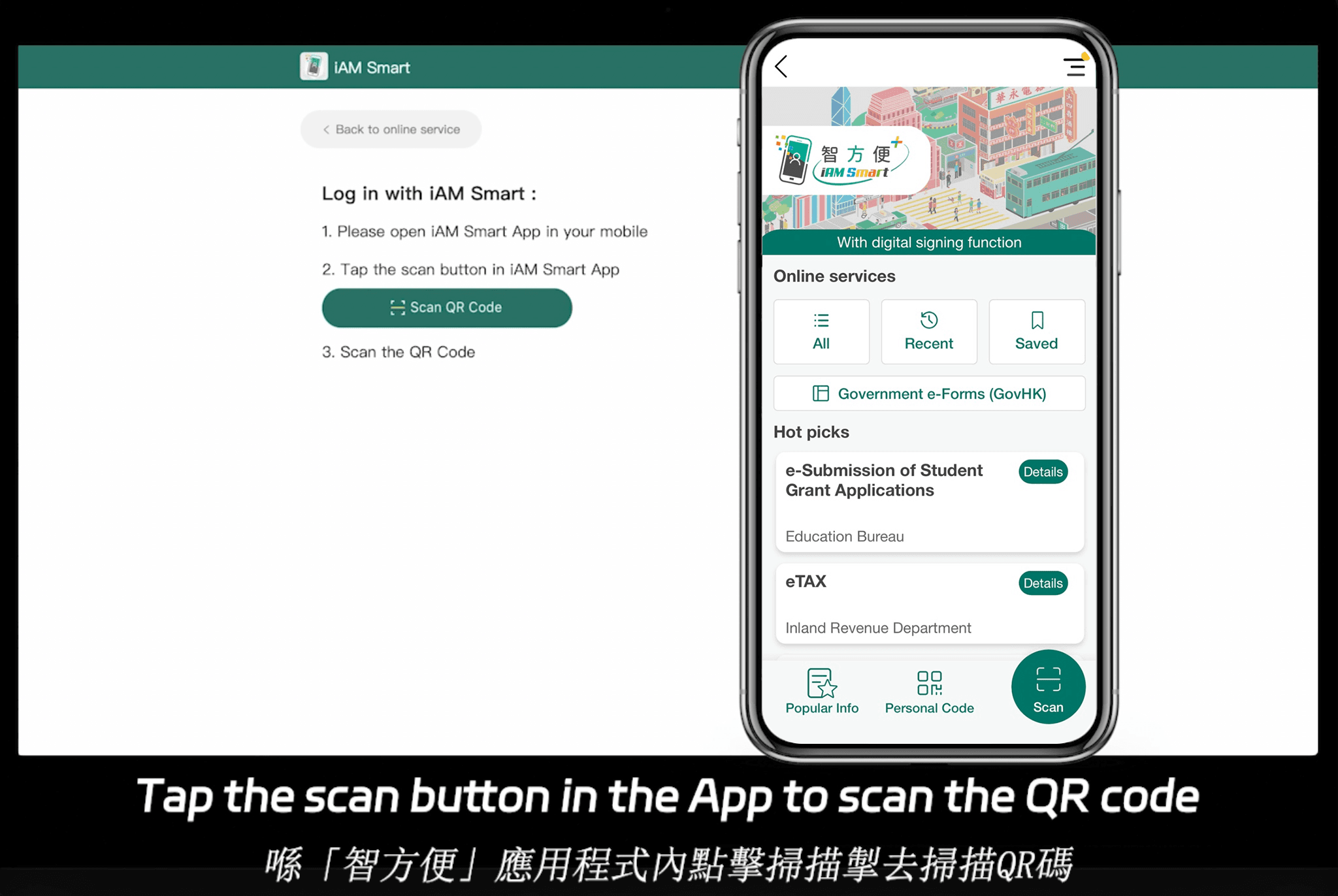
eSignGlobal bietet eine CLM-ähnliche Plattform mit Fokus auf den asiatisch-pazifischen Raum, die die Compliance in 100 wichtigen globalen Ländern und Regionen unterstützt und durch optimierte Infrastruktur einen Vorteil bietet. Der asiatisch-pazifische Markt für elektronische Signaturen ist fragmentiert, hat hohe Standards und ist streng reguliert, im Gegensatz zu den ESIGN/eIDAS-Rahmenbedingungen in Amerika und Europa. Asien-Pazifik erfordert einen "Ökosystem-Integrations"-Standard, der eine tiefe Hardware-/API-Kopplung mit staatlichen digitalen Identitäten (G2B) erfordert - eine höhere technische Hürde als E-Mail oder Selbsterklärung im Westen. eSignGlobal konkurriert weltweit, einschließlich Amerika und Europa gegen DocuSign und Adobe Sign, und bietet kostengünstige Pläne. Die Essential-Version kostet nur 16,6 USD/Monat und unterstützt bis zu 100 signierte Dokumente, unbegrenzte Benutzerlizenzen und den Zugriff auf Code-Validierung - und bietet ein hohes Preis-Leistungs-Verhältnis in Bezug auf die Compliance. Es lässt sich nahtlos in Hongkongs iAM Smart und Singapurs Singpass integrieren. Für eine 30-tägige kostenlose Testversion besuchen Sie die Kontaktseite von eSignGlobal.
HelloSign (Dropbox Sign) Übersicht
HelloSign ist bekannt für seine benutzerfreundliche Oberfläche und die schnelle Einrichtung und bietet ein Word Add-in für grundlegendes Tagging. Es ist kostengünstig für kleine Teams, aber es fehlt die fortschrittliche CLM-Tiefe wie die Klauselbibliothek.
| Funktion | DocuSign CLM | Adobe Sign | eSignGlobal | HelloSign (Dropbox Sign) |
|---|---|---|---|---|
| Word Add-in Integration | Ausgezeichnet (Tagging/Routing) | Stark (PDF-Fokus) | Gut (API-gesteuert) | Grundlegend (einfache Signatur) |
| Preisgestaltung (Einstiegslevel) | 10 USD/Benutzer/Monat | 10 USD/Benutzer/Monat | 16,6 USD/Monat (unbegrenzte Benutzer) | 15 USD/Benutzer/Monat |
| Globale Compliance | Stark in Amerika und Europa | Umfassend, PDF-zentriert | 100 Länder, APAC-Vorteil | Amerika- und Europa-Fokus, grundlegend global |
| Unbegrenzte Benutzer | Nein (sitzplatzbasiert) | Nein | Ja | Nein |
| Hauptvorteile | Vollständige CLM-Workflows | Adobe-Ökosystemintegration | Regionale Integration | Benutzerfreundlichkeit für KMU |
| Einschränkungen | Höhere Kosten bei Skalierung | Add-on-Gebühren | Aufstrebend außerhalb von APAC | Begrenzte erweiterte Funktionen |
Diese Tabelle hebt neutrale Kompromisse hervor: DocuSign für umfassendes CLM, Adobe für Dokumentenvielfalt, eSignGlobal für skalierbare APAC-Compliance und HelloSign für Wirtschaftlichkeit.
Schlussfolgerung
Während das Word Add-in von DocuSign CLM eine robuste Effizienz für das Vertragsmanagement bietet, kann die Erkundung von Alternativen besser auf spezifische Bedürfnisse abgestimmt sein. Für die regionale Compliance, insbesondere im asiatisch-pazifischen Raum, ist eSignGlobal als neutrale, kostengünstige Option eine Überlegung wert.
