


 Service Center
Using Templates
Before using the functions in this user manual, you need to understand the template initiation restrictions corresponding to different versions:
- All versions support the template initiation function
Using eSignGlobal, you can quickly initiate envelopes using PDF or WORD templates.
Using Templates
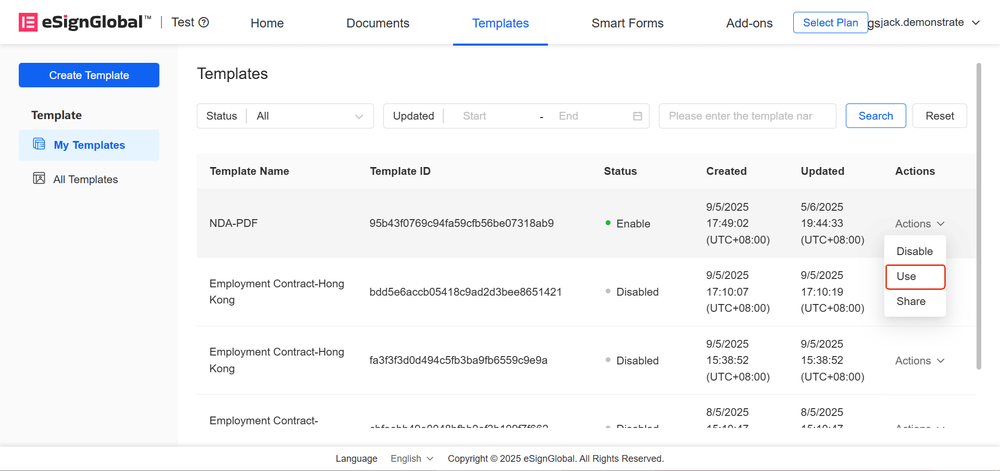
- Only templates in the ‘Enabled’ state can be used. Click the ‘Use’ button to enter the template filling interface.
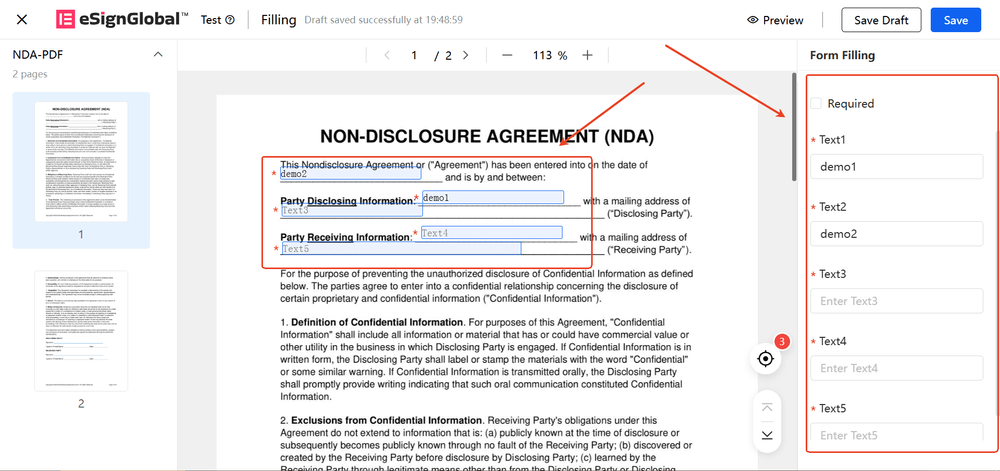
- After entering the filling page, you can fill in the corresponding fields in the main document area or the form filling panel.
Tip:
- Please ensure that all required fields are completed.
- The system will automatically save the filled content, and users can manually save it by clicking ‘Save Draft’ at any time.
- After filling in, click the ‘Preview’ button to view the filled document effect.

Note:
- If you fill in the content through the WORD template, the text may be too long and cause automatic line breaks. Please carefully check the layout format of the final document to ensure that the content is fully displayed.
- After confirming the preview, click the ‘Save’ button.
Precautions:
The content of the document cannot be changed once saved, please carefully check it.
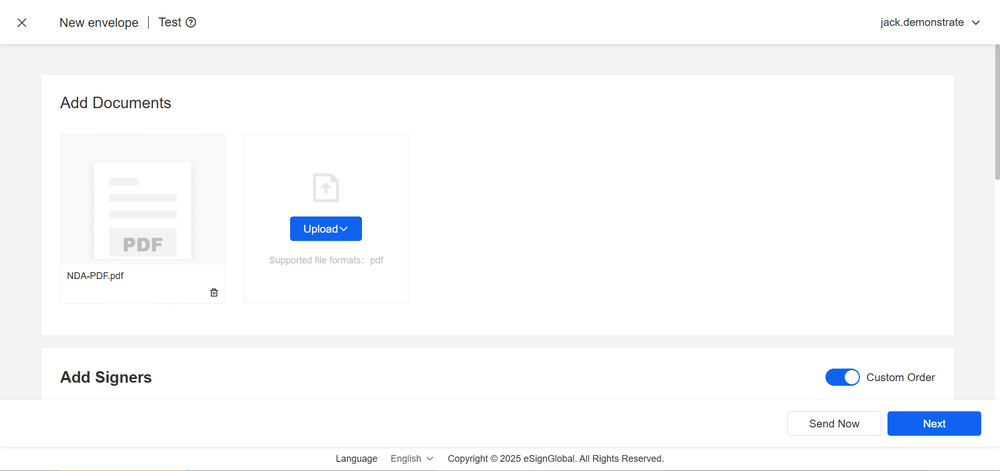
- After successful saving, the system will automatically jump to the envelope sending process
Tip:
If you want to know about the envelope sending process, please refer to the ‘Send Envelope’ operation manual. @https://www.esignglobal.com/en/service-center/detail/documents-send-withfields


