


 Service Center
Registration and Login
eSignGlobal is deeply integrated with Lark to create a one-stop electronic signature efficient experience for users: With one-click access to eSignGlobal in the Lark App Market, you can easily complete the entire process of envelope management and signing; and you can receive real-time signing notifications through Lark, and click to quickly jump to the signing link, making cross-border signing efficient and hassle-free.
Application Installation
-
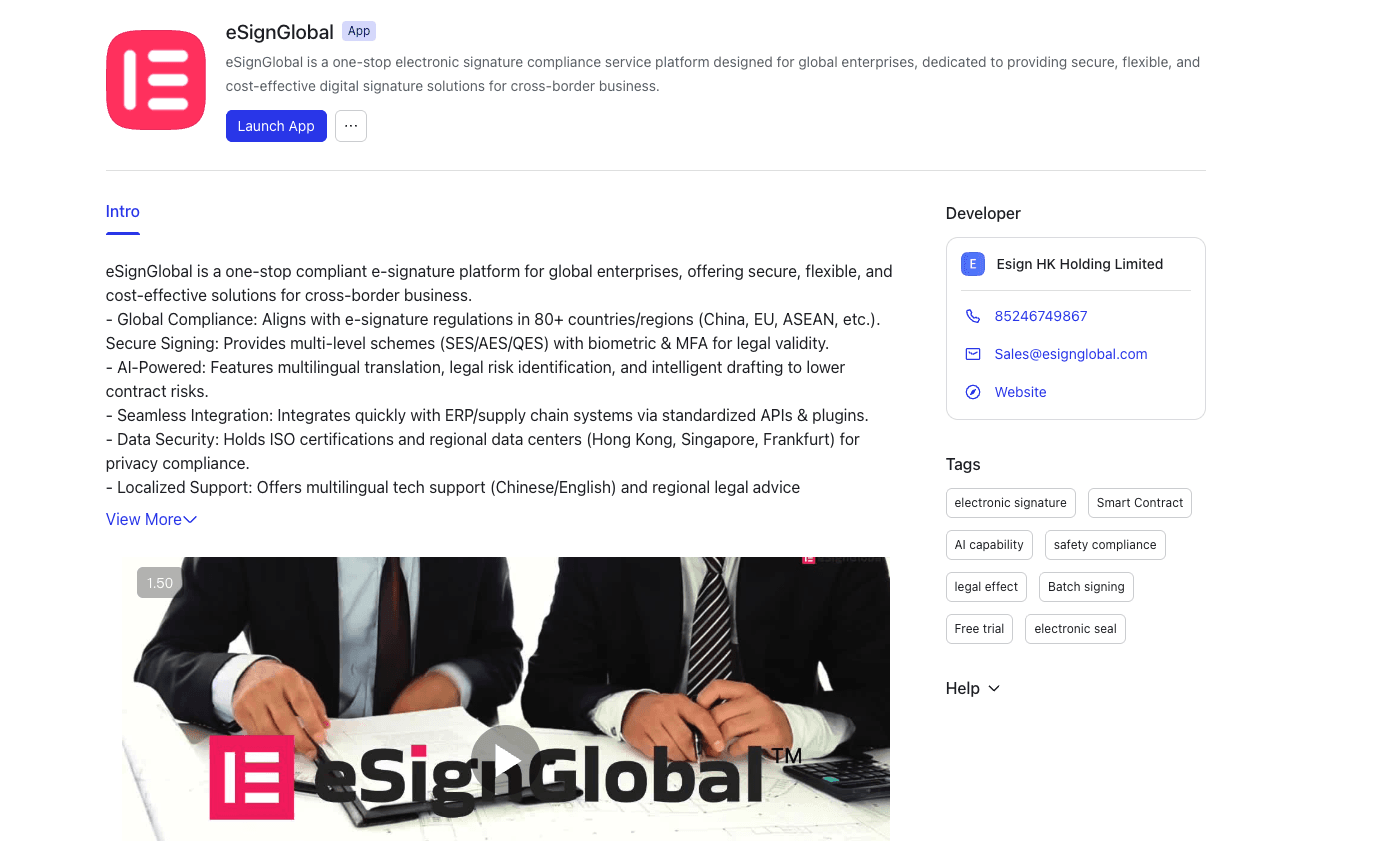
Lark organization administrators need to install and authorize the eSignGlobal application in the App Market.
-
After successful installation, open the eSignGlobal application in the Lark workspace.
Note:
- After successfully installing the eSignGlobal application, the organization administrator needs to enter the application and activate the eSignGlobal workspace for the organization. Other members of the organization will automatically join the workspace created by the administrator when they access the application in the future.
- After the organization administrator completes the activation of the workspace, other members of the organization can join and use eSignGlobal.
Activation of eSignGlobal Workspace (No Account)
-
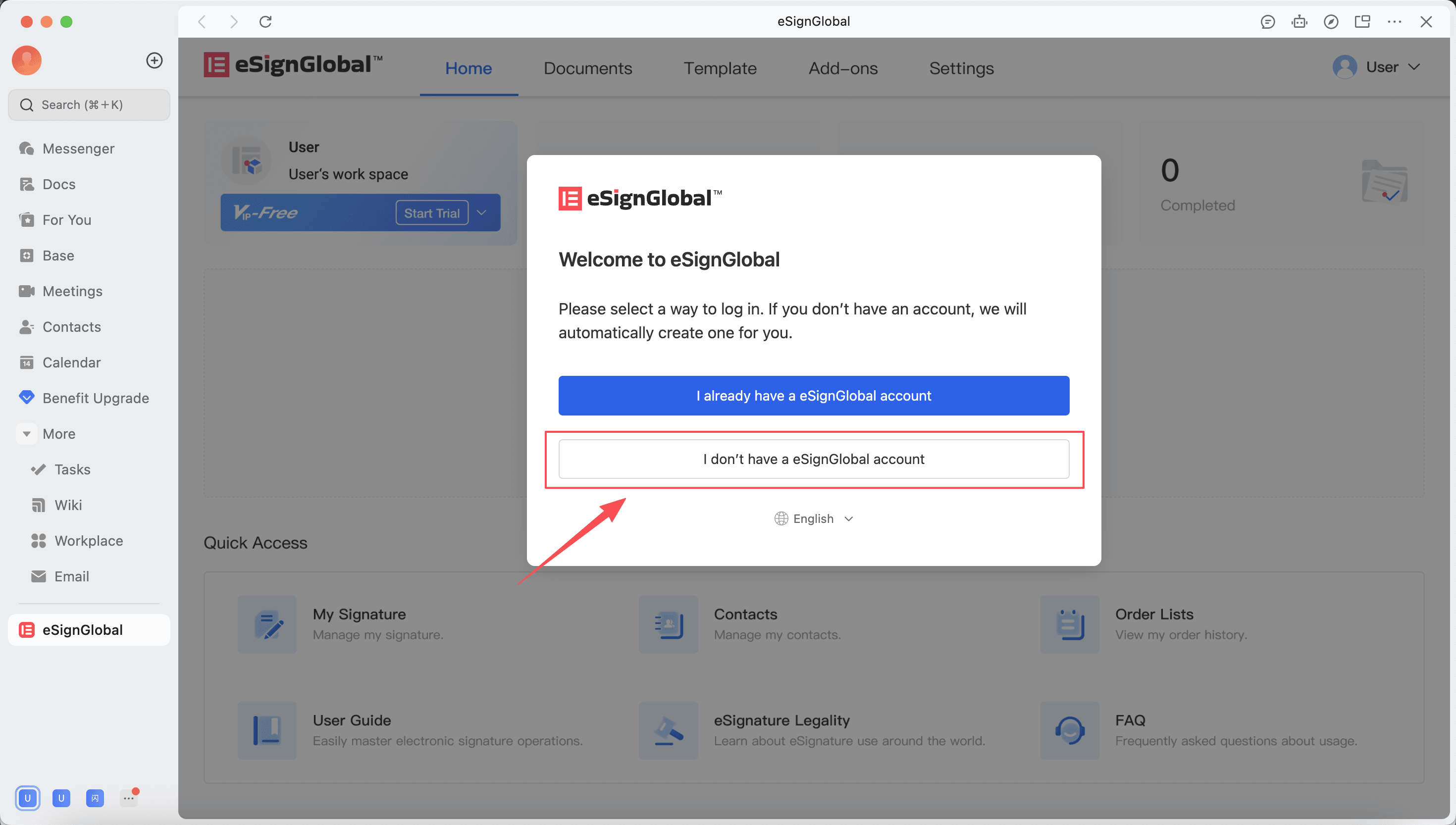
When the Lark organization administrator has not created an account on eSignGlobal, select “I do not have an eSignGlobal account”.
-
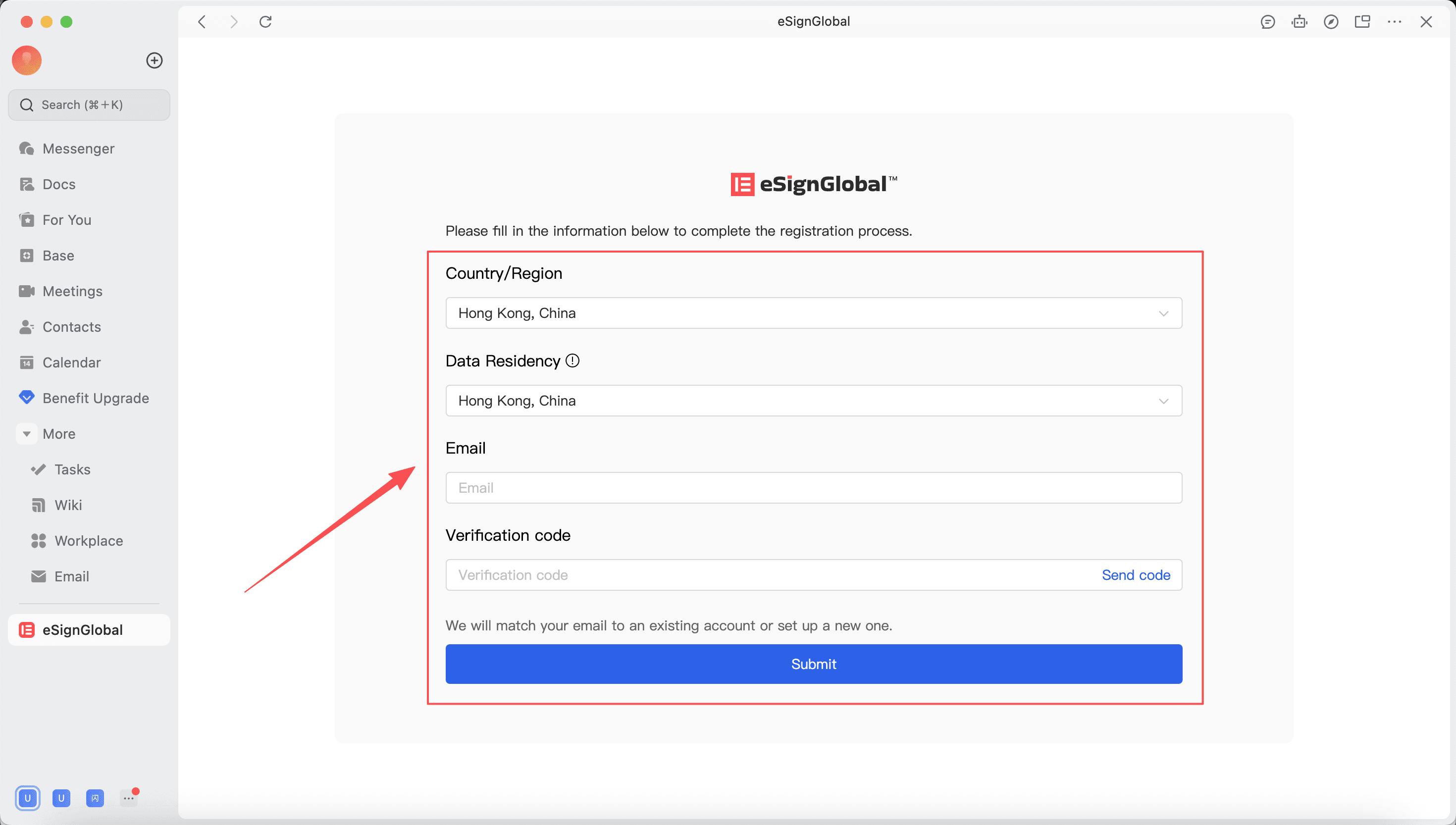
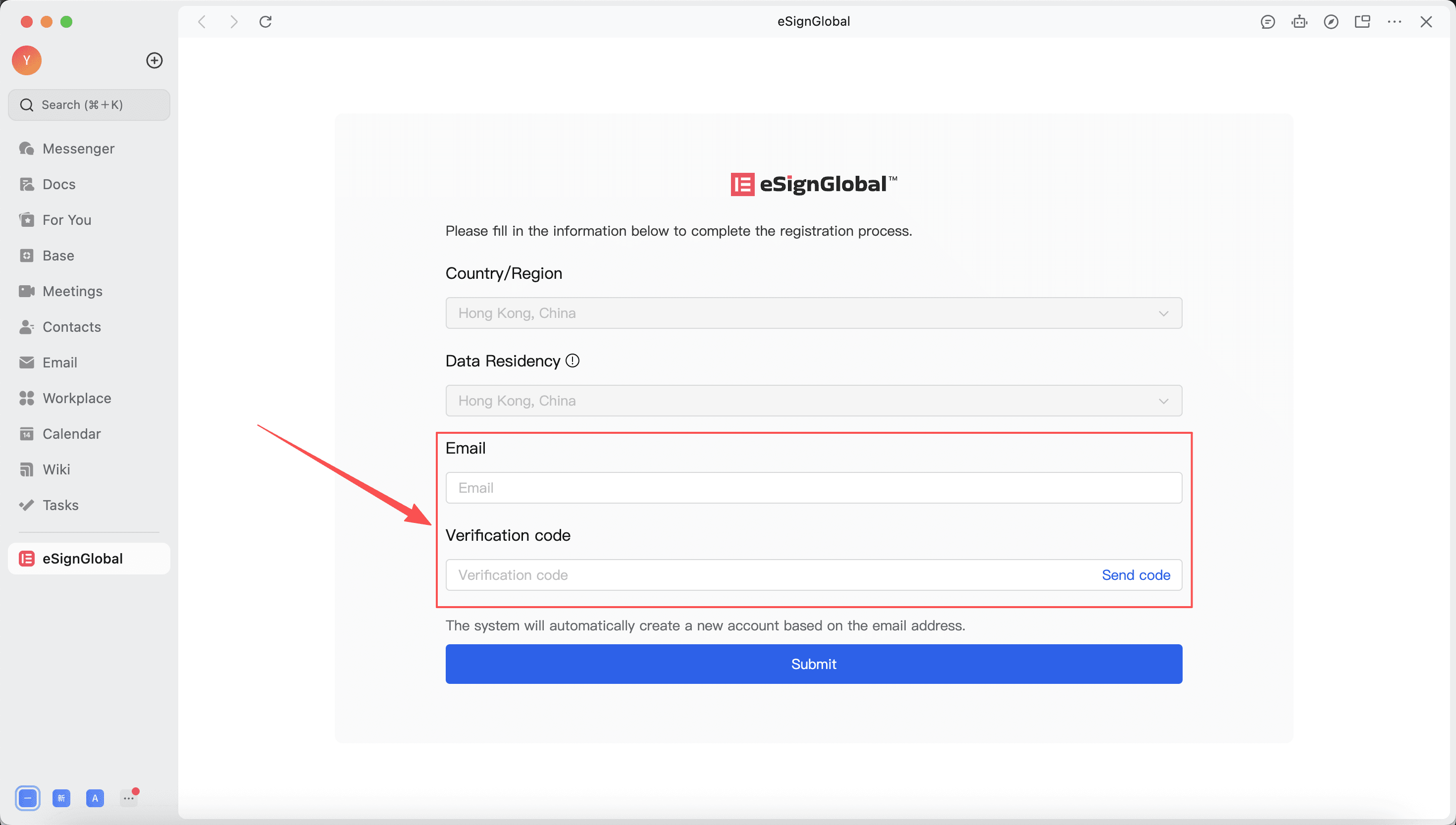
Users need to select a data center, country/region, enter their email address, and input the verification code to complete the activation process of the workspace.
Note:
- The selectable range of data centers includes: Hong Kong, China, Singapore, and Frankfurt. It is recommended that users choose based on their usage scenarios and the data compliance requirements of their country/region.
-
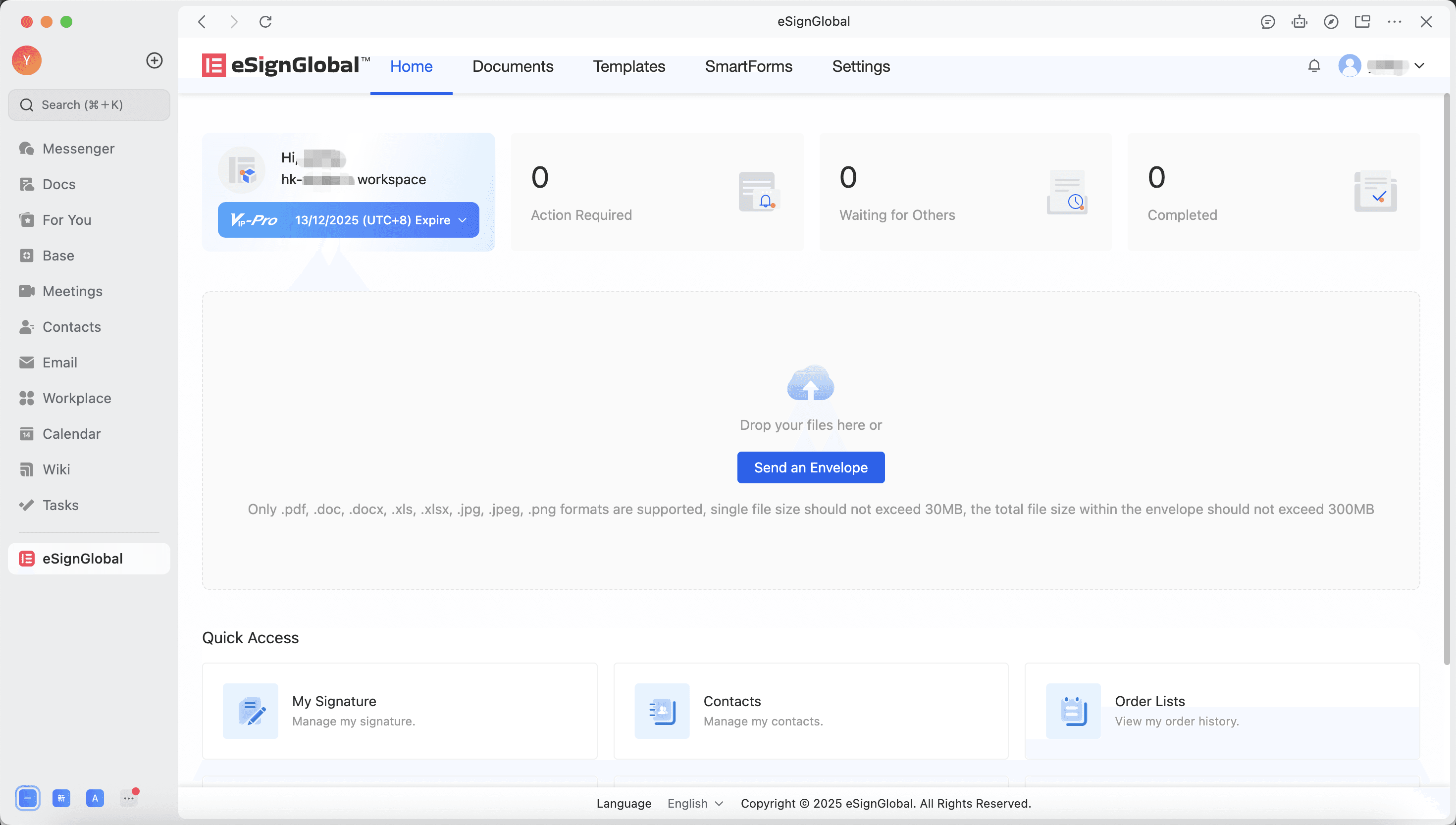
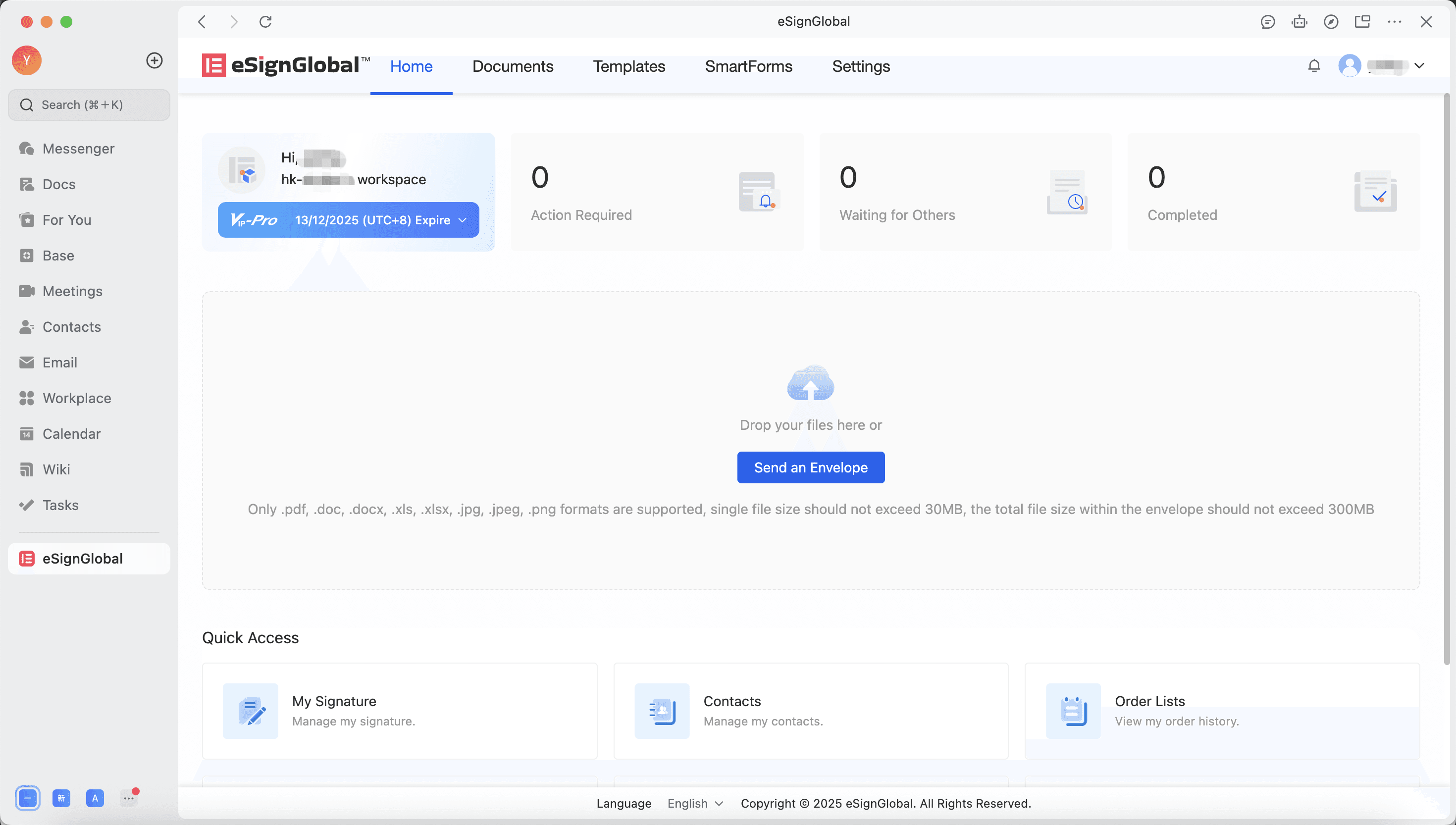
After successfully activating the workspace, users will enter the eSignGlobal homepage. Subsequently, all users under the Lark organization will automatically join this workspace when they enter eSignGlobal.
Activation of eSignGlobal Workspace (Existing Account)
-
When the Lark organization administrator already has an eSignGlobal account, select “I already have an eSignGlobal account”.
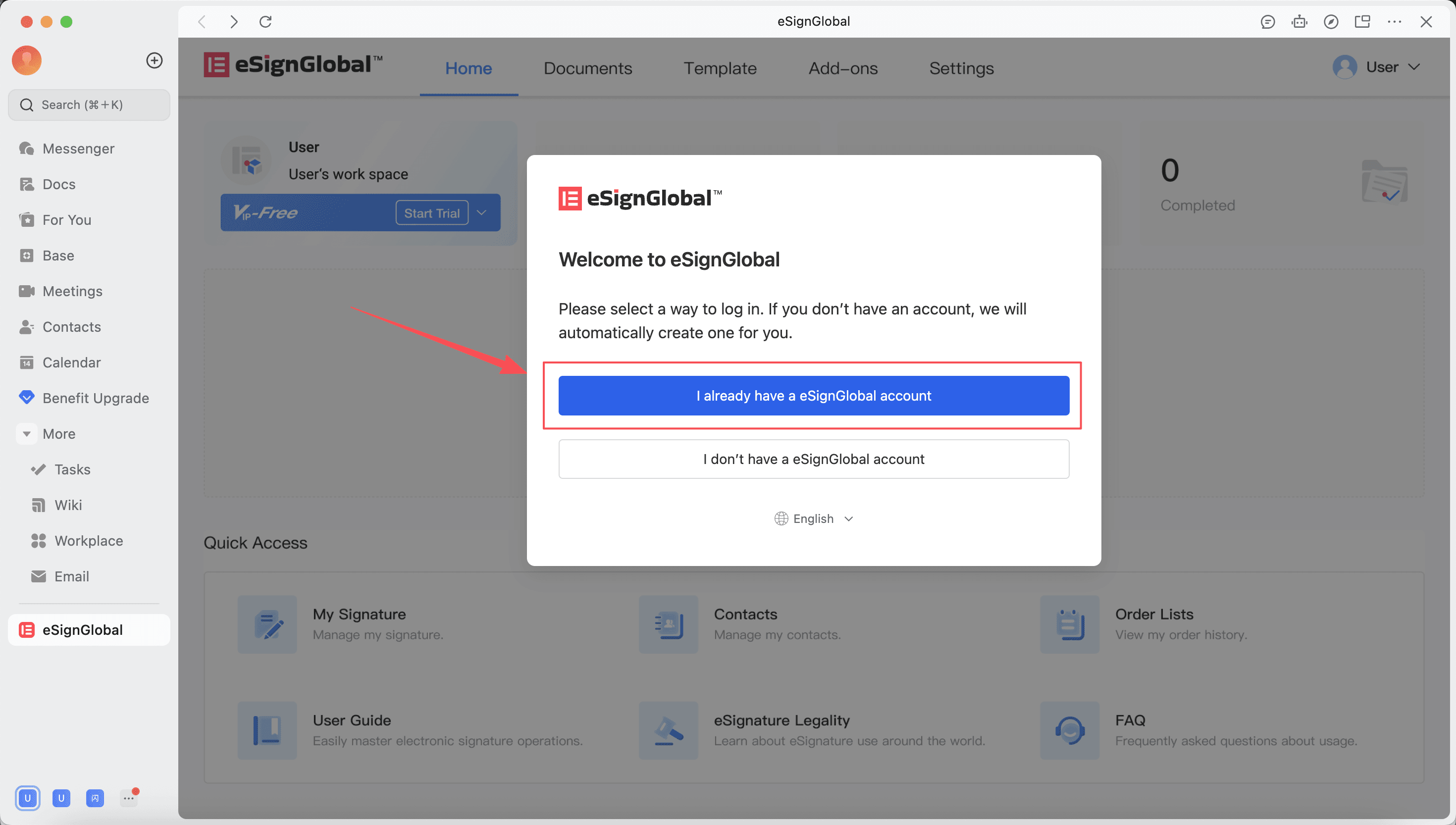
-
Users log in to their existing account.
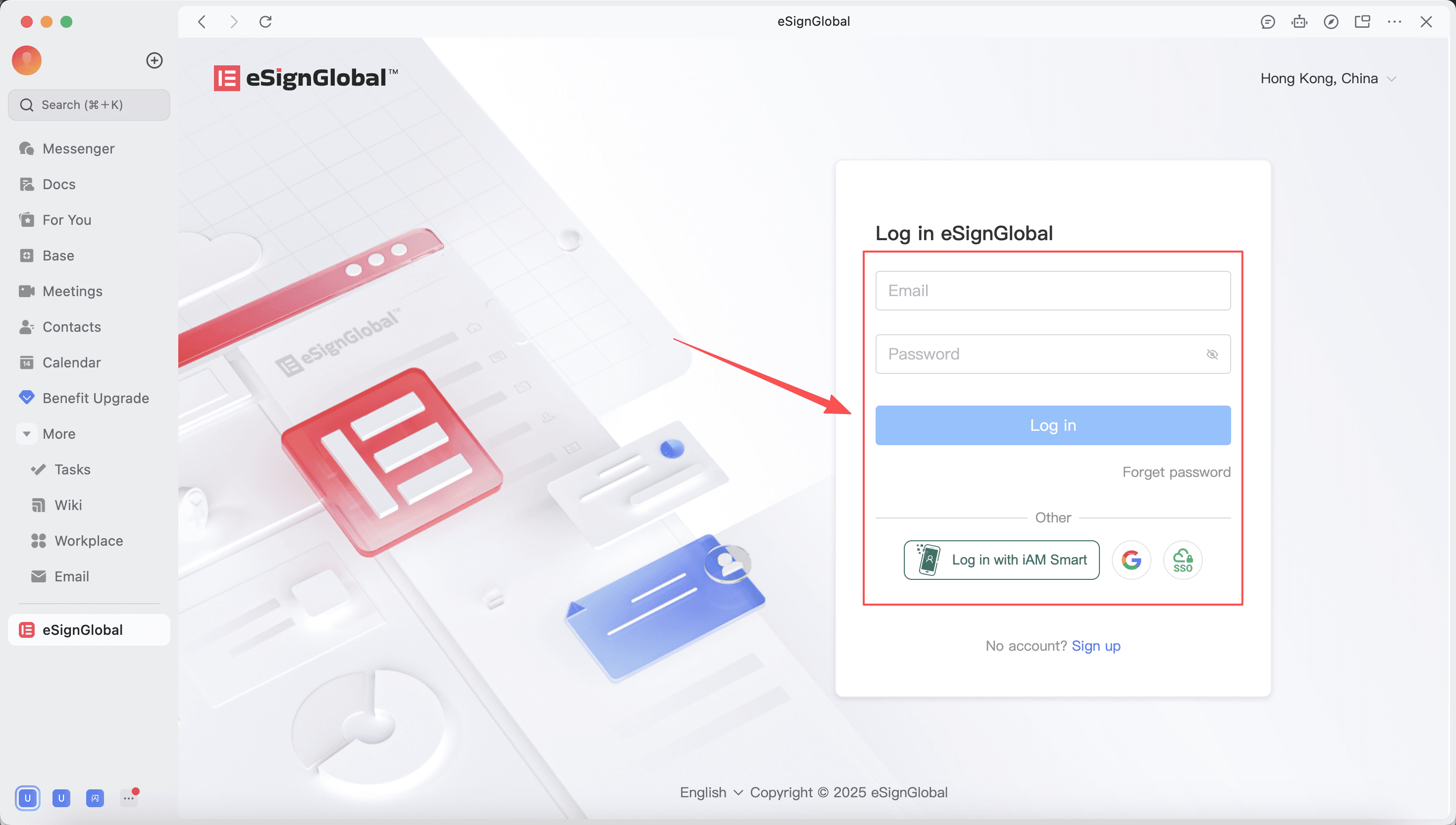
-
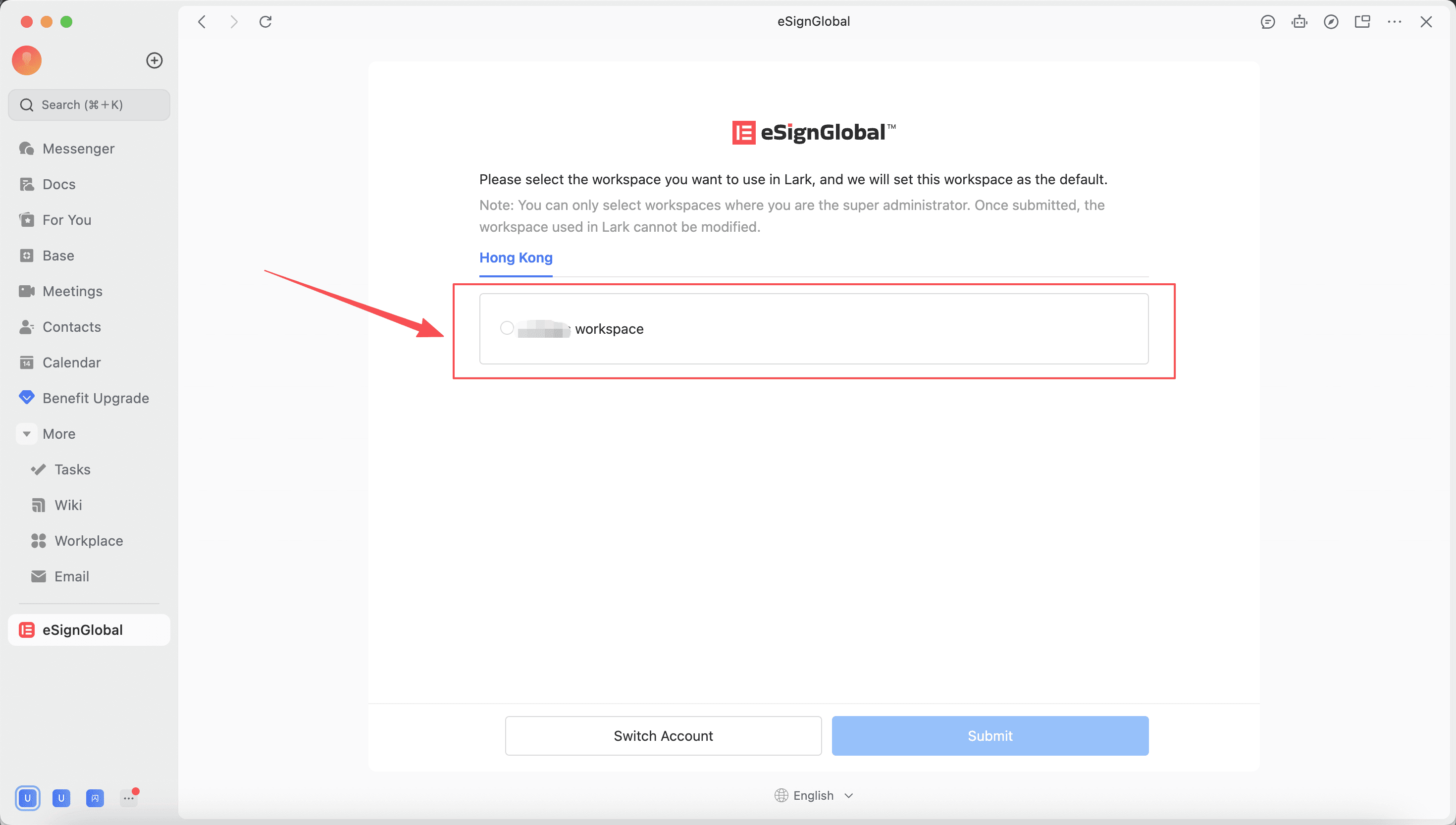
Select the workspace to be used in Lark.
Note:
- Only workspaces where you are a super administrator can be bound to Lark.
- One Lark organization can only bind to one eSignGlobal workspace, and modifying the binding relationship is not currently supported.
-
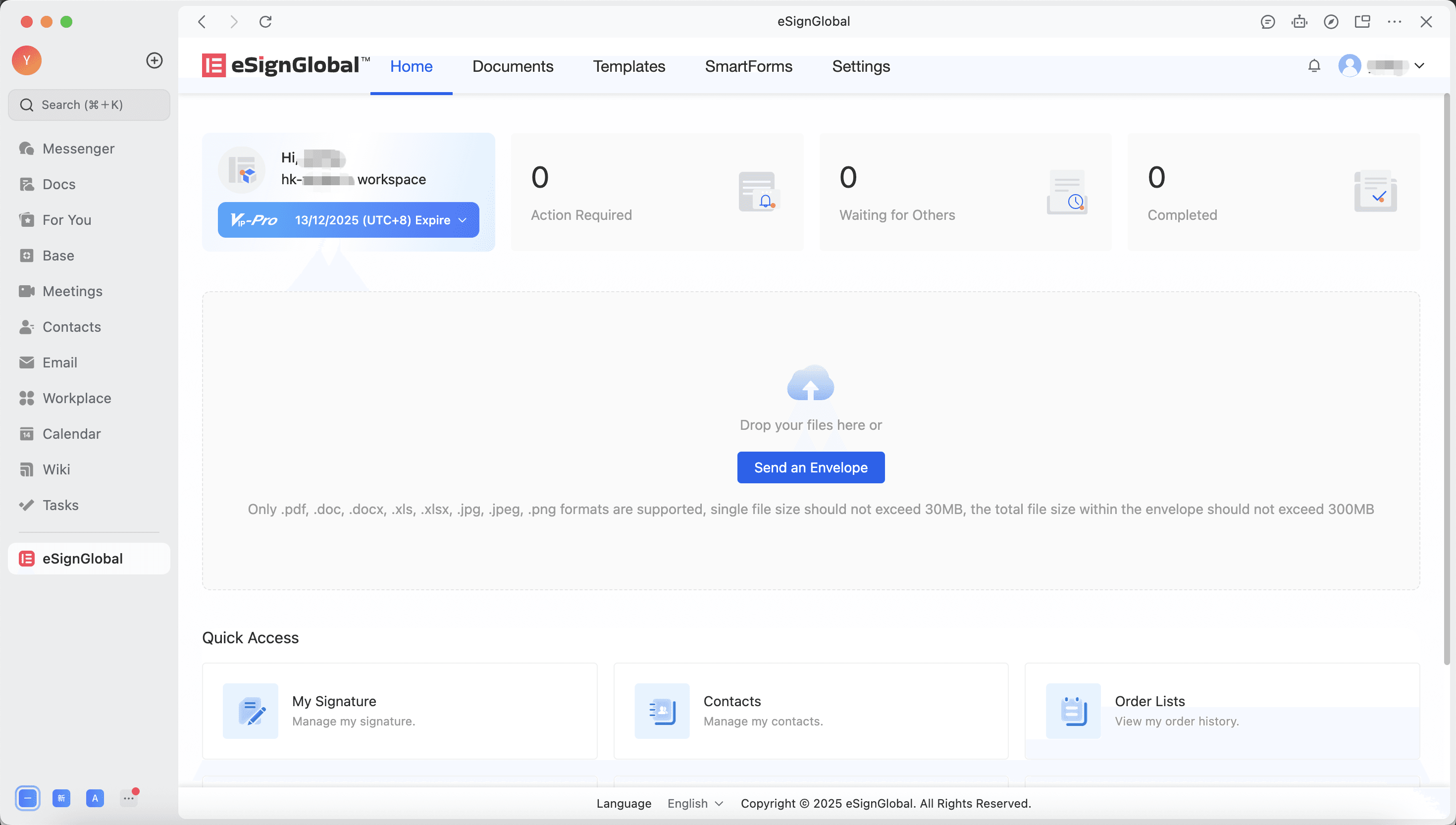
After successful binding, enter the eSignGlobal homepage. Subsequently, all users under the Lark organization will automatically join this workspace when they enter eSignGlobal.
Joining the Workspace for Lark Organization Members
-
After the Lark organization administrator successfully activates the eSignGlobal workspace, other members of the organization can start the process of joining eSignGlobal.
-
Users click to enter the eSignGlobal application, and need to enter their email address and verification code to activate their account during the first visit.
-
After successful activation, join the eSignGlobal workspace of the organization. Subsequent visits to eSignGlobal will result in silent login.
Receiving Signing Reminders via Lark
-
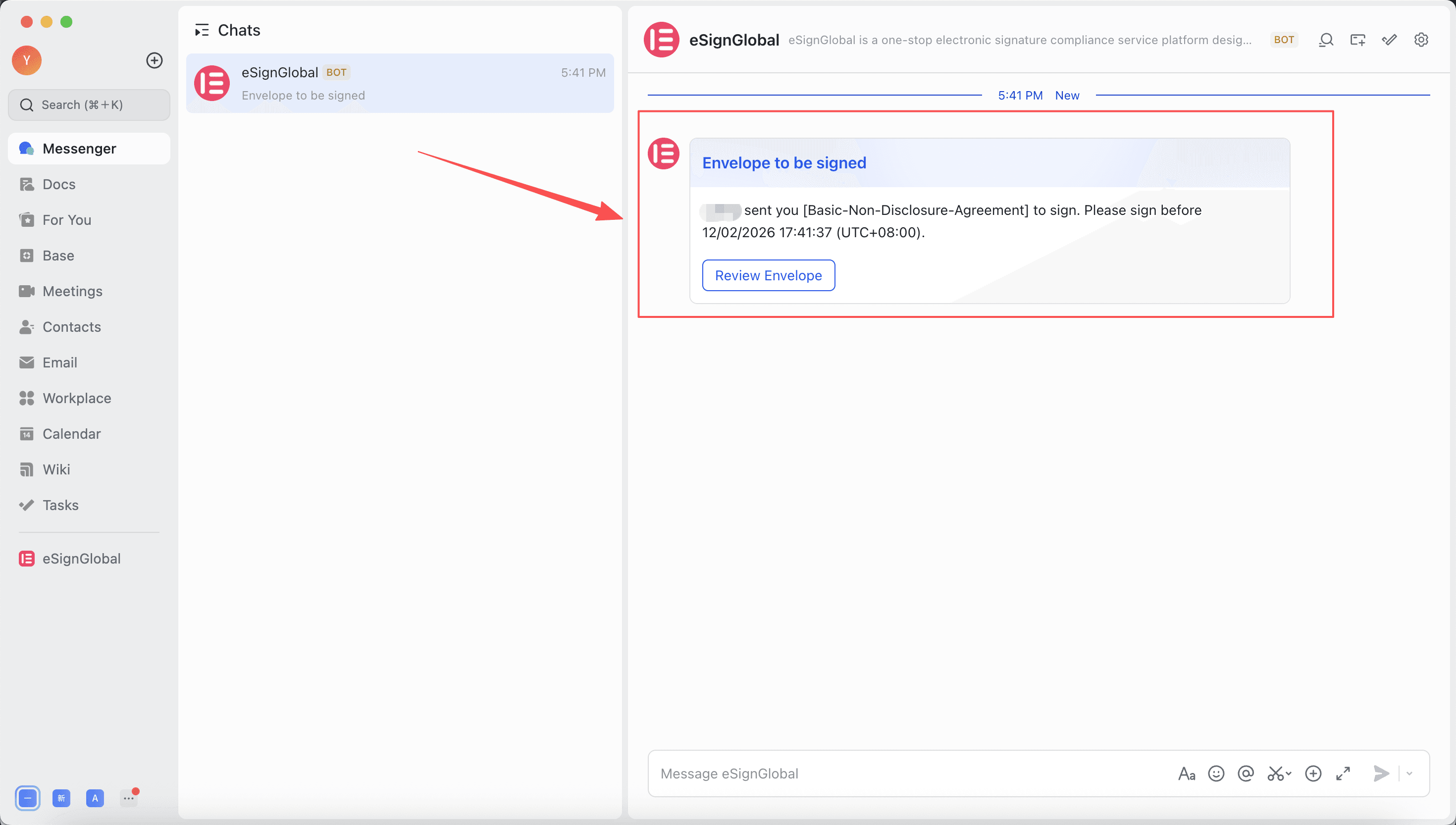
After organization members join the workspace, signing envelopes will be sent to the Lark organization’s workspace by default. Signers can receive signing notifications through the eSignGlobal bot.
-
Click the “View Envelope” button in the notification to open the signing page and complete the signing.
Note:
- When using the same email address to join multiple Lark organization workspaces, users will not be able to receive signing notifications from the Lark bot.
For the usage process after entering the workspace, please refer to the eSignGlobal User Manual.


