


 Service Center
WhatsApp OTP Verification
eSignGlobal now supports authenticating signers via WhatsApp OTP. After enabling this feature, initiators can require designated signers to receive verification codes via WhatsApp when sending envelopes, and complete verification when accessing or signing documents. This enhances the security of identity verification and global reach, especially suitable for overseas business scenarios where WhatsApp is commonly used.
Note:
- 【Applicable Versions】Professional version and above by default.
- Before use, the tenant administrator or super administrator needs to install the WhatsApp Authentication plugin in the plugin center.
- Currently, WhatsApp OTP verification messages are only supported in English.
Installing and Managing the WhatsApp Authentication Plugin
Before using WhatsApp OTP verification, the platform’s tenant administrator or super administrator needs to install the plugin in the plugin center.
- After logging into the platform, go to the plugin center and find the WhatsApp Authentication plugin.
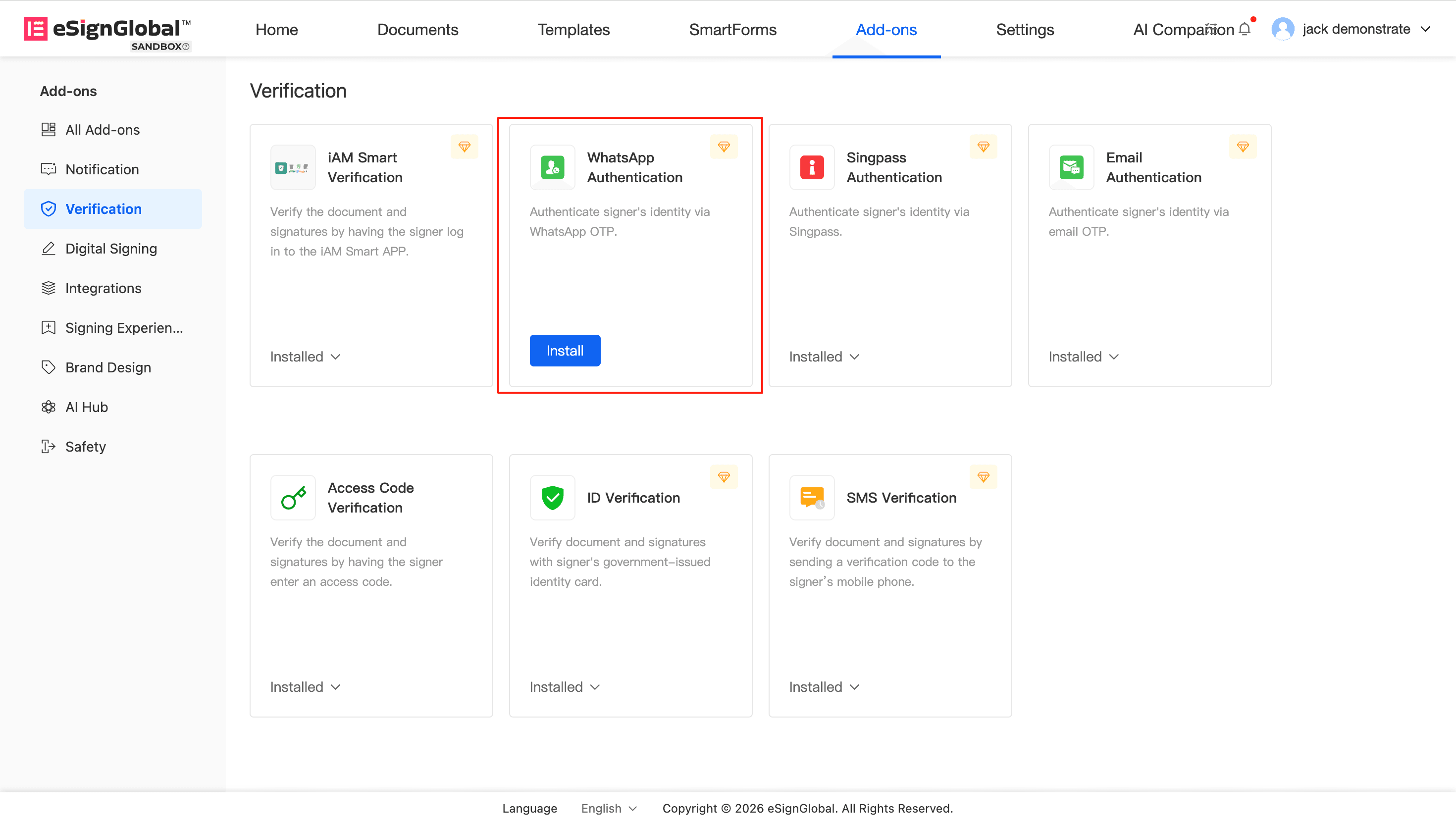
- Click Install to complete the activation.
Note:
- Impact after installation: When initiating an envelope, a WhatsApp Authentication option will be added to the authentication method.
- Impact after uninstallation: Workspaces that have uninstalled the plugin will no longer be able to add new identity verification configurations using WhatsApp OTP.
Configuring WhatsApp OTP Verification for Signers When Sending Envelopes
After the administrator completes the plugin installation, the initiator can set WhatsApp OTP as the identity verification method for designated signers in scenarios such as regular initiation and template initiation. Signers need to complete the verification code verification before accessing the document or performing signing actions.
- On the Add Signers page when initiating an envelope, find the Authentication method for the target signer.
- In the Authentication drop-down list, select WhatsApp Authentication.
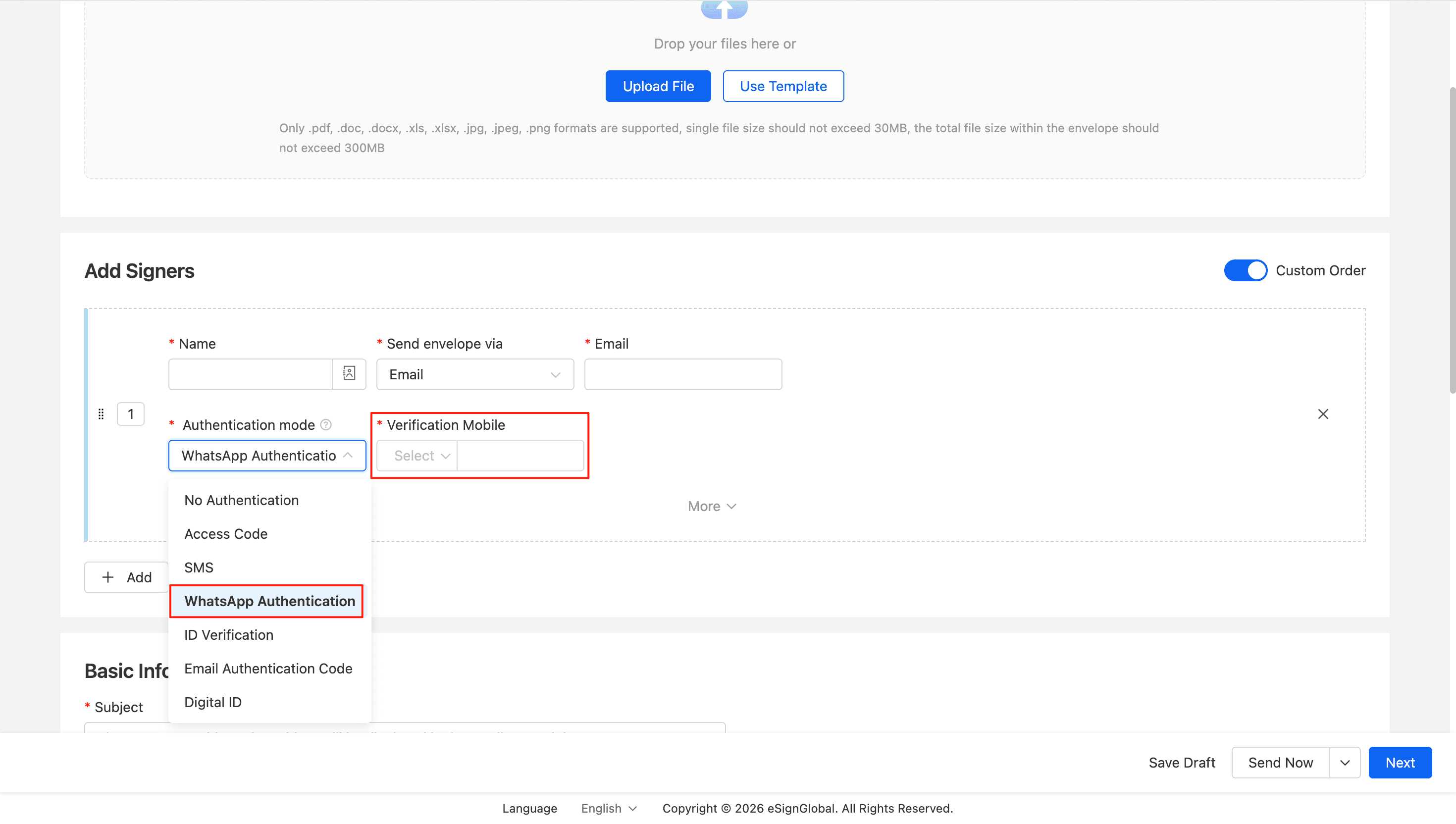
- Fill in the verification mobile number according to the page prompts, select the country/region code and enter the correct mobile number.
- After completing other initiation configurations, send the envelope.
Tip:
-
If the notification method for the signer has been selected as SMS or WhatsApp, and the mobile number has been filled in, the system will automatically bring up the mobile number as the verification mobile number to reduce repeated filling.
-
Please ensure that the mobile number filled in has been registered and can normally receive WhatsApp messages, otherwise the signer will not be able to complete identity verification.
Configure WhatsApp OTP Verification for Batch Initiation
If you initiate envelopes in batches, you can also uniformly set the WhatsApp OTP authentication method for signers.
- Go to the batch initiation page and select WhatsApp Authentication as the authentication method.
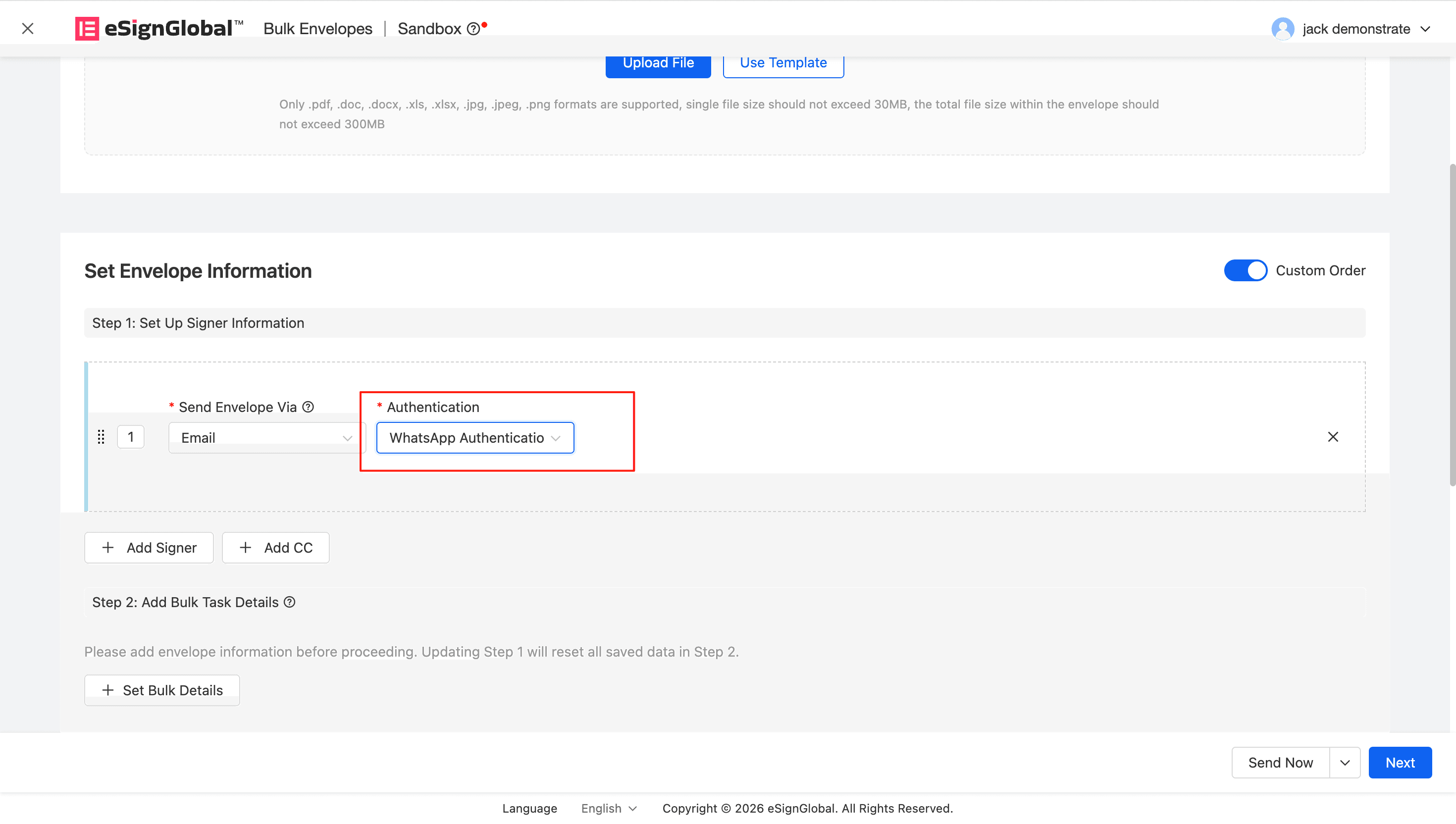
- Fill in the signer’s verification mobile phone number field according to the template requirements. The mobile phone number must include the international area code.
- Import data and initiate envelopes.
Note:
- The mobile phone number in the batch template needs to include the country code, for example,
86-13112341234.
Signer Receives Verification Code via WhatsApp and Completes Verification
When the initiator enables WhatsApp OTP verification, the signer needs to receive the verification code via WhatsApp and complete identity verification before opening the signing link or performing signing actions.
- After the signer opens the signing link, the page will display the desensitized verification mobile phone number and prompt to receive the verification code via WhatsApp.
- Click Send Code, and the system will send a 6-digit verification code to the corresponding mobile phone number.
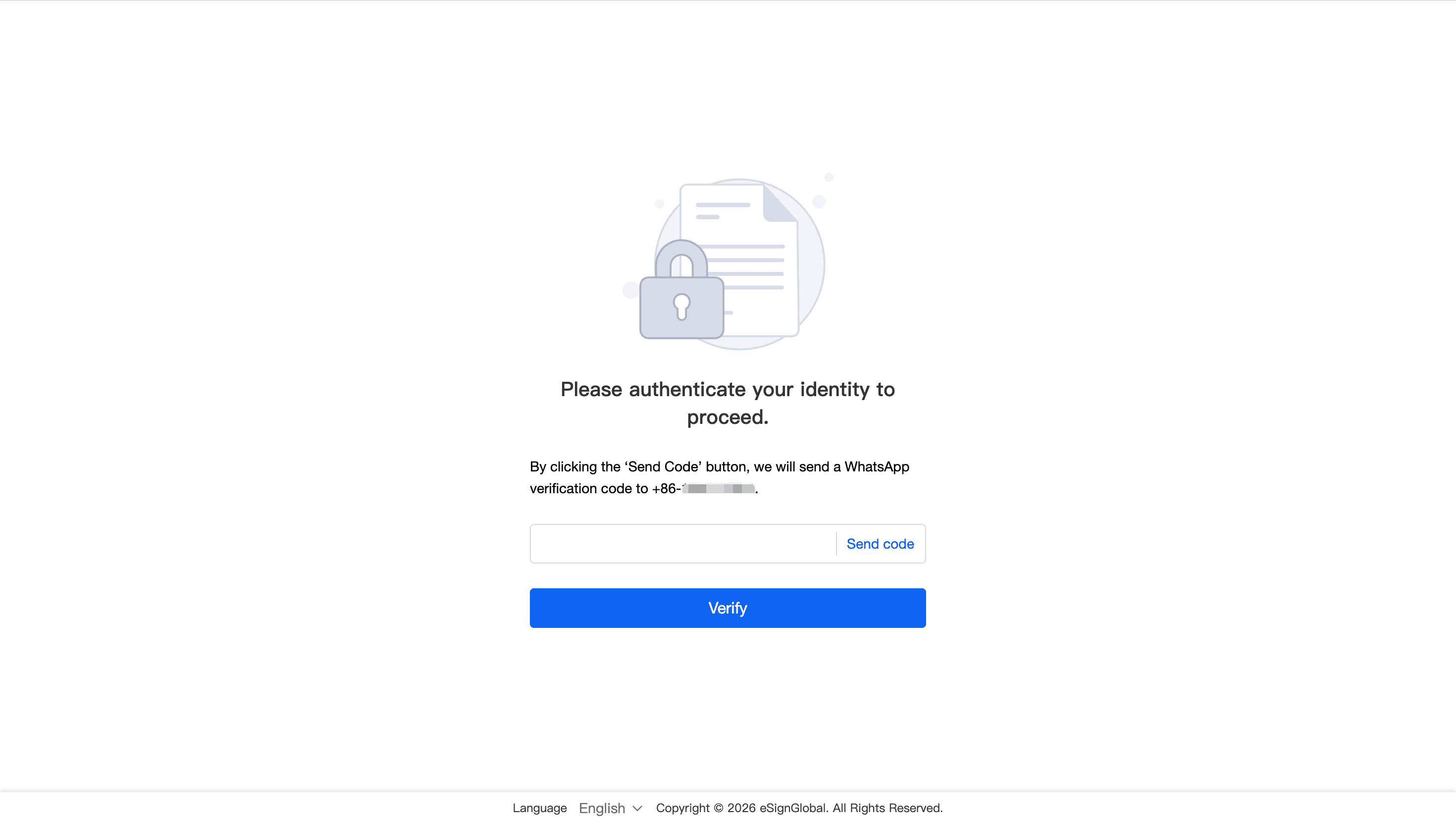
- The signer checks the verification code message in WhatsApp and enters the verification code into the input box on the page.
- After successful verification, continue to view and sign the document.
Tip: If the signer has not received the verification code, it is recommended to first confirm whether the mobile phone number and country code are filled in correctly, and check whether their WhatsApp account is in normal and usable condition.


