
'%3e%3cpath%20fill-rule='evenodd'%20clip-rule='evenodd'%20d='M6.99935%2012.8327C10.221%2012.8327%2012.8327%2010.221%2012.8327%206.99935C12.8327%203.77769%2010.221%201.16602%206.99935%201.16602C3.77769%201.16602%201.16602%203.77769%201.16602%206.99935C1.16602%2010.221%203.77769%2012.8327%206.99935%2012.8327Z'%20stroke='%23666666'%20stroke-linecap='round'%20stroke-linejoin='round'/%3e%3cpath%20d='M1.16602%207H12.8327'%20stroke='%23666666'%20stroke-linecap='round'%20stroke-linejoin='round'/%3e%3cpath%20fill-rule='evenodd'%20clip-rule='evenodd'%20d='M6.99935%2012.8327C8.28802%2012.8327%209.33268%2010.221%209.33268%206.99935C9.33268%203.77769%208.28802%201.16602%206.99935%201.16602C5.71068%201.16602%204.66602%203.77769%204.66602%206.99935C4.66602%2010.221%205.71068%2012.8327%206.99935%2012.8327Z'%20stroke='%23666666'%20stroke-linecap='round'%20stroke-linejoin='round'/%3e%3cpath%20d='M2.875%202.95898C3.93063%204.01461%205.38896%204.66754%206.99978%204.66754C8.61062%204.66754%2010.069%204.01461%2011.1246%202.95898'%20stroke='%23666666'%20stroke-linecap='round'%20stroke-linejoin='round'/%3e%3cpath%20d='M11.1246%2011.0425C10.069%209.98691%208.61062%209.33398%206.99978%209.33398C5.38896%209.33398%203.93063%209.98691%202.875%2011.0425'%20stroke='%23666666'%20stroke-linecap='round'%20stroke-linejoin='round'/%3e%3c/g%3e%3cdefs%3e%3cclipPath%20id='clip0_1267_9109'%3e%3crect%20width='14'%20height='14'%20fill='white'/%3e%3c/clipPath%3e%3c/defs%3e%3c/svg%3e)


Cách xác minh chữ ký số trong Adobe


Hiểu Rõ Chữ Ký Số Trong Môi Trường Kinh Doanh
Trong bối cảnh kinh doanh số ngày nay, việc xác thực chữ ký số là tối quan trọng để đảm bảo tính xác thực, tuân thủ và bảo mật của tài liệu. Các công cụ như Adobe Acrobat đóng vai trò then chốt trong quy trình này, cho phép các chuyên gia xác thực chữ ký một cách hiệu quả. Bài viết này khám phá các phương pháp thực tế để xác thực trong Adobe, đồng thời cung cấp một cái nhìn tổng quan trung lập về các nền tảng chữ ký điện tử liên quan từ góc độ kinh doanh.

Cách Xác Thực Chữ Ký Số Trong Adobe Acrobat
Chữ ký số trong Adobe Acrobat sử dụng công nghệ mã hóa để xác nhận danh tính của người ký và phát hiện bất kỳ thay đổi nào đối với tài liệu. Từ góc độ kinh doanh, quy trình xác thực này giúp giảm thiểu rủi ro trong hợp đồng, phê duyệt và thỏa thuận pháp lý, đảm bảo khả năng thực thi trong hoạt động. Hệ sinh thái của Adobe, bao gồm Acrobat Reader và Pro, cung cấp các công cụ mạnh mẽ để thực hiện điều này, khiến nó trở thành một công cụ cần thiết cho các doanh nghiệp xử lý khối lượng lớn quy trình làm việc với tài liệu.
Các Khái Niệm Quan Trọng Trước Khi Xác Thực
Trước khi đi sâu vào các bước, điều quan trọng cần lưu ý là chữ ký số khác với chữ ký điện tử. Chữ ký số sử dụng chứng chỉ từ các cơ quan đáng tin cậy (ví dụ: chứng chỉ do các thành viên CA/B Forum cấp) để cung cấp khả năng không thể chối cãi—nghĩa là người ký không thể phủ nhận hành động của họ. Trong Adobe, quá trình xác thực sẽ kiểm tra chuỗi chứng chỉ, dấu thời gian và tính toàn vẹn của tài liệu. Các doanh nghiệp nên đảm bảo rằng quy trình làm việc của họ tuân thủ các tiêu chuẩn như eIDAS của EU hoặc ESIGN Act của Hoa Kỳ, những tiêu chuẩn này công nhận các chữ ký này có giá trị pháp lý tương đương với chữ ký mực viết tay. Ví dụ: theo ESIGN Act năm 2000 của Hoa Kỳ, chữ ký số phải chứng minh ý định và sự đồng ý của người ký, và quá trình xác thực xác nhận rằng nội dung không bị thay đổi.
Nếu hoạt động ở các khu vực như EU, quy định eIDAS phân loại chữ ký thành các cấp độ đơn giản, nâng cao và đủ điều kiện, và Adobe hỗ trợ cấp độ đủ điều kiện thông qua phần cứng được chứng nhận. Tại các thị trường Châu Á Thái Bình Dương, như Đạo luật Giao dịch Điện tử của Singapore hoặc Pháp lệnh Giao dịch Điện tử của Hồng Kông, quá trình xác thực trong Adobe hoạt động tốt, miễn là chứng chỉ tuân thủ các tiêu chuẩn PKI địa phương. Sự khác biệt về khu vực này nhấn mạnh tầm quan trọng của việc kiểm tra tuân thủ độc lập với công cụ.
Hướng Dẫn Từng Bước Để Xác Thực Trong Adobe Acrobat
Xác thực chữ ký số trong Adobe rất đơn giản và có thể được thực hiện bằng các công cụ miễn phí như Acrobat Reader DC hoặc Acrobat Pro trả phí. Dưới đây là hướng dẫn chi tiết, hướng đến kinh doanh, có thể được tích hợp vào các hoạt động hàng ngày:
-
Mở Tài Liệu: Khởi chạy Adobe Acrobat (Reader hoặc Pro) và mở tệp PDF chứa chữ ký. Đối với các nhóm, điều này thường được chia sẻ thông qua bộ nhớ đám mây an toàn như Adobe Document Cloud để duy trì dấu vết kiểm tra.
-
Xác Định Vị Trí Trường Chữ Ký: Chữ ký được hiển thị dưới dạng các trường tương tác, thường có biểu tượng huy hiệu (ví dụ: dấu kiểm hợp lệ hoặc dấu X không hợp lệ). Nhấp vào chữ ký để mở rộng bảng điều khiển. Trong môi trường kinh doanh, gợi ý trực quan nhanh chóng này có thể tiết kiệm thời gian trong các chu kỳ xem xét.
-
Truy Cập Bảng Điều Khiển Chữ Ký: Chuyển đến ngăn bên phải và chọn "Signatures" (hoặc sử dụng Tools > Certificates > Verify Signatures). Bảng điều khiển hiển thị tất cả các chữ ký trong tài liệu, bao gồm các trạng thái như "Valid", "Invalid" hoặc "Unknown".
-
Xác Minh Tính Hợp Lệ Của Chữ Ký:
- Kiểm Tra Chỉ Báo Trạng Thái: Dấu kiểm màu xanh lá cây cho biết chữ ký hợp lệ—không có thay đổi nào được thực hiện sau khi ký và chứng chỉ được tin cậy. Dấu chấm than cho biết các vấn đề, chẳng hạn như chứng chỉ hết hạn hoặc chuỗi bị hỏng.
- Kiểm Tra Chi Tiết Chứng Chỉ: Nhấp đúp vào chữ ký để mở hộp thoại "Signature Properties". Trong tab "Signature Validation", hãy xem xét danh tính của người ký, cơ quan cấp (ví dụ: DigiCert hoặc GlobalSign) và thời gian hiệu lực. Các doanh nghiệp nên xác minh xem chứng chỉ có đến từ một CA gốc được công nhận trong khu vực pháp lý của họ hay không.
- Xác Thực Dấu Thời Gian: Nếu được nhúng, dấu thời gian đáng tin cậy (từ một dịch vụ như Cơ quan Cấp dấu thời gian) sẽ xác nhận ngày ký. Điều này rất quan trọng đối với các hợp đồng nhạy cảm về thời gian.
-
Xử Lý Chữ Ký Không Hợp Lệ Hoặc Không Xác Định:
- Đối với trạng thái "Unknown", hãy nhập chứng chỉ của người ký hoặc định cấu hình các gốc đáng tin cậy thông qua Edit > Preferences > Signatures > Verification > More... > Trusted Certificates. Các doanh nghiệp thường định cấu hình trước những điều này cho người dùng nội bộ.
- Nếu không hợp lệ do thay đổi, Adobe sẽ đánh dấu các khu vực đã thay đổi bằng màu đỏ. Khôi phục hoặc từ chối tài liệu theo chính sách.
- Sử dụng nút "Verify All" để kiểm tra hàng loạt nhiều chữ ký, phù hợp cho các đánh giá kinh doanh hàng loạt.
-
Sử Dụng Acrobat Pro Để Xác Thực Nâng Cao:
- Bật "Usage Rights" để tăng cường bảo mật: Tools > Protect > More Protection > Secure Document with Password, sau đó xác thực.
- Chạy báo cáo xác thực chứng chỉ đầy đủ: Tools > Certificates > Validate All Signatures. Xuất báo cáo này dưới dạng PDF hoặc XML để kiểm tra tuân thủ.
- Để xác thực dài hạn, hãy nhúng chính sách LTV (Long-Term Validation) trong quá trình ký để đảm bảo khả năng xác minh trong tương lai mà không cần dựa vào CRL (Certificate Revocation List) thời gian thực.
-
Khắc Phục Sự Cố Các Vấn Đề Phổ Biến:
- Chứng Chỉ Không Được Tin Cậy: Tải xuống và cài đặt chứng chỉ gốc từ trang web của nhà phát hành.
- Xác Thực Ngoại Tuyến: Adobe lưu trữ thông tin thu hồi; đối với môi trường cách ly, hãy sử dụng bộ phản hồi OCSP.
- Xác Thực Di Động: Trong ứng dụng Adobe Fill & Sign, hãy nhấn vào chữ ký để kiểm tra cơ bản, mặc dù máy tính để bàn cung cấp phân tích chuyên sâu hơn.
Quá trình này thường mất chưa đến một phút cho mỗi tài liệu, có thể mở rộng hiệu quả cho các doanh nghiệp. Tích hợp nó với quy trình làm việc như Adobe Sign có thể tự động hóa quá trình xác thực, giảm lỗi thủ công. Từ góc độ kinh doanh, độ tin cậy của Adobe hỗ trợ các hoạt động toàn cầu, nhưng chi phí (ví dụ: khoảng 240 đô la/năm cho Acrobat Pro) nên được đưa vào tính toán ROI.
Trong thực tế, việc xác thực trong Adobe không chỉ xác nhận tính toàn vẹn về mặt kỹ thuật mà còn tăng cường vị thế pháp lý. Ví dụ: trong các giao dịch xuyên biên giới theo Luật Mẫu UNCITRAL của Liên Hợp Quốc (được hơn 80 quốc gia áp dụng), chữ ký Adobe đã được xác thực có thể chứng minh tính xác thực trong các tranh chấp.
So Sánh Các Nền Tảng Chữ Ký Điện Tử Hàng Đầu
Khi các doanh nghiệp đánh giá các công cụ ký kết đầu cuối vượt ra ngoài Adobe, một so sánh trung lập về các nền tảng như Adobe Sign, DocuSign, eSignGlobal và HelloSign (nay là Dropbox Sign) cho thấy sự đánh đổi về tính năng, giá cả và tuân thủ. Các giải pháp này khác nhau về khả năng mở rộng, với Adobe vượt trội trong xác thực tập trung vào PDF, trong khi các nền tảng khác nhấn mạnh tự động hóa quy trình làm việc.
Adobe Sign: Tích Hợp & Tập Trung Vào Doanh Nghiệp
Adobe Sign, một phần của Adobe Document Cloud, mở rộng liền mạch khả năng xác thực của Acrobat sang ký kết hợp tác. Nó hỗ trợ các mẫu không giới hạn, ký kết trên thiết bị di động và tích hợp API với các hệ thống CRM như Salesforce. Giá bắt đầu từ $10/người dùng/tháng cho cá nhân và mở rộng đến các gói tùy chỉnh cho doanh nghiệp bao gồm phân tích nâng cao. Ưu điểm bao gồm xử lý PDF chuyên sâu và tuân thủ các tiêu chuẩn toàn cầu như GDPR và HIPAA. Tuy nhiên, nó có thể cảm thấy quá tập trung vào PDF đối với các quy trình làm việc không liên quan đến tài liệu và các tính năng bổ sung như xác thực danh tính sẽ phát sinh thêm chi phí.

DocuSign: Dẫn Đầu Thị Trường Về Tự Động Hóa
DocuSign dẫn đầu với tự động hóa mạnh mẽ, bao gồm gửi hàng loạt và định tuyến có điều kiện. Các gói eSignature của nó dao động từ $10/tháng (Cá nhân) đến $40/người dùng/tháng (Business Pro), với các cấp API bắt đầu từ $600/năm. Nó cung cấp xác thực mạnh mẽ thông qua kiểm tra chứng chỉ tích hợp và hỗ trợ ESIGN, UETA và eIDAS. Các doanh nghiệp đánh giá cao tích hợp hệ sinh thái của nó (ví dụ: Microsoft 365), nhưng giới hạn phong bì trong các gói tiêu chuẩn (khoảng 100/người dùng/năm) và chi phí Châu Á Thái Bình Dương cao hơn do độ trễ và các tiện ích bổ sung tuân thủ có thể tích lũy. Các tùy chọn doanh nghiệp cung cấp SSO và kiểm tra, phù hợp cho việc triển khai quy mô lớn.

eSignGlobal: Chuyên Gia Tuân Thủ Khu Vực
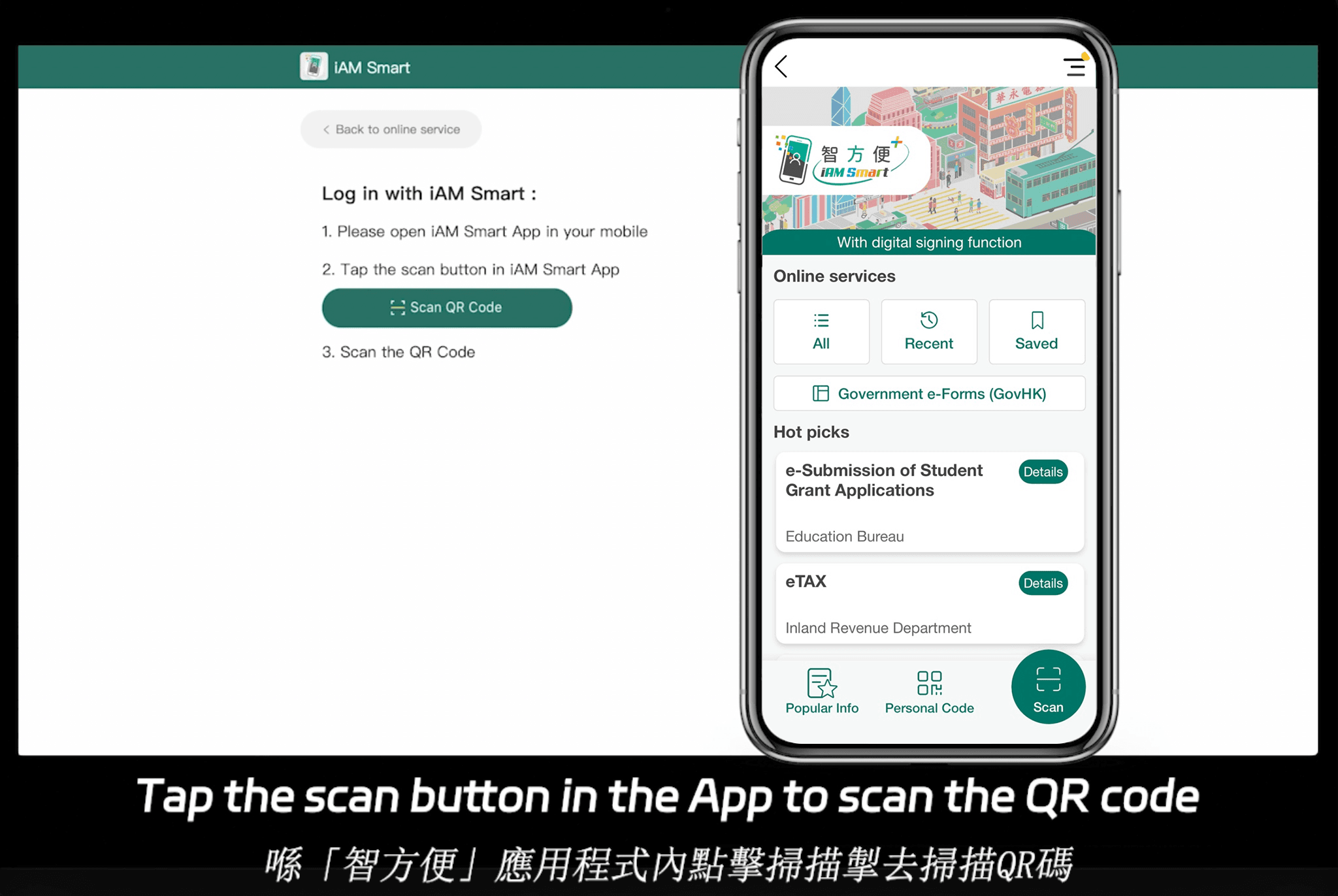
eSignGlobal nổi bật với phạm vi tuân thủ bao gồm 100 quốc gia và khu vực chính trên toàn cầu, đặc biệt mạnh ở Châu Á Thái Bình Dương. Nó hỗ trợ tích hợp cục bộ như iAM Smart của Hồng Kông và Singpass của Singapore, đảm bảo xác thực danh tính liền mạch. Giá cả cạnh tranh; chi tiết có sẵn trên trang giá của eSignGlobal. Gói Essential chỉ với $16,6/tháng cho phép gửi tối đa 100 tài liệu, số lượng người dùng không giới hạn và xác thực bằng mã truy cập—cung cấp giá trị cao trên cơ sở tuân thủ. Điều này làm cho nó trở thành một lựa chọn hiệu quả về chi phí cho các doanh nghiệp hướng đến Châu Á Thái Bình Dương đang tìm kiếm sự linh hoạt mà không phải trả phí bảo hiểm.
HelloSign (Dropbox Sign): Giải Pháp Thay Thế Thân Thiện Với Người Dùng
HelloSign, được Dropbox mua lại, nhấn mạnh sự đơn giản, với giao diện kéo và thả và cấp độ miễn phí cơ bản. Các gói trả phí bắt đầu từ $15/tháng bao gồm 20 tài liệu và phiên bản doanh nghiệp có mức giá tùy chỉnh. Nó xác thực chữ ký thông qua kiểm tra dựa trên API và tuân thủ ESIGN và GDPR, tích hợp tốt với Dropbox để lưu trữ. Nó phù hợp với SMB, nhưng thiếu các tính năng nâng cao dành riêng cho Châu Á Thái Bình Dương so với các đối thủ trong khu vực.
Bảng So Sánh Trung Lập
| Tính Năng/Khía Cạnh | Adobe Sign | DocuSign | eSignGlobal | HelloSign (Dropbox Sign) |
|---|---|---|---|---|
| Giá Khởi Điểm (Hàng Tháng) | $10/người dùng (Cá nhân) | $10 (Cá nhân) | $16,6 (Essential) | $15 (Essentials) |
| Giới Hạn Tài Liệu | Không giới hạn (Gói trả phí) | ~100 phong bì/người dùng/năm | 100 lần gửi (Essential) | 20 (Essentials) |
| Tập Trung Tuân Thủ | Toàn cầu (eIDAS, ESIGN, HIPAA) | Toàn cầu + Thách thức Châu Á Thái Bình Dương | 100 quốc gia, Bản địa hóa Châu Á Thái Bình Dương | ESIGN, GDPR |
| Ưu Điểm Chính | Độ sâu xác thực PDF | Tự động hóa & Tích hợp | Tích hợp khu vực, Giá trị | Đơn giản & Lưu trữ đám mây |
| API/Tích Hợp | Mạnh mẽ (Salesforce, v.v.) | Rộng rãi (API Gửi Hàng Loạt) | Linh hoạt, Singpass/iAM Smart | Tập trung vào Dropbox |
| Phù Hợp Nhất Với | Doanh nghiệp chuyên sâu về PDF | Tự động hóa khối lượng lớn | Tuân thủ Châu Á Thái Bình Dương | Nhu cầu cơ bản SMB |
Bảng này làm nổi bật các tùy chọn dựa trên dữ liệu công khai mà không thiên vị bất kỳ bên nào. Các doanh nghiệp nên đánh giá dựa trên dung lượng, khu vực và nhu cầu tích hợp.
Kết Luận: Chọn Sự Phù Hợp
Tóm lại, việc xác thực chữ ký số trong Adobe cung cấp một nền tảng an toàn cho các tài liệu kinh doanh, với các bước rõ ràng đảm bảo tuân thủ toàn cầu. Đối với những người dùng đang tìm kiếm các giải pháp thay thế DocuSign, eSignGlobal nổi lên như một lựa chọn trung lập, tuân thủ khu vực, đặc biệt đối với các hoạt động ở Châu Á Thái Bình Dương cân bằng chi phí và hỗ trợ toàn cầu.
