

 Service Center
Batch Add Members
Before using the functions in this user manual, you need to understand the user seat limits corresponding to different versions:
- Experience Version: The user seat limit is 1.
- Basic Version: Unlimited user seats.
- Professional Version: Unlimited user seats.
-
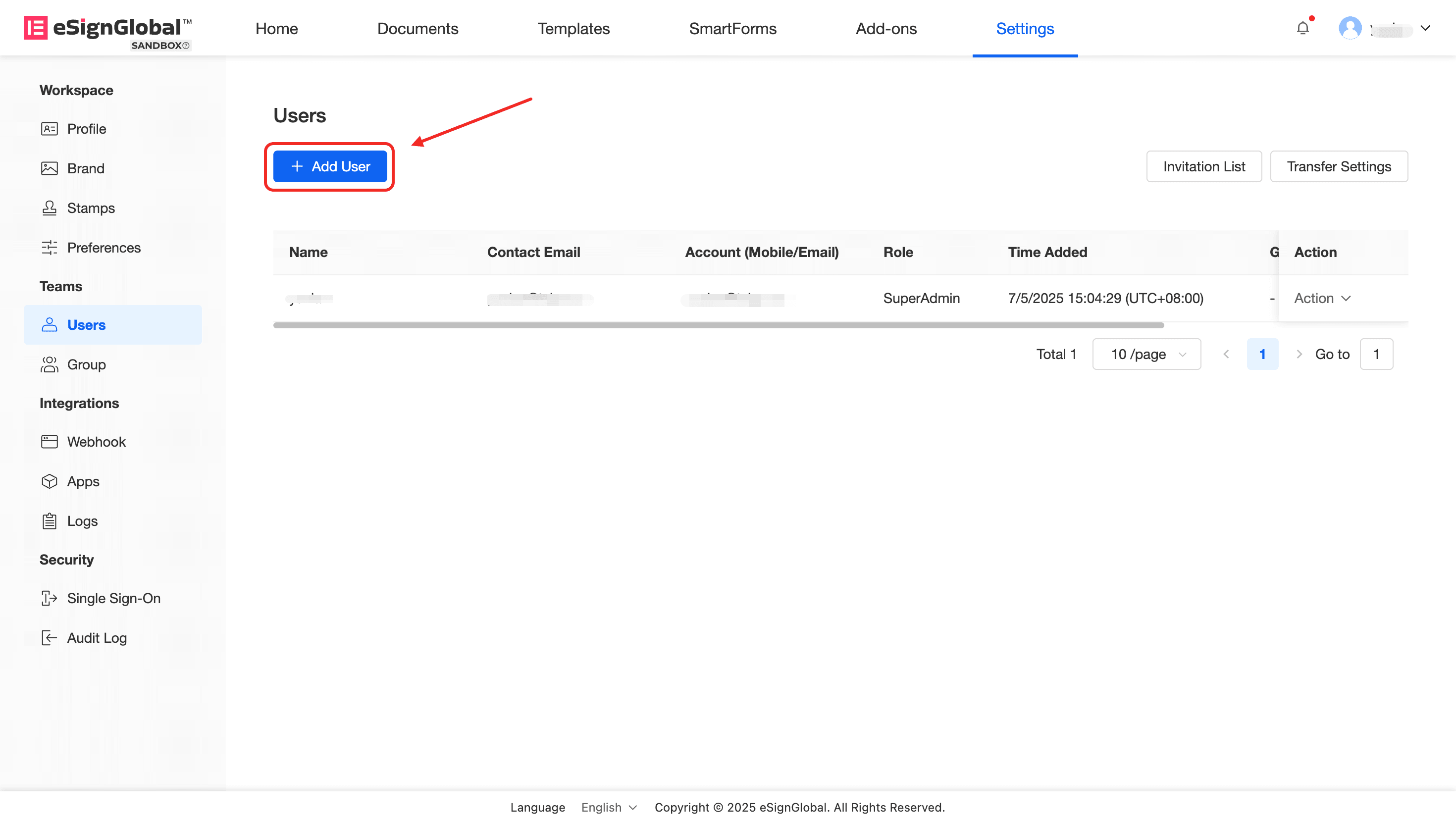
Enter the workspace: Select [Settings] > [Members].
-
Click the [Add Member] button.
Note:
The workspace super administrator and administrator of eSignGlobal have the right to add members within the workspace.
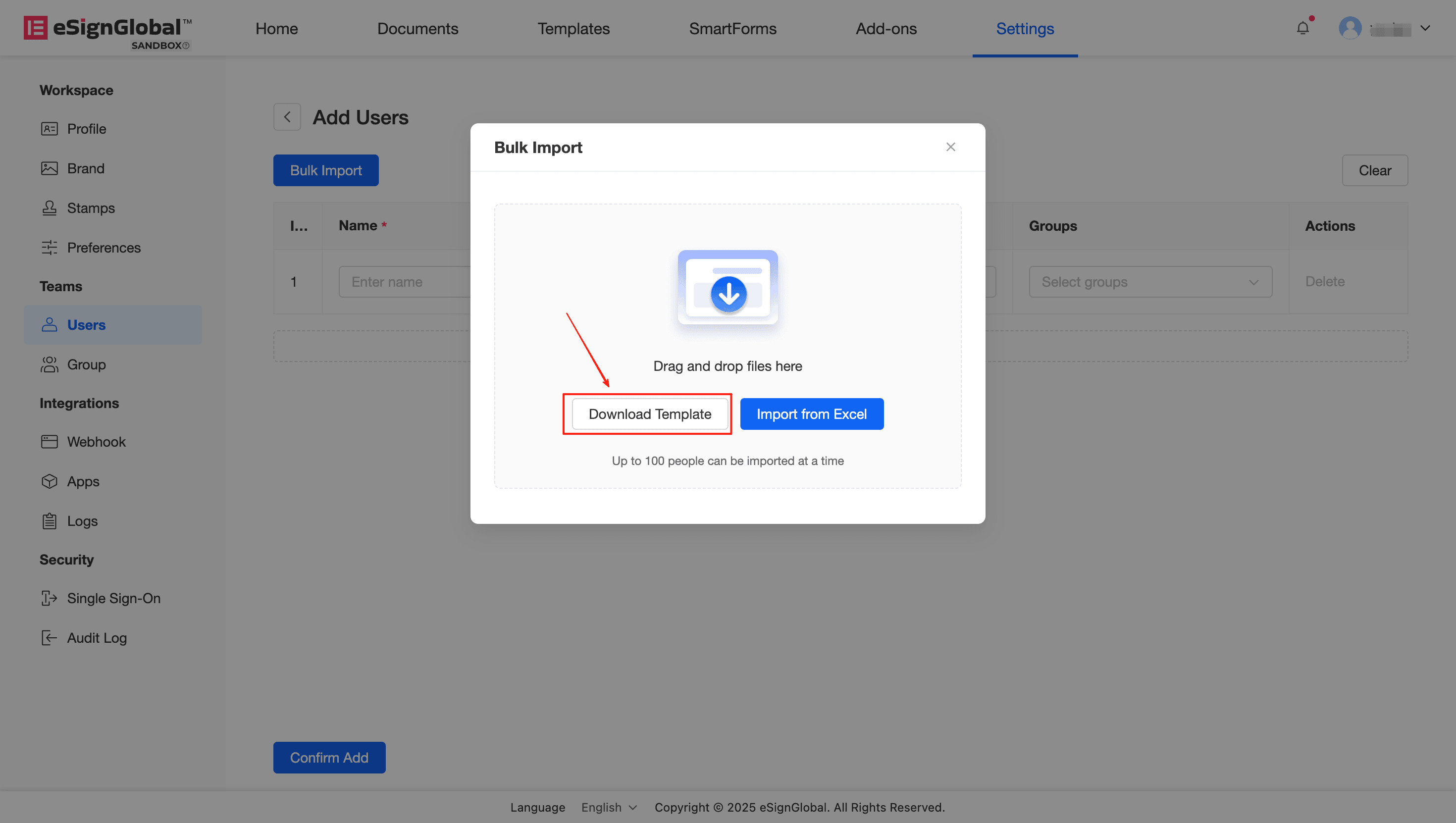
- Click the [Batch Import] button, and click [Download Template].
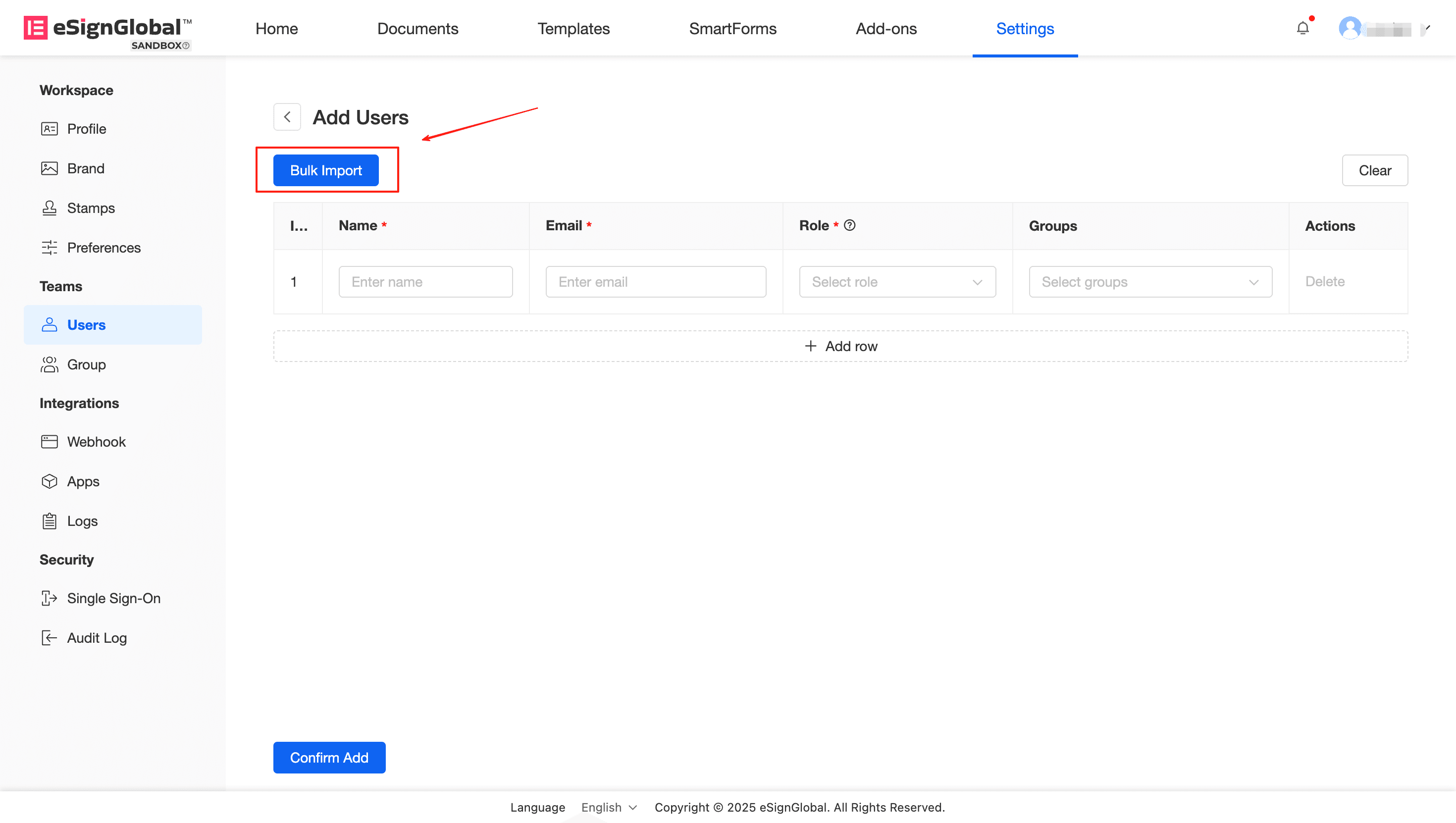
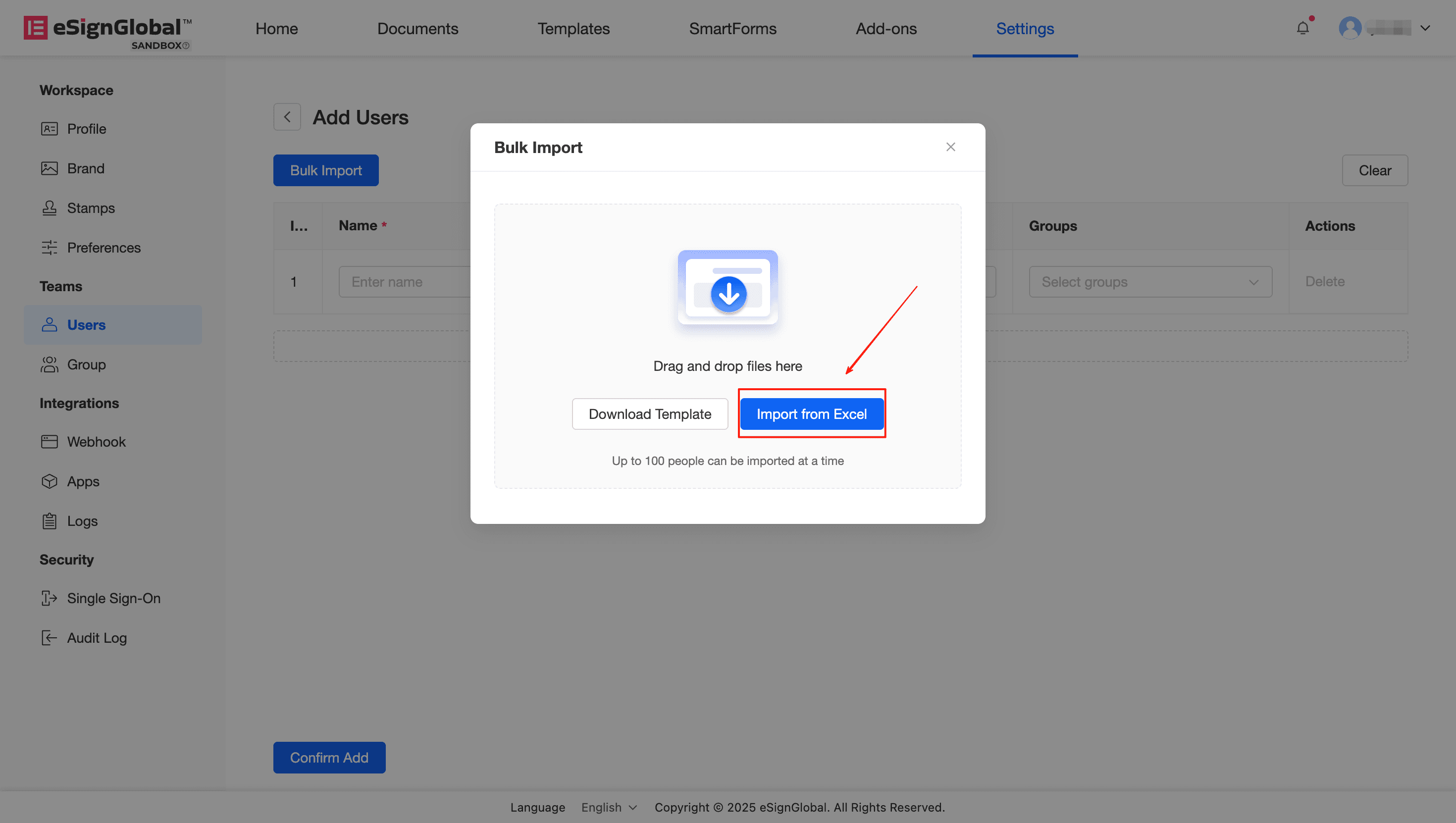
- Fill in the nickname, email, and role of the invited members according to the downloaded template, click the [Import from Excel] button, and then click [Confirm Add].
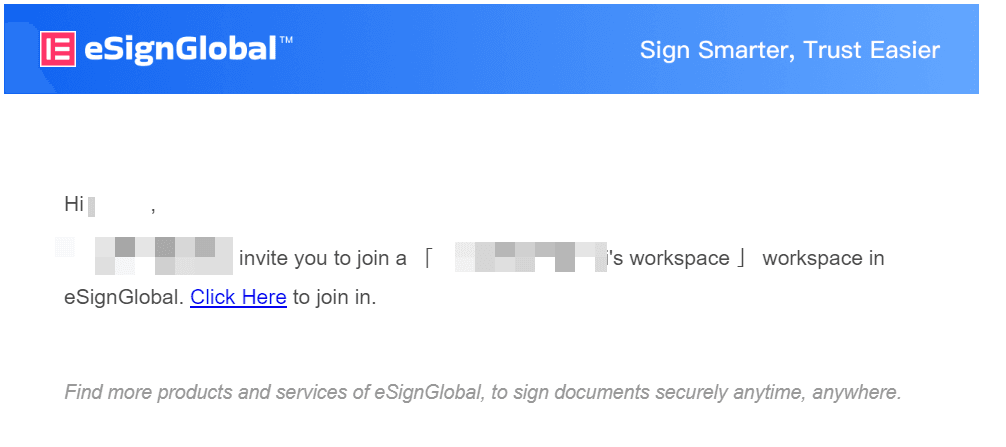
- As an invited member, you will receive an invitation email. Please click the [Click Here] link in the invitation email.
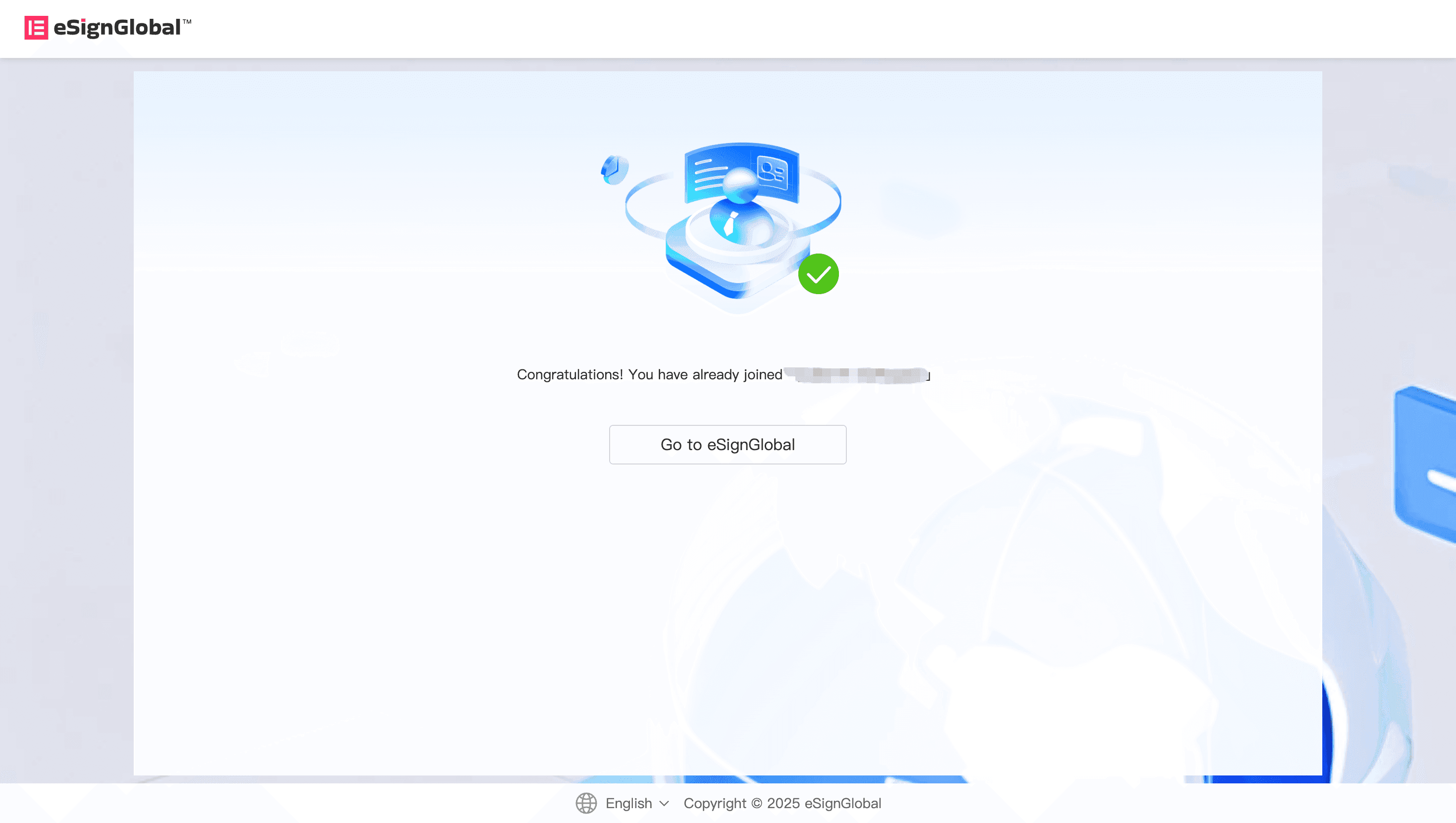
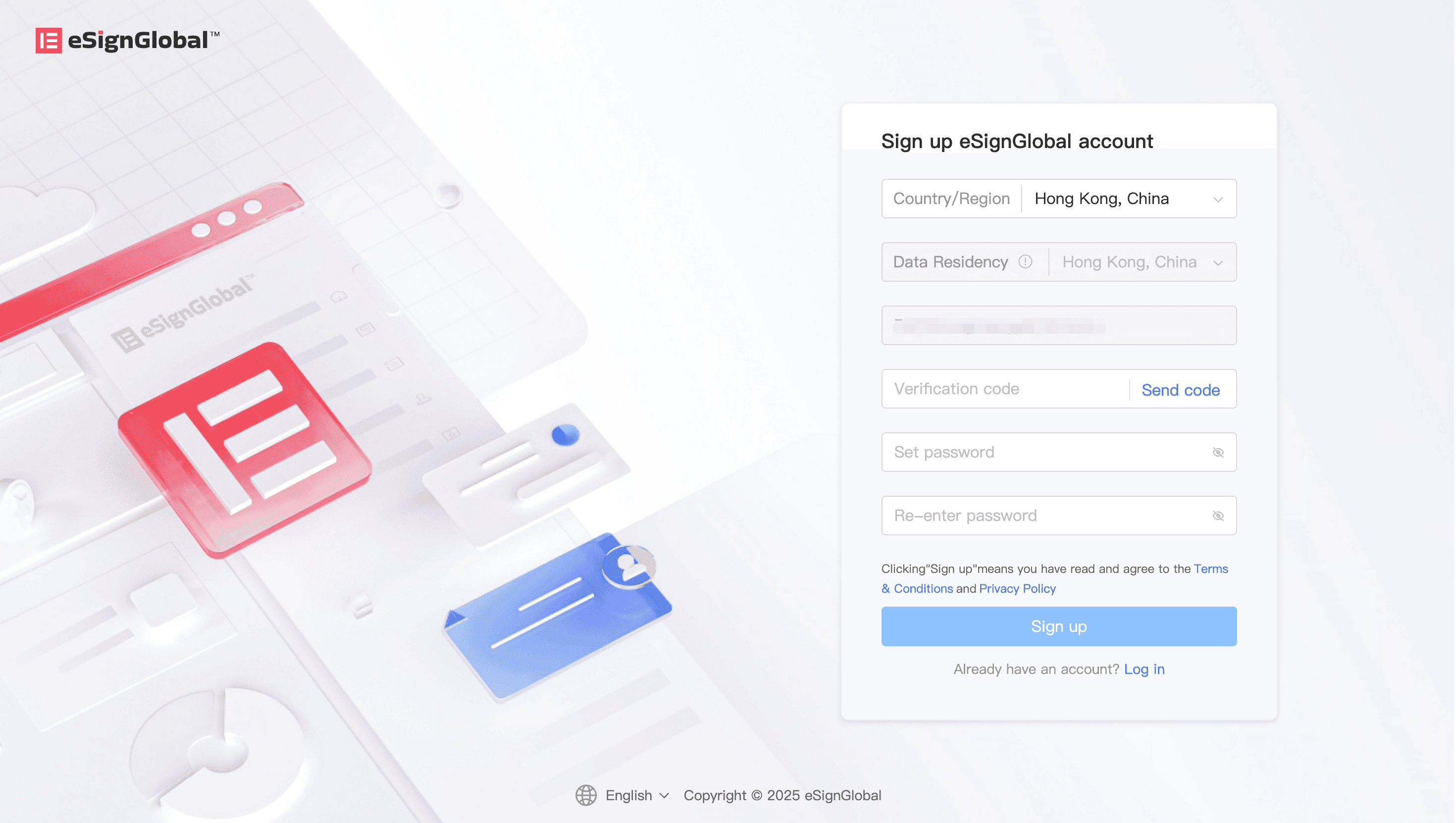
- After confirming the email address, click [Send Verification Code]; enter the verification code, set and confirm the password; click [Register] to complete the account registration.
Tip:
If you have already registered an account with this email on eSignGlobal, please log in directly.
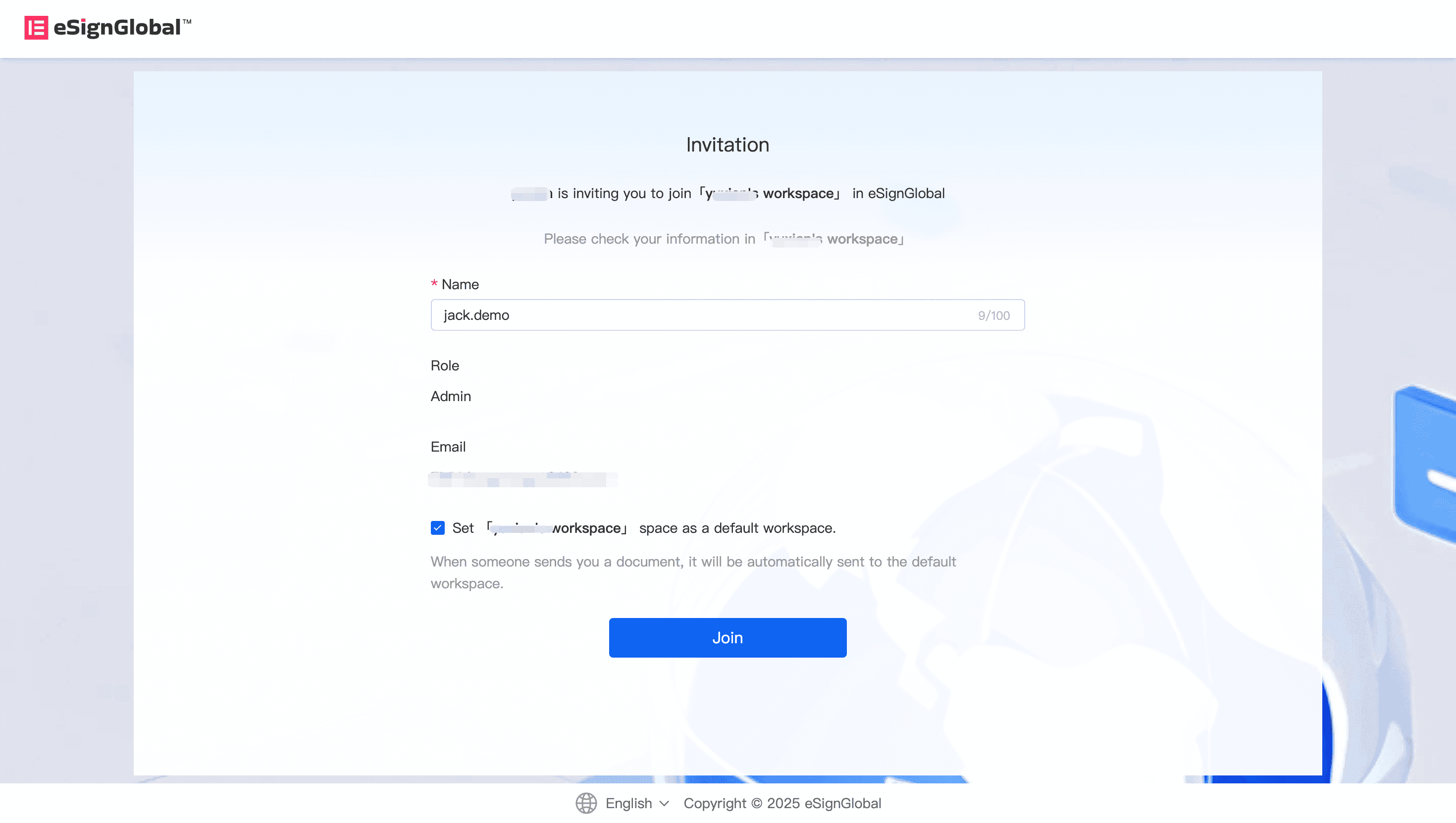
- Check the invitation information and name, and click [Join].